
The complete guide to
CoreAxis ePOS
Contents
- 01Welcome to CoreAxis ePOS
- 02Create Your Account and Sign In
- 03First-Run Setup and the Dashboard
- 04Settings — Your Business
- The Settings page
- Business profile
- UPI and bank details
- Branches
- Financial year
- Invoice configuration and numbering
- Features and configuration (F11 / F12)
- Units, price levels and price list
- Bill charges and stock rules
- Notifications: SMS, WhatsApp, email and online payments
- Branding and e-invoice
- Import your existing data
- 05Users, Roles, Security and Your Data
- 06POS Billing
- 07Sales, Returns and Sales Documents
- 08Inventory: Items and Stock
- 09Purchases and Suppliers
- 10Customers, Khata and Offers
- 11Finance and Accounting
- 12GST Returns and Compliance
- 13Reports
- 14HR and Payroll Basics
- 15Mobile and Desktop Apps
- AFAQ and Troubleshooting
- BKeyboard Shortcuts
- CGlossary
- @Support and Contact
How to use this manual
- Each chapter starts with what the feature is for and a short Hinglish quick start.
- Numbered steps tell you exactly what to click. Bold words are the buttons and menu names on screen.
- Numbered circles on a screenshot match the step numbers next to it.
- Worked examples use the sample business, CoreAxis Demo Enterprises.
Callouts
Welcome to CoreAxis ePOS
CoreAxis ePOS is one account for billing, stock, customers, accounts, GST and staff. This chapter explains what the software does, where it runs and how the screen is laid out, so every later chapter feels familiar.
CoreAxis ePOS ek hi account mein billing (POS), stock, customer khata, accounts aur GST sab kuch deta hai. Browser, Windows app aur Android app — teeno par same data. Pehle screen ka layout samajh lijiye: left mein menu, beech mein kaam, right mein shortcut buttons.
What you can do with CoreAxis ePOS§§intro-what-you-can-do-with-coreaxis-epos§§
CoreAxis ePOS is made for Indian shops, distributors and service businesses. The same account runs:
| Area | What it covers |
|---|---|
| Billing (POS) | Fast counter billing with barcode, discounts, split payment, credit (khata), hold bills, thermal and A4 printing, WhatsApp bills |
| Sales documents | Sales history, returns, cancellations, quotations, delivery challans, credit / debit notes, recurring bills |
| Inventory | Items with HSN / GST, categories, units, stock in every branch, stock audit, transfers, write-offs, barcode labels, alerts |
| Purchases | Suppliers, purchase orders, receiving goods, purchase bills (F9), purchase returns, supplier bills and payments |
| Customers | Customer ledgers, credit limits, loyalty points, khata reminders, offers and the customer portal |
| Finance | Chart of accounts, cash and bank books, day book, receipts, payments, expenses, contra and journal vouchers, P&L and balance sheet |
| GST | GSTR-1, GSTR-3B, GSTR-2B reconciliation, ITC register, e-invoice and e-way bill |
| Reports and HR | Sales, stock, accounts, GST and dues reports; employees, attendance, payroll and leave |
Where it runs§§intro-where-it-runs§§
- Web browser — open coreaxis.cloud/app/login in Chrome or Edge on any computer.
- Windows desktop app — the same screens, with direct printing and offline billing.
- Android app (CoreAxis ePOS 3.0) — billing, khata and reports on your phone. See Chapter 15.
- All of them use one account and one set of data. A bill made on the phone appears on the computer within seconds.
The screen at a glance§§intro-the-screen-at-a-glance§§
Every page has the same frame. Learn it once and you can find anything.
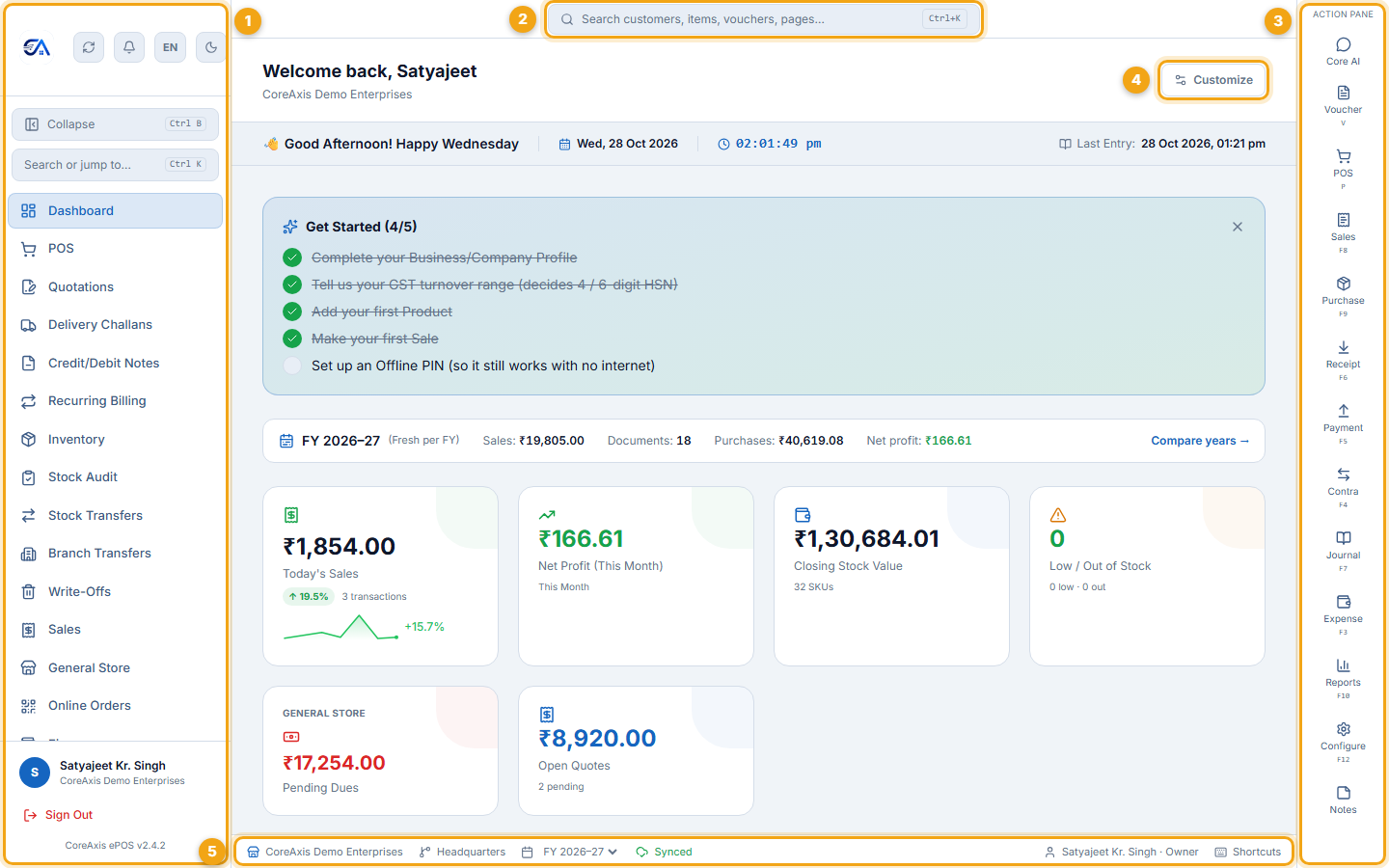
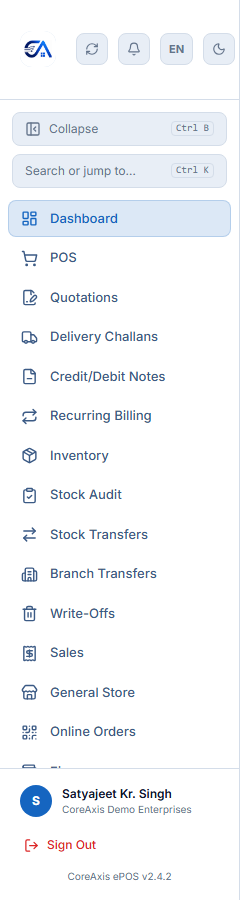
- Sidebar (1) — every module: POS, Quotations, Inventory, Sales, Finance, Customers, Reports, Settings and more. Collapse it with Ctrl+B to get more room; it then shows icons only.
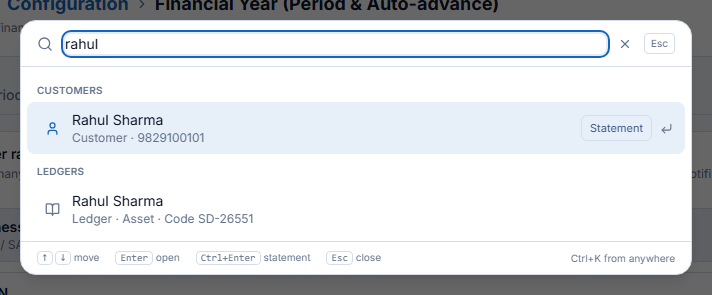
- Search bar (2) — press Ctrl+K and type a customer, item, bill number or page name to jump straight to it.
- Action Pane (3) — one-click vouchers on the right: Voucher (V), POS (P), Sales (F8), Purchase (F9), Receipt (F6), Payment (F5), Contra (F4), Journal (F7), Expense (F3), Reports (F10), Configure (F12) and Notes.
- Customize (4) — choose which cards the Dashboard shows.
- Status bar (5) — business name, current branch, financial year, sync status, the signed-in user with role, and the Shortcuts list.

Search anything and keyboard help§§intro-search-anything-and-keyboard-help§§
- Press Ctrl+K on any page (or click the search bar at the top).
- Type a few letters — for example rahul. Matching customers, items, vouchers and pages appear.
- Use the arrow keys and press Enter to open the result.
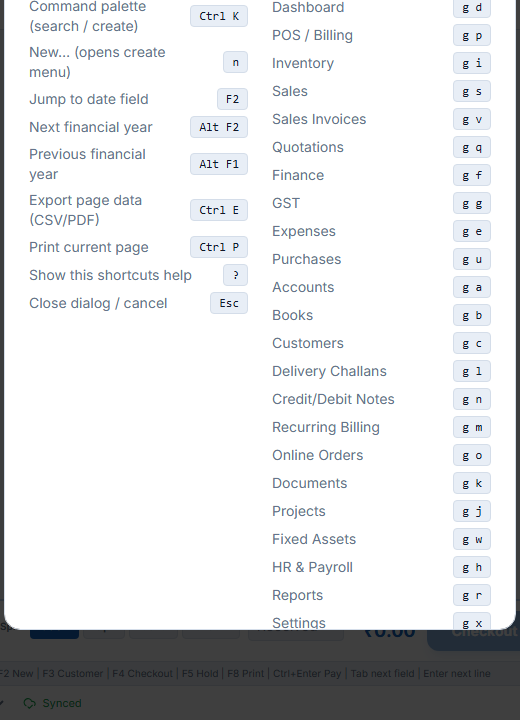
- Press ? on any page to see the keyboard shortcuts for that page.
The example business used in this manual§§intro-the-example-business-used-in-this-manual§§
Every screenshot comes from a sample business set up for this manual. Use the same numbers to follow along.
| Detail | CoreAxis Demo Enterprises |
|---|---|
| Owner | Satyajeet Kr. Singh |
| Type | General Store / Kirana (retail and wholesale) |
| Address | 45, MI Road, Near Panch Batti, Jaipur 302001, Rajasthan |
| GSTIN | 08BXKPS4321L1Z0 (Regular GST, state code 08 — Rajasthan) |
| Branches | Headquarters (MI Road) and Vaishali Nagar Branch |
| Bill numbers | CDE/2026-27/0001, CDE/2026-27/0002 … |
| UPI / bank | coreaxisdemo@okhdfc · HDFC Bank current account |
| Data | 33 items in 7 categories, 5 suppliers, 10 customers, 8 purchases, 19 bills, receipts, payments, expenses, quotations, a challan, credit notes, a cashier and 2 employees |
Create Your Account and Sign In
How to register a new business, sign in every day, handle the one-time code (OTP), recover a forgotten password and protect the account with two-factor authentication.
Naya account banane ke liye coreaxis.cloud/app/register kholiye — 3 step: business aur owner details, business type, password. Roz login ke liye coreaxis.cloud/app/login par email + password. Naye device par email OTP aata hai.
Register a new business§§account-register-a-new-business§§
Open coreaxis.cloud/app/register in Chrome or Edge, or tap Create account in the app. Registration has three short steps.
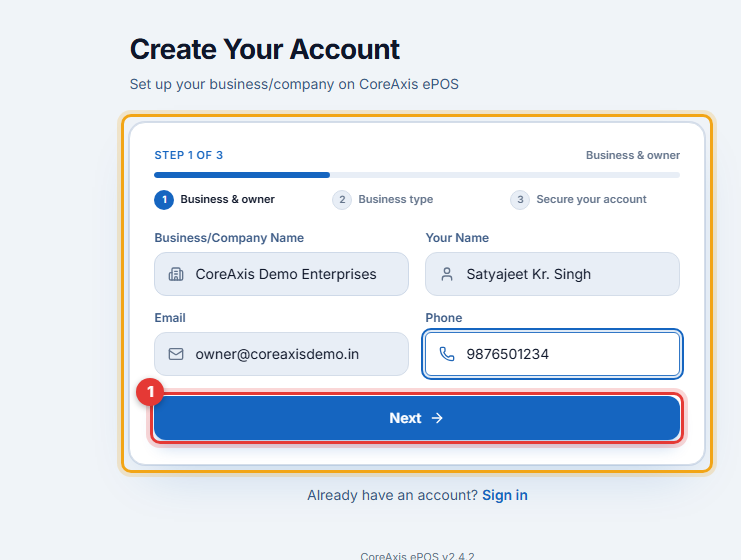
Step 1 — Business and owner
- Enter the Business/Company Name exactly as it should print on bills.
- Enter Your Name (the owner), a working Email and your Phone number.
- Click Next.
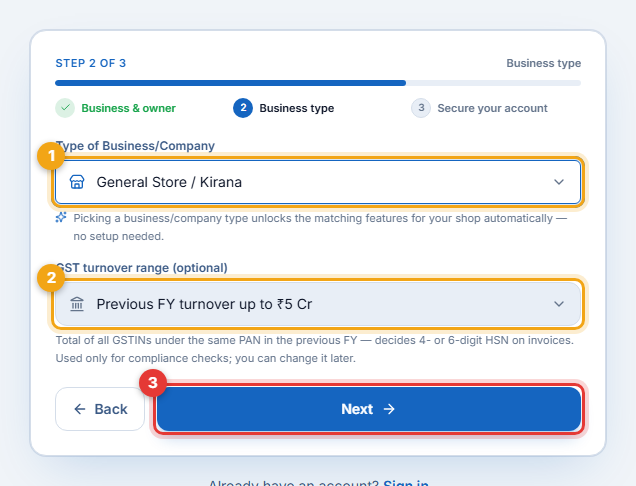
Step 2 — Business type
- Choose the Type of Business/Company (1). This switches on the right screens automatically — for example batches and expiry for a pharmacy, KOT for a restaurant, khata and loose items for a general store.
- Optionally pick your GST turnover range (2). It decides whether invoices need 4-digit or 6-digit HSN codes. You can set it later.
- Click Next (3).
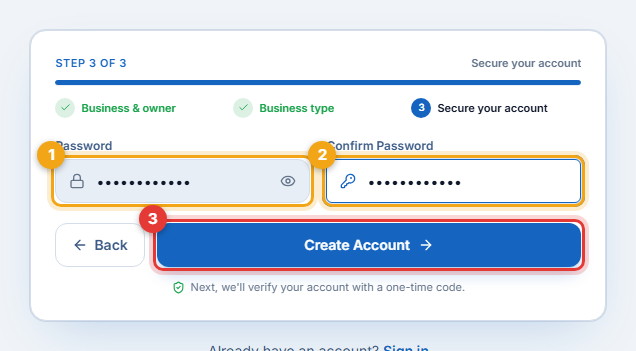
Step 3 — Secure your account
- Create a Password (1) and type it again in Confirm Password (2). Use at least 8 characters with capital and small letters and a number.
- Click Create Account (3).
- A 6-digit code is emailed to you. Enter it on the next screen to verify the email. Your business is then ready and you land on the Dashboard.
Sign in every day§§account-sign-in-every-day§§
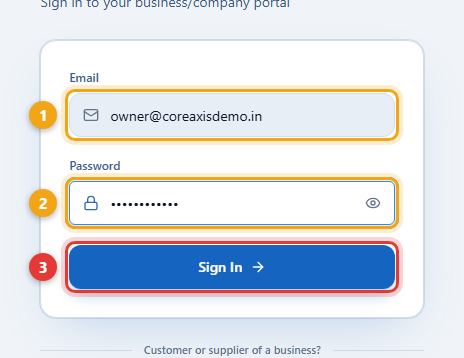
- Open coreaxis.cloud/app/login (or the CoreAxis desktop / Android app).
- Enter your registered Email (1) and Password (2).
- Click Sign In (3).
- On a new device or browser you may be asked for a one-time code sent to your email. Type it and continue.
- If two-factor authentication is on, enter the 6-digit code from your authenticator app.
“Active Session Found”
For safety an account is open on one device at a time. If you sign in on a second device, this message appears. Click Continue Here to sign in here (the other device is signed out) or Cancel to keep the other one.
Forgot your password§§account-forgot-your-password§§
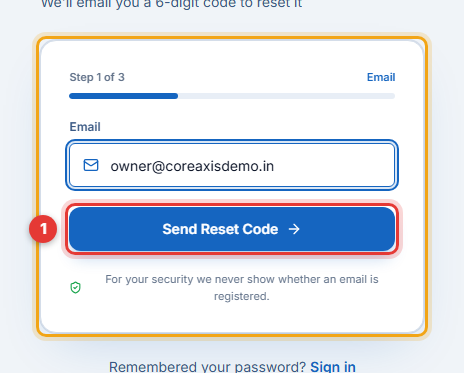
- On the sign-in page click Forgot password?.
- Enter the email address of your account and click the button to send the code.
- Type the code you receive, then set a new password.
- Sign in with the new password.
Turn on two-factor authentication (2FA)§§account-turn-on-two-factor-authentication-2fa§§
2FA adds a second check at sign-in: after the password you type a code from an app on your phone (Google Authenticator, Microsoft Authenticator, Authy). Owners should always turn it on.
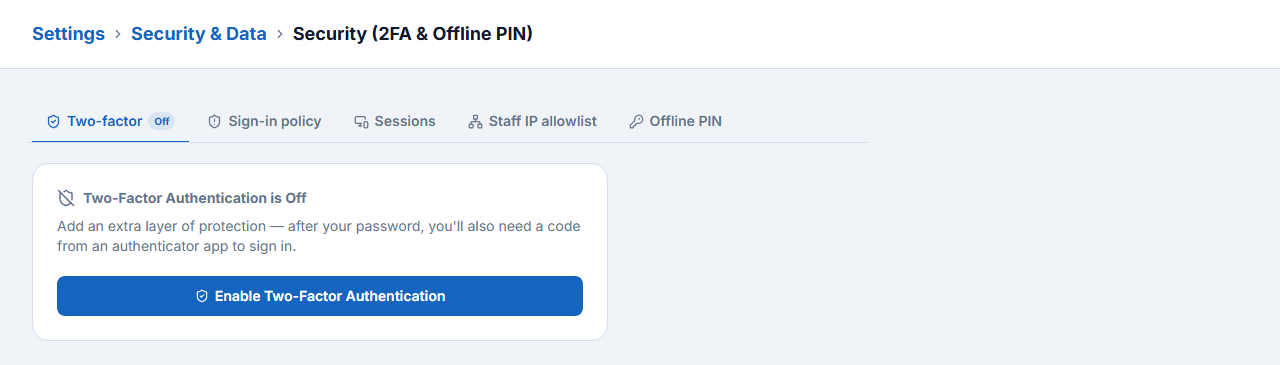
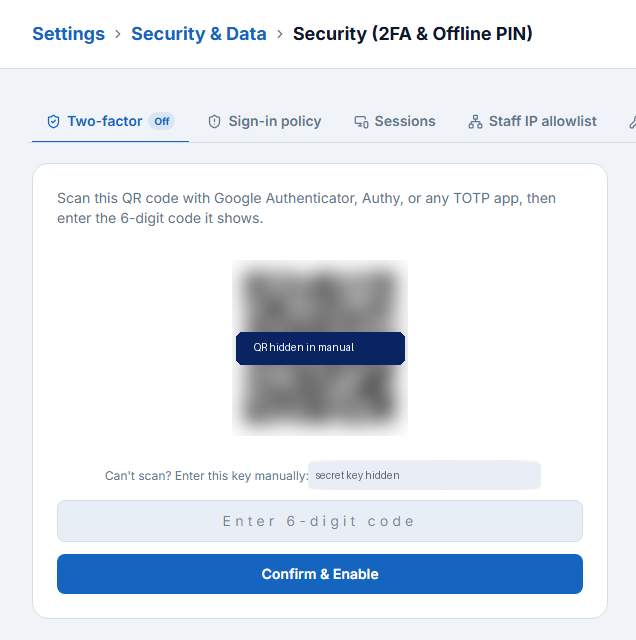
- Go to Settings → Security & Data → Security (2FA & Offline PIN).
- On the Two-factor tab click Enable Two-Factor Authentication.
- Open your authenticator app, tap + and scan the QR code shown (or type the key shown below it).
- Type the 6-digit code from the app and click Confirm & Enable.
- From now on, sign-in asks for the code from the app after your password.
Sign out§§account-sign-out§§
Click Sign Out at the bottom of the sidebar (or in Settings). Always sign out on a shared computer.
First-Run Setup and the Dashboard
The first time you sign in, a short tour and a five-step setup wizard help you get billing-ready. After that, the Dashboard shows the health of the business every day.
Pehli baar login par 7-step tour aata hai, phir Setup Wizard: business type, GST details, invoice settings, opening stock aur pehla bill. Har step baad mein bhi kar sakte hain. Dashboard par roz ki sales, profit, stock aur dues dikhte hain.
The welcome tour§§firstrun-the-welcome-tour§§
A 7-card tour explains the main areas: adding your first product, making a sale, customers, finance, reports and settings. Click Next to move on or Skip tour to close it.
The Setup Wizard§§firstrun-the-setup-wizard§§
The wizard opens at Set up your business. The left side shows the five steps and a progress percentage; you can Skip any step and come back later from the Dashboard banner or the Settings page.
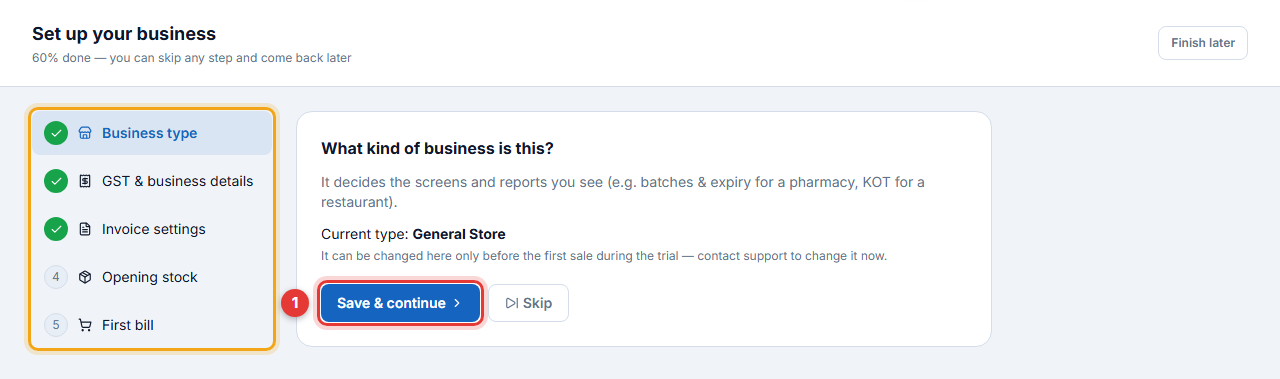
Step 1 — Business type
- Check the Current type (General Store for our example).
- Click Save & continue.
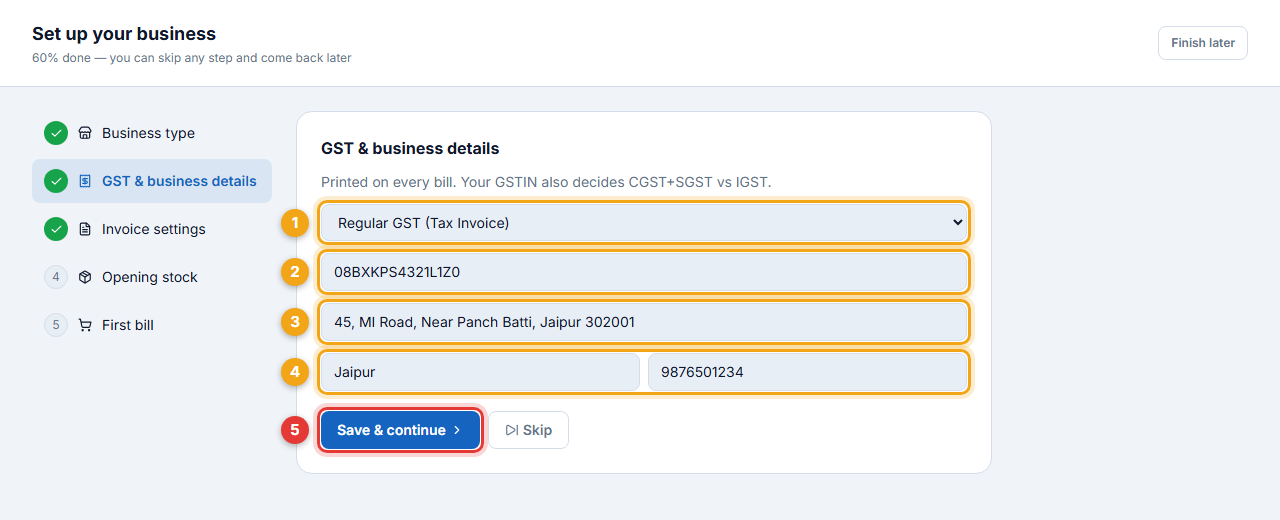
Step 2 — GST and business details
- Choose the GST registration (1): Regular GST (Tax Invoice), Composition scheme (Bill of Supply) or Not registered.
- Enter the 15-character GSTIN (2). Its first two digits set your state; the software then uses CGST + SGST for sales inside the state and IGST for other states.
- Enter the shop address (3), city and phone (4) — they print on every bill.
- Click Save & continue (5).
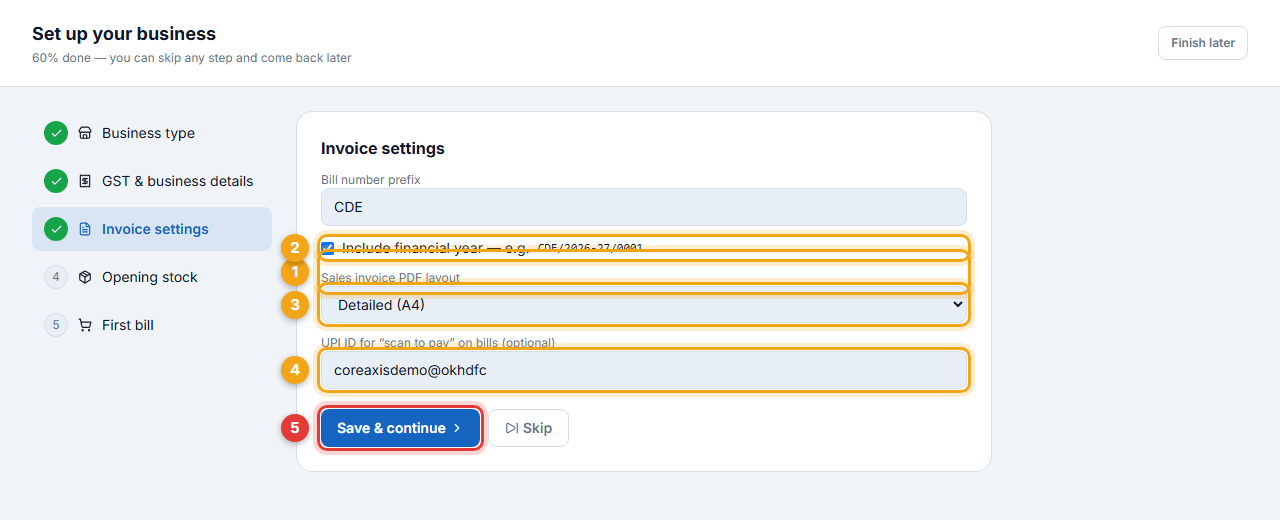
Step 3 — Invoice settings
- Type a short Bill number prefix (1) — we used CDE.
- Keep Include financial year (2) ticked. The preview shows the format: CDE/2026-27/0001.
- Pick the Sales invoice PDF layout (3): Detailed (A4) or Compact.
- Enter your UPI ID (4) so a scan-to-pay QR prints on bills.
- Click Save & continue (5).
Steps 4 and 5 — Opening stock and first bill
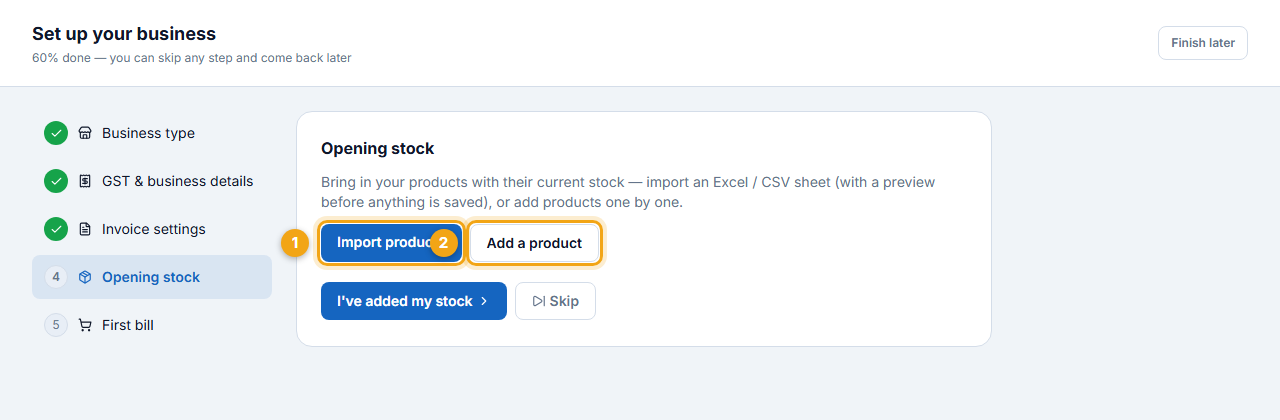
- Opening stock: click Import products (1) to bring in an Excel / CSV sheet, or Add a product (2) to add items one by one (Chapter 8). Then click I’ve added my stock.
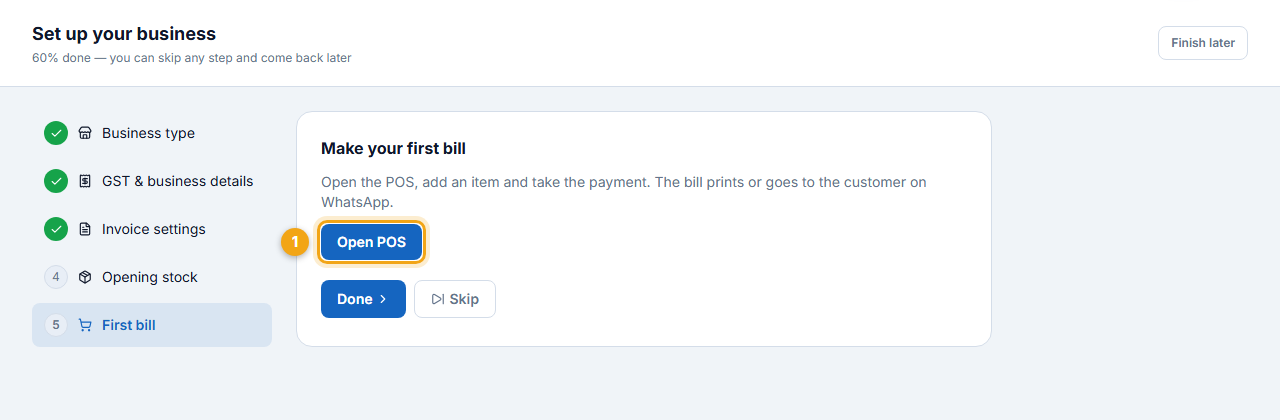
- First bill: click Open POS and make a test bill (Chapter 6). Then click Done.
- When every step is done or skipped, click Finish setup.
Tell the system your GST turnover range§§firstrun-tell-the-system-your-gst-turnover-range§§
If you skipped it at registration, a yellow banner on the Dashboard asks for your GST turnover range. It decides the HSN length on invoices: up to ₹5 crore → 4 digits on B2B invoices; above ₹5 crore → 6 digits on all invoices.
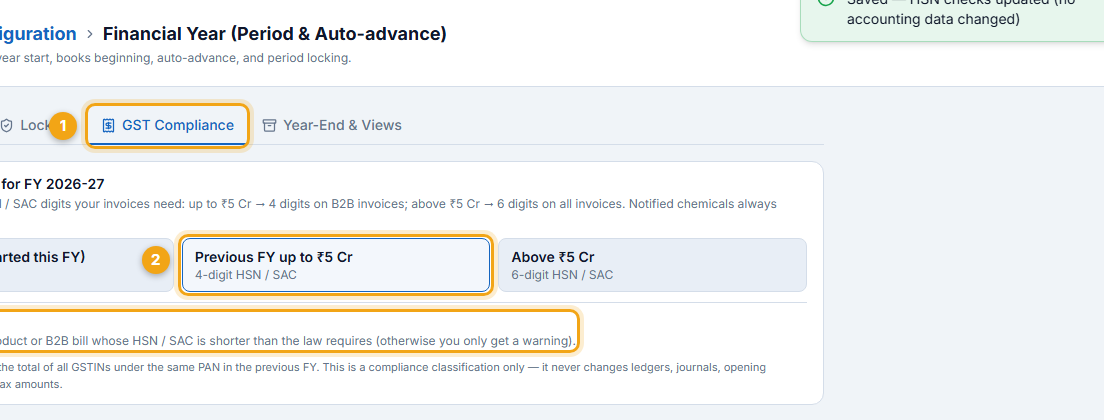
- Click Set now on the banner. It opens Settings → Configuration → Financial Year on the GST Compliance tab (1).
- Click your range (2): New business, Previous FY up to ₹5 Cr or Above ₹5 Cr. It saves at once.
- Optional: tick Strict HSN (3) to block saving a product or B2B bill whose HSN is too short (otherwise you only get a warning).
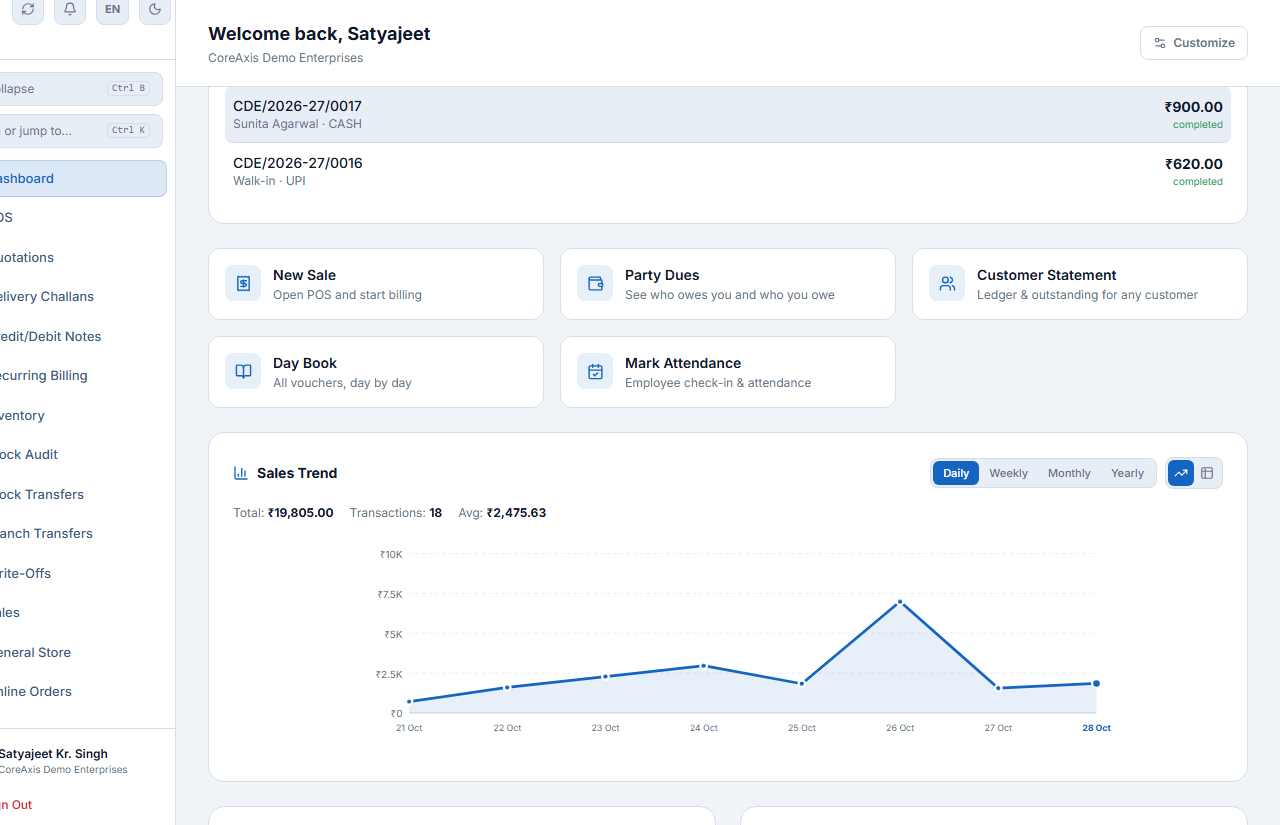
The Dashboard§§firstrun-the-dashboard§§
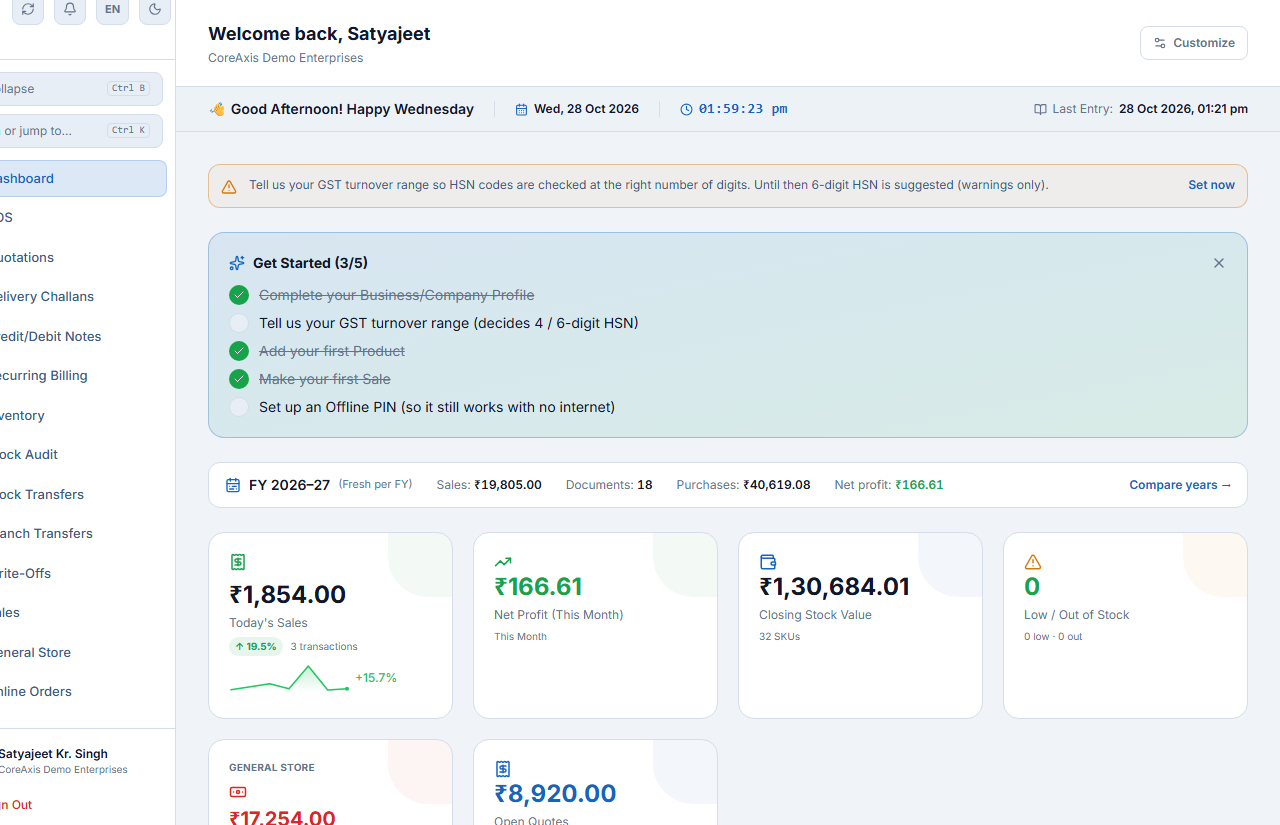
The Dashboard opens after sign-in. It is your daily summary.
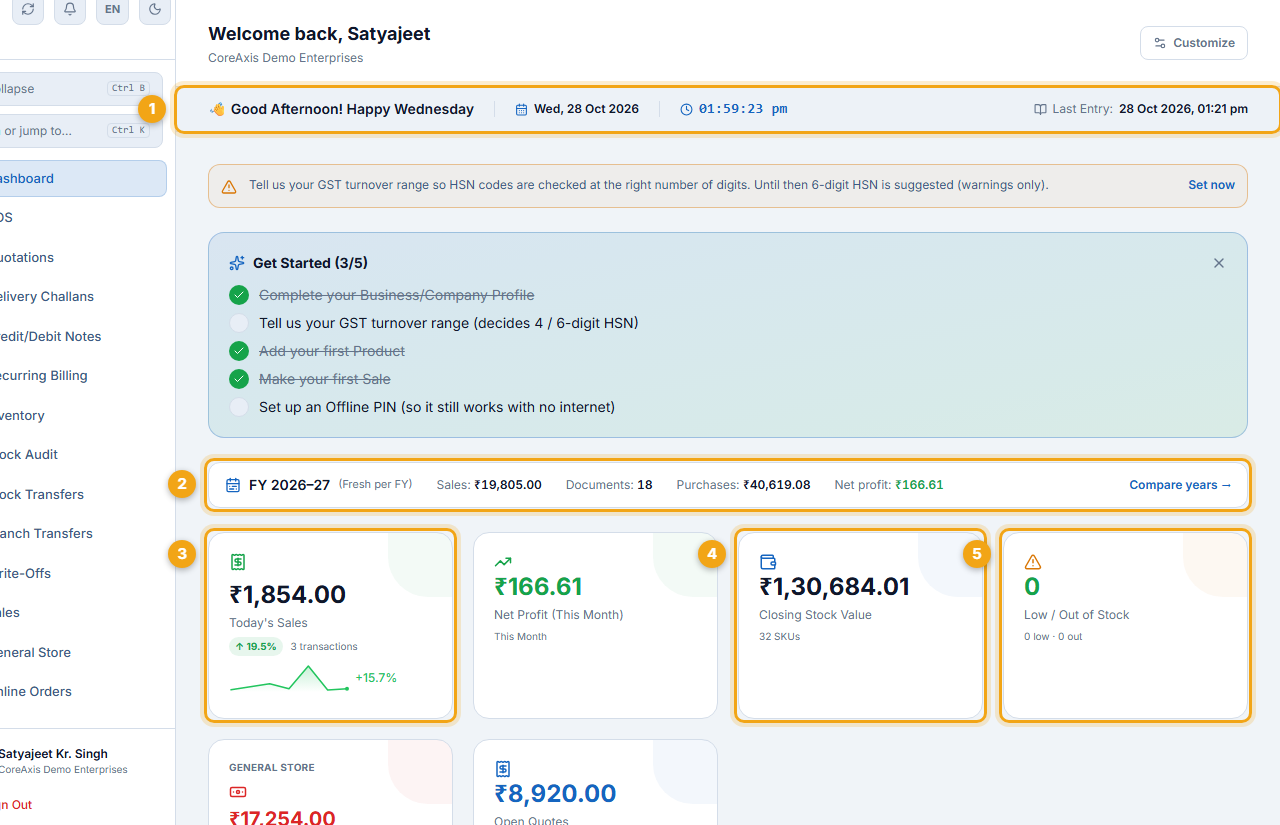
- Greeting strip (1) — today’s date, a live clock and Last Entry, the time of the most recent voucher.
- Financial-year bar (2) — sales, number of documents, purchases and net profit for the year. Compare years shows last year side by side.
- Today’s Sales (3) — with the change from yesterday and a mini trend line.
- Closing Stock Value (4) — the value of stock at cost.
- Low / Out of Stock (5) — click to see the items to reorder.
- Below: Pending Dues (khata), Open Quotes, the Sales Trend chart (daily, weekly, monthly, yearly) and today’s Day Book.
The Get Started checklist
Until you finish setup, a Get Started card lists what is left: complete the business profile, set the GST turnover range, add the first product, make the first sale and set an Offline PIN. Each line ticks itself when done; close the card with ×.
Settings — Your Business
Settings hold everything that prints on your bills and controls how the software behaves: business profile, bank and UPI, branches, financial year, invoice format, units, price levels, charges, stock rules, features, notifications and data import.
Settings mein 5 group hain: Business/Company, Configuration, Security & Data, Industry Settings, Team & Billing. Pehle business profile, GSTIN, bank/UPI aur invoice numbering set kijiye — ye har bill par print hote hain.
The Settings page§§settings-the-settings-page§§
Click Settings at the bottom of the sidebar or press F12. The left card shows the signed-in owner, the serial number, business, branch and currency. The right side groups every setting; type in Search settings… to find one quickly.
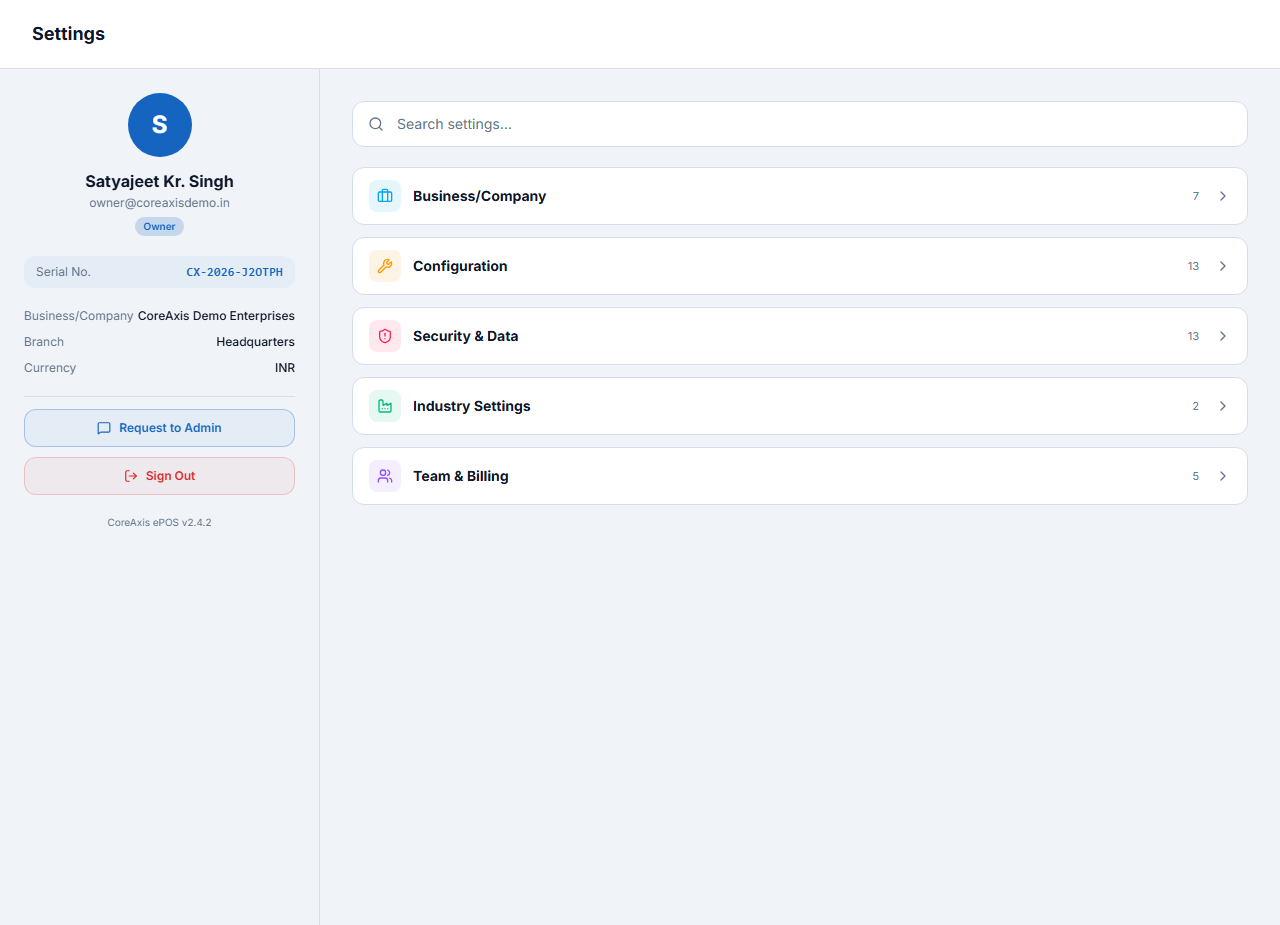
| Group | What is inside |
|---|---|
| Business/Company | Business profile, UPI / bank details, branding, branches, e-invoice |
| Configuration | Features & configuration (F11/F12), financial year, invoice configuration, units, price levels, inventory rules, notifications, sidebar order |
| Security & Data | 2FA, sign-in policy, sessions, Offline PIN, login activity, audit logs, backup & restore, offline sales, import / export |
| Industry Settings | Business-type options, e.g. bill charges (service / carry bag) |
| Team & Billing | Team & roles, role permissions, staff access, subscription |
Business profile§§settings-business-profile§§
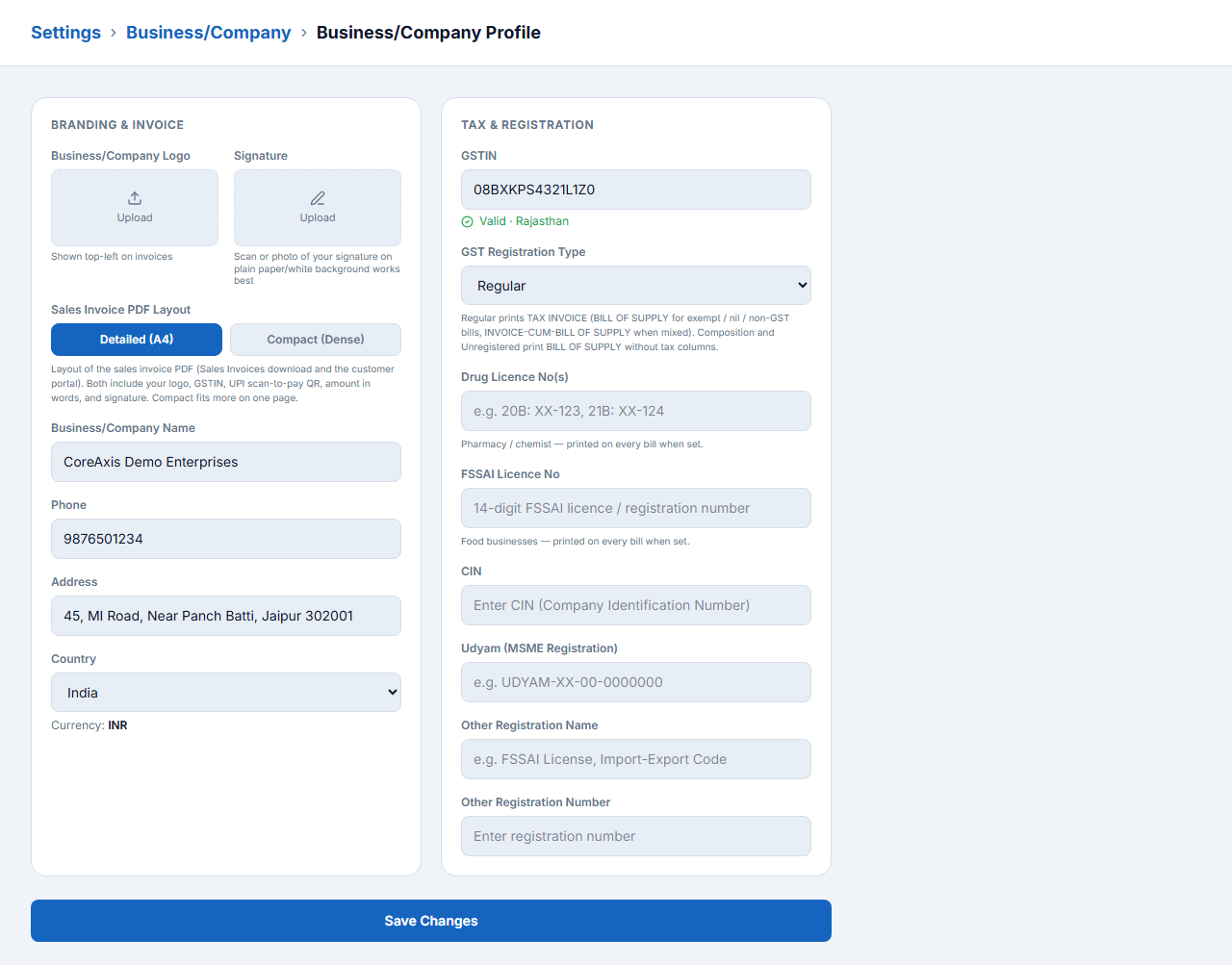
Settings → Business/Company → Business/Company Profile. Everything here prints on invoices.
- Upload your logo (shown top-left on invoices) and a signature (a clear photo on white paper works best).
- Choose the Sales Invoice PDF Layout: Detailed (A4) or Compact (Dense).
- Check the business name, phone, address and country.
- On the right, check the GSTIN — a green “Valid · Rajasthan” confirms the check digit — and the GST Registration Type.
- Fill licence numbers that apply to you: Drug Licence (pharmacy), FSSAI (food), CIN, Udyam (MSME) and any other registration.
- Click Save Changes.
UPI and bank details§§settings-upi-and-bank-details§§
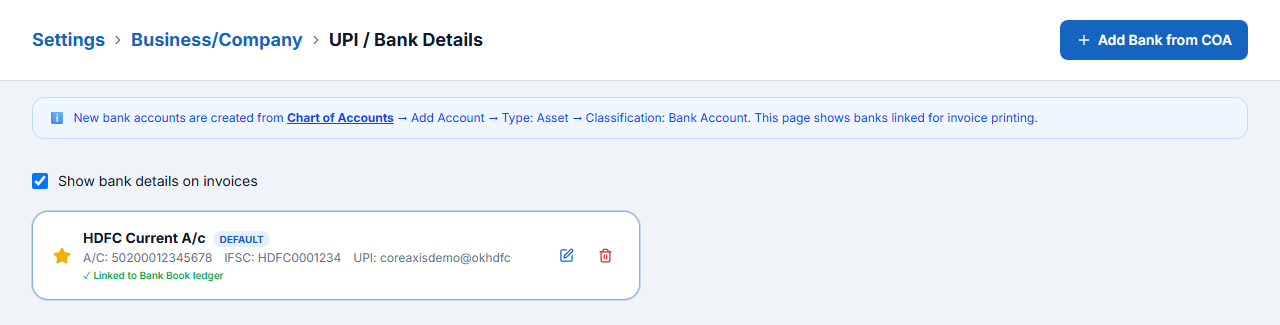
Settings → Business/Company → UPI / Bank Details lists the bank accounts that print on invoices, with account number, IFSC and UPI. Tick Show bank details on invoices for B2B customers who pay by transfer.
Branches§§settings-branches§§
Each shop, outlet or warehouse can be a branch with its own stock, bills and cash. The first branch is Headquarters.
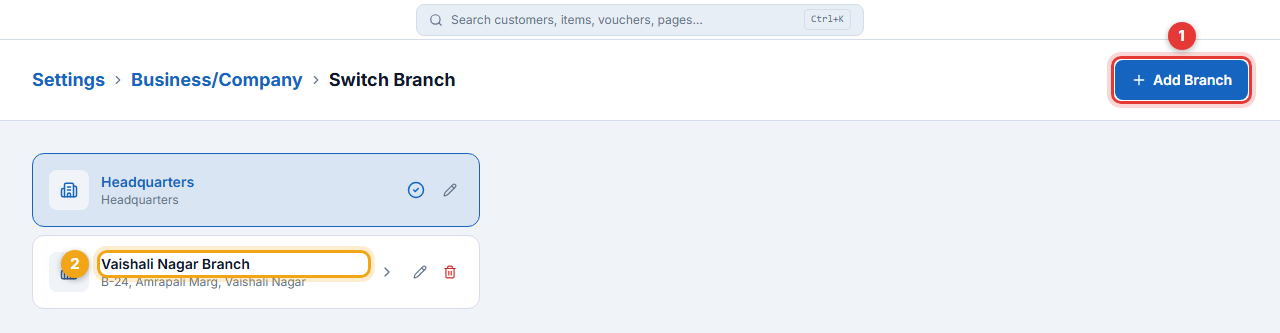
- Open Settings → Business/Company → Branches (the page is titled Switch Branch).
- Click Add Branch (1).
- Enter the Branch Name, an optional short Branch Code, address, city, phone and email.
- Save. The new branch appears in the list (2). Click a branch to switch to it.
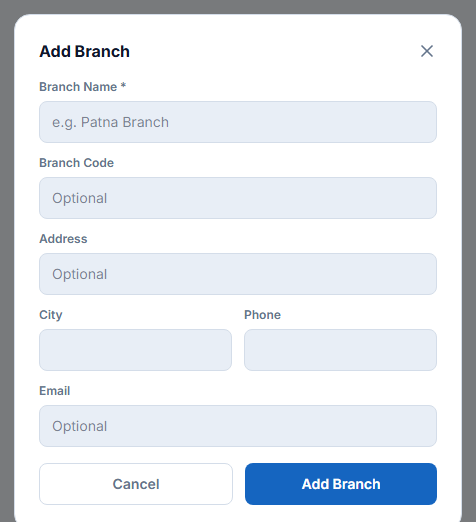
- Branch Name: Vaishali Nagar Branch · Code: VSN
- Address: B-24, Amrapali Marg, Vaishali Nagar, Jaipur · Phone 9876501235
- Stock is now kept separately; Inventory shows “Stock: my branch / all branches”.
Financial year§§settings-financial-year§§
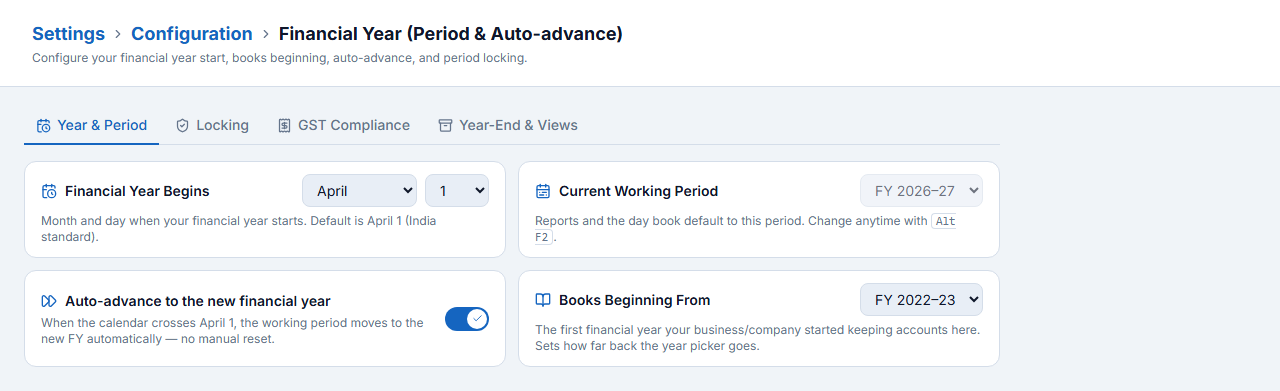
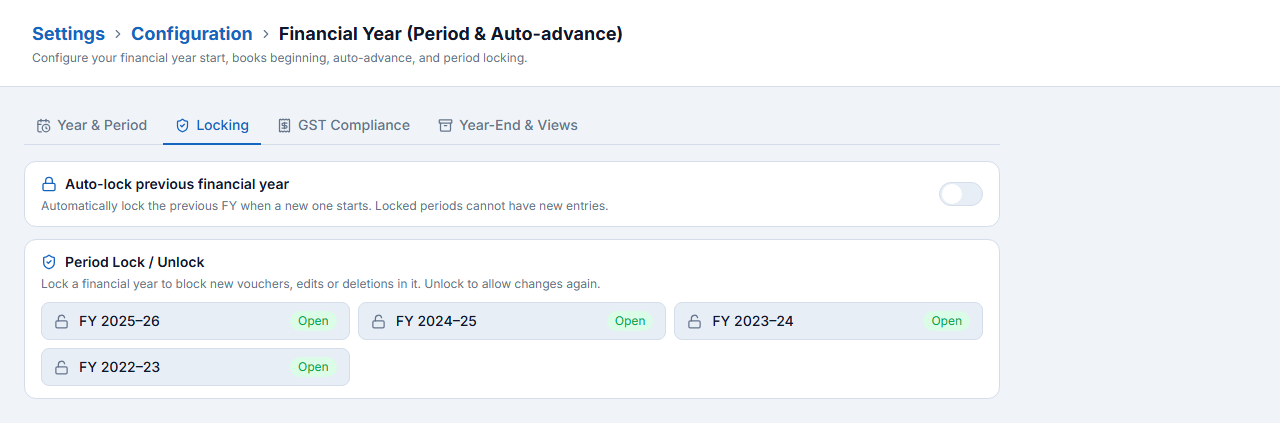
Settings → Configuration → Financial Year has four tabs: Year & Period, Locking, GST Compliance and Year-End & Views.
- Financial Year Begins — April 1 for India (change only if your books follow another year).
- Current Working Period — the year reports and the day book open in. Change it any time with Alt+F2 / Alt+F1 or the FY selector in the status bar.
- Auto-advance — moves to the new year automatically on 1 April.
- Books Beginning From — the first year you kept accounts in CoreAxis.
- Locking tab — lock a finished year (or have the previous year lock automatically) so nobody can add or edit entries in it.
Invoice configuration and numbering§§settings-invoice-configuration-and-numbering§§
Settings → Configuration → Invoice Configuration decides how bills look. Click Preview (top right) at any time to see a sample.
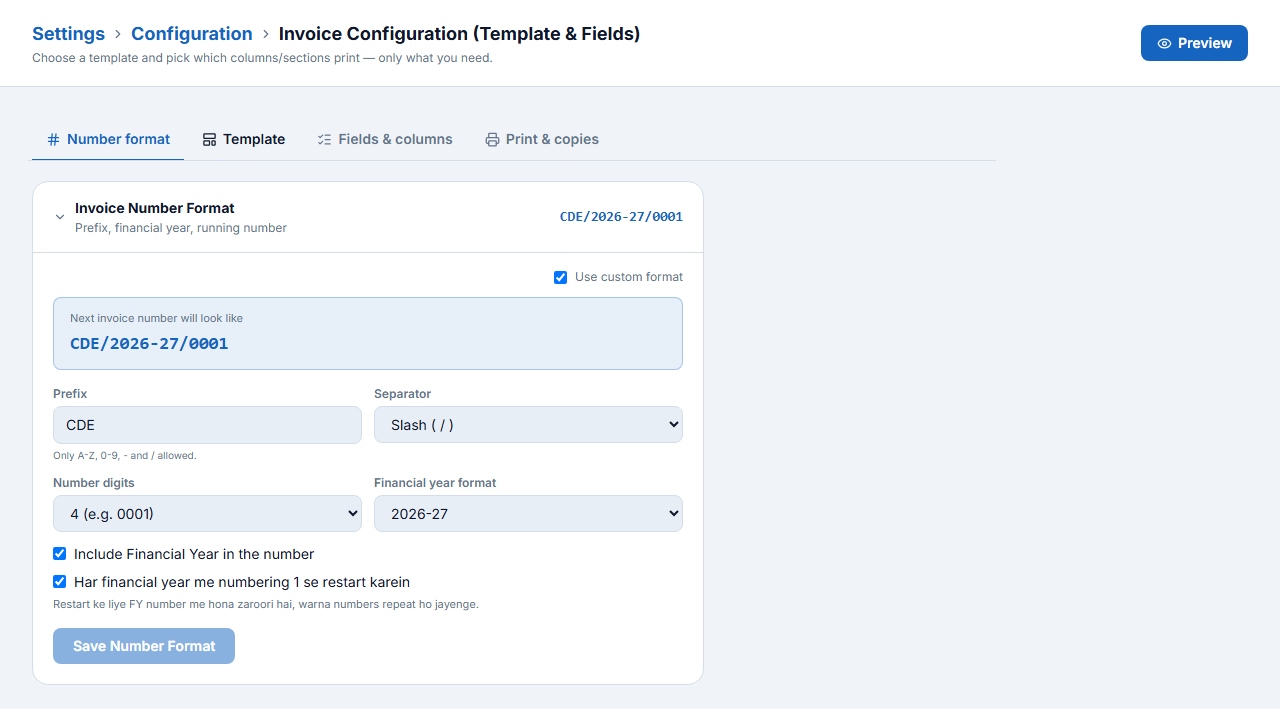
Number format
- Set the Prefix (letters, digits, - and / only), the Separator and the Number digits.
- Choose the Financial year format (2026-27, 2026-2027 or 26-27) and tick Include Financial Year in the number.
- Keep restart numbering every financial year ticked so numbers start again from 0001 on 1 April.
- Check the preview — Next invoice number will look like CDE/2026-27/0001 — and click Save Number Format.
Template, fields and printing
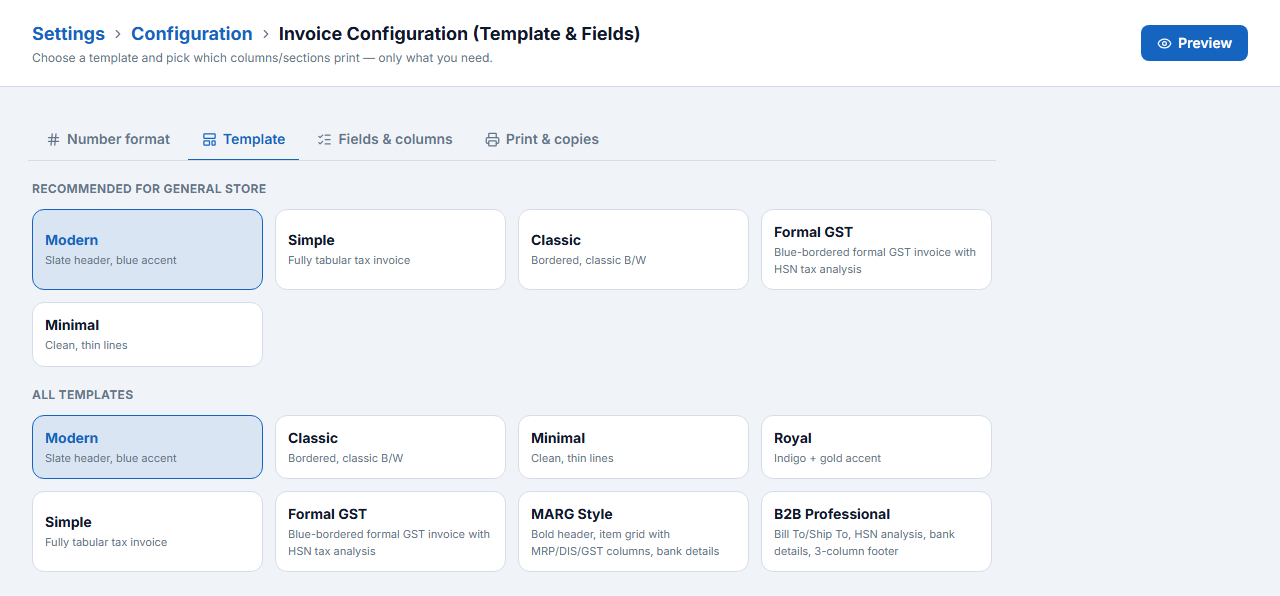
- Template — Modern, Simple, Classic, Formal GST, Minimal, Royal, MARG Style, B2B Professional. Recommended ones for your business type are at the top.
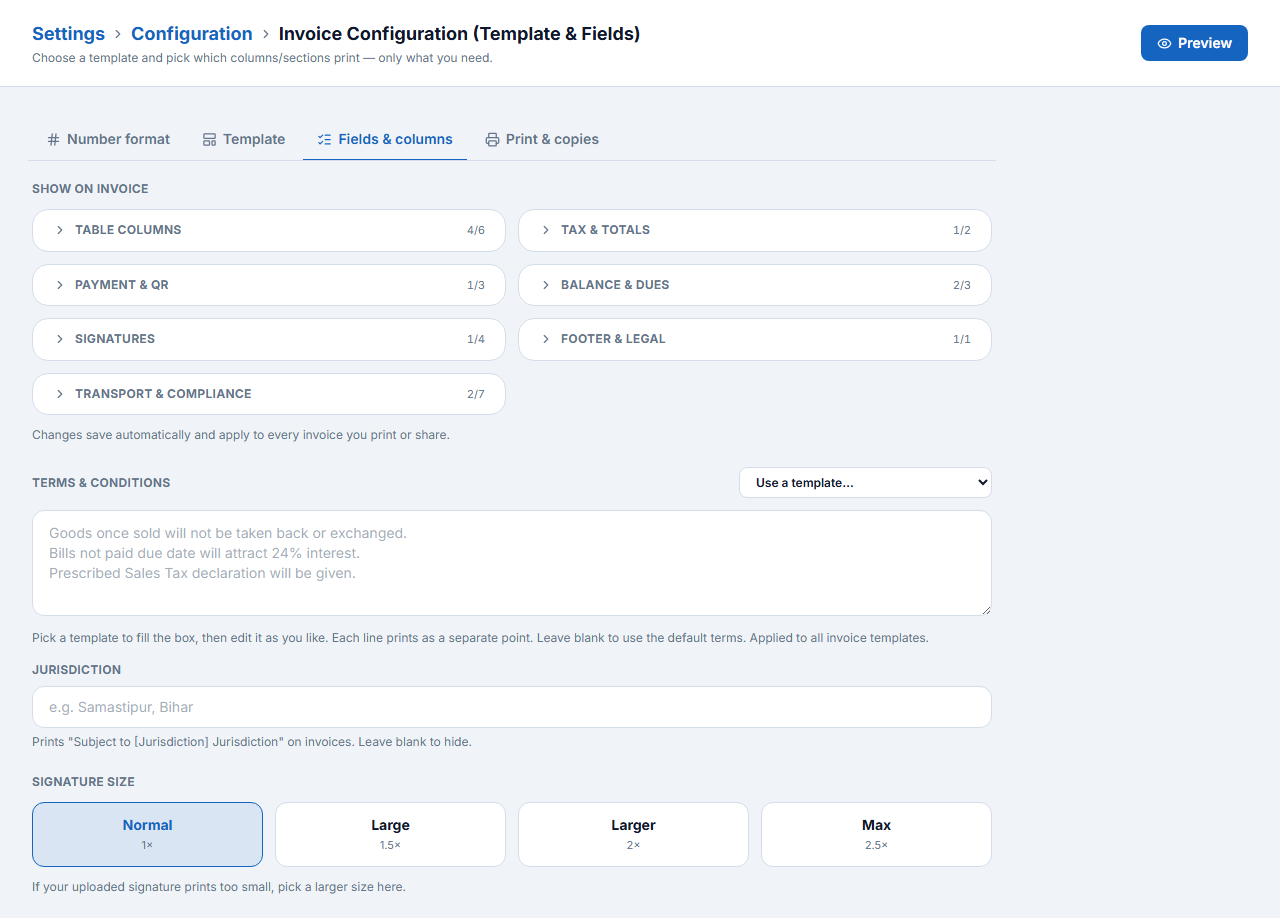
- Fields & columns — choose which table columns, tax totals, payment & QR, signatures, transport and footer details print; write your Terms & Conditions and Jurisdiction; pick a signature size.
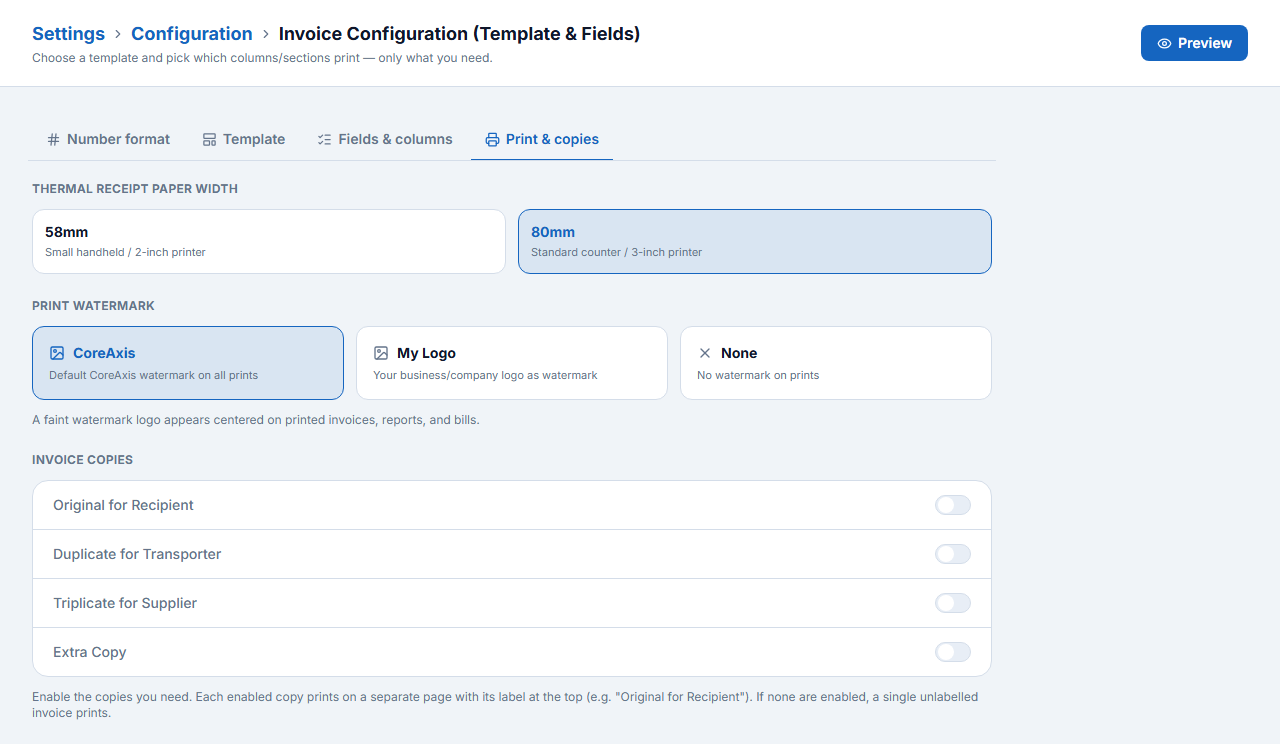
- Print & copies — thermal paper width (58 mm or 80 mm), watermark (CoreAxis, your logo or none) and extra copies (Original for Recipient, Duplicate for Transporter, Triplicate for Supplier).
Features and configuration (F11 / F12)§§settings-features-and-configuration-f11-f12§§
Settings → Configuration → Features & Configuration lists every switch in one place, grouped like Tally: Accounting & Vouchers, Inventory & Stock, Taxation, Billing and more. Use the search box at the top to find an option.
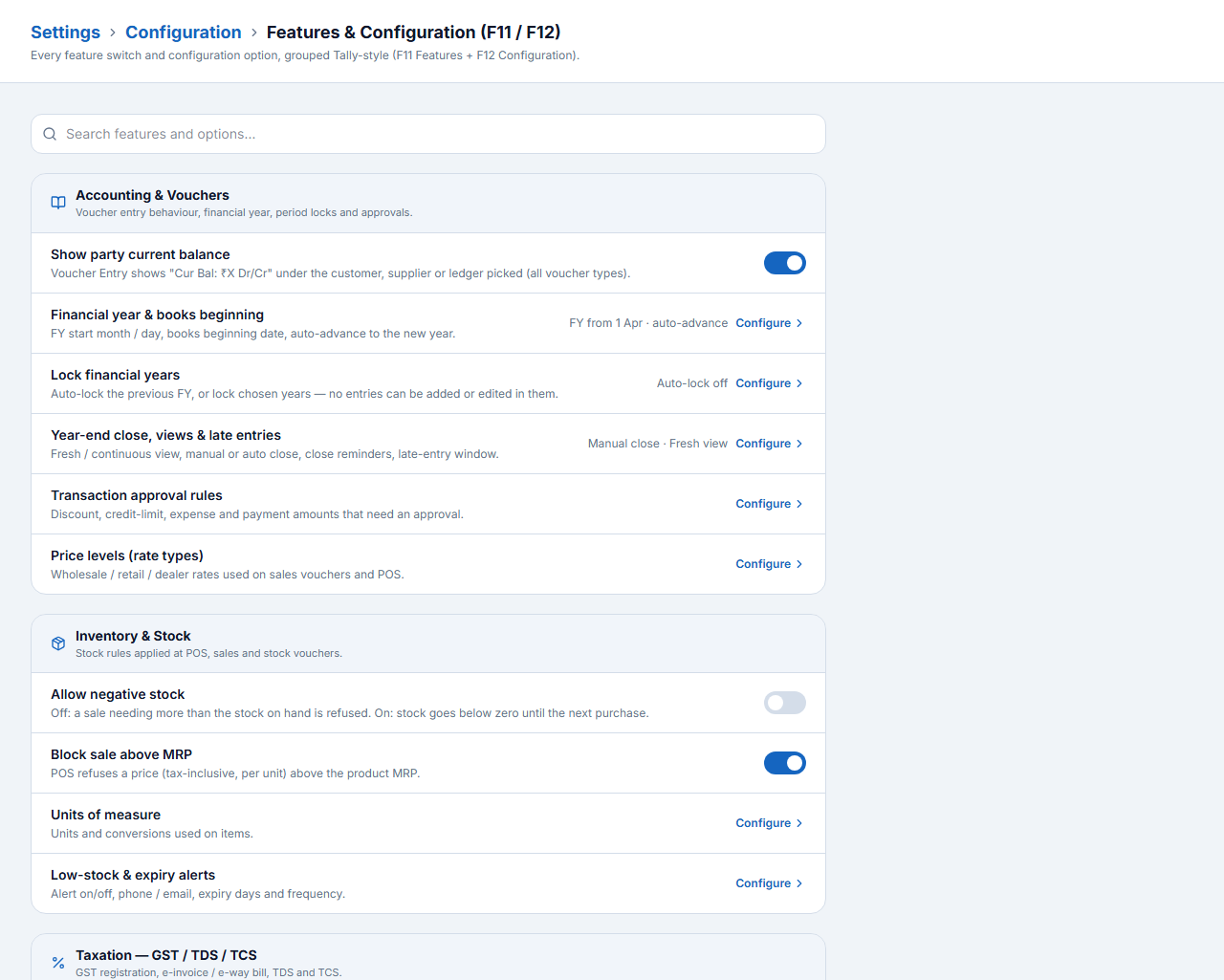
- Show party current balance — vouchers show the customer’s or supplier’s balance under the name.
- Transaction approval rules — discounts, credit-limit overrides, expenses or payments above a limit need an owner’s approval.
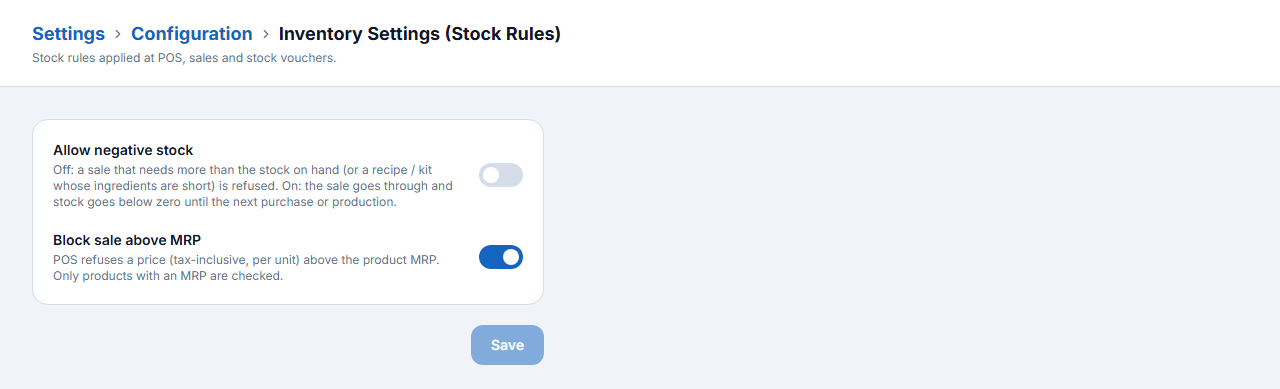
- Allow negative stock and Block sale above MRP — the stock rules (also under Inventory Settings).
Turn modules on or off
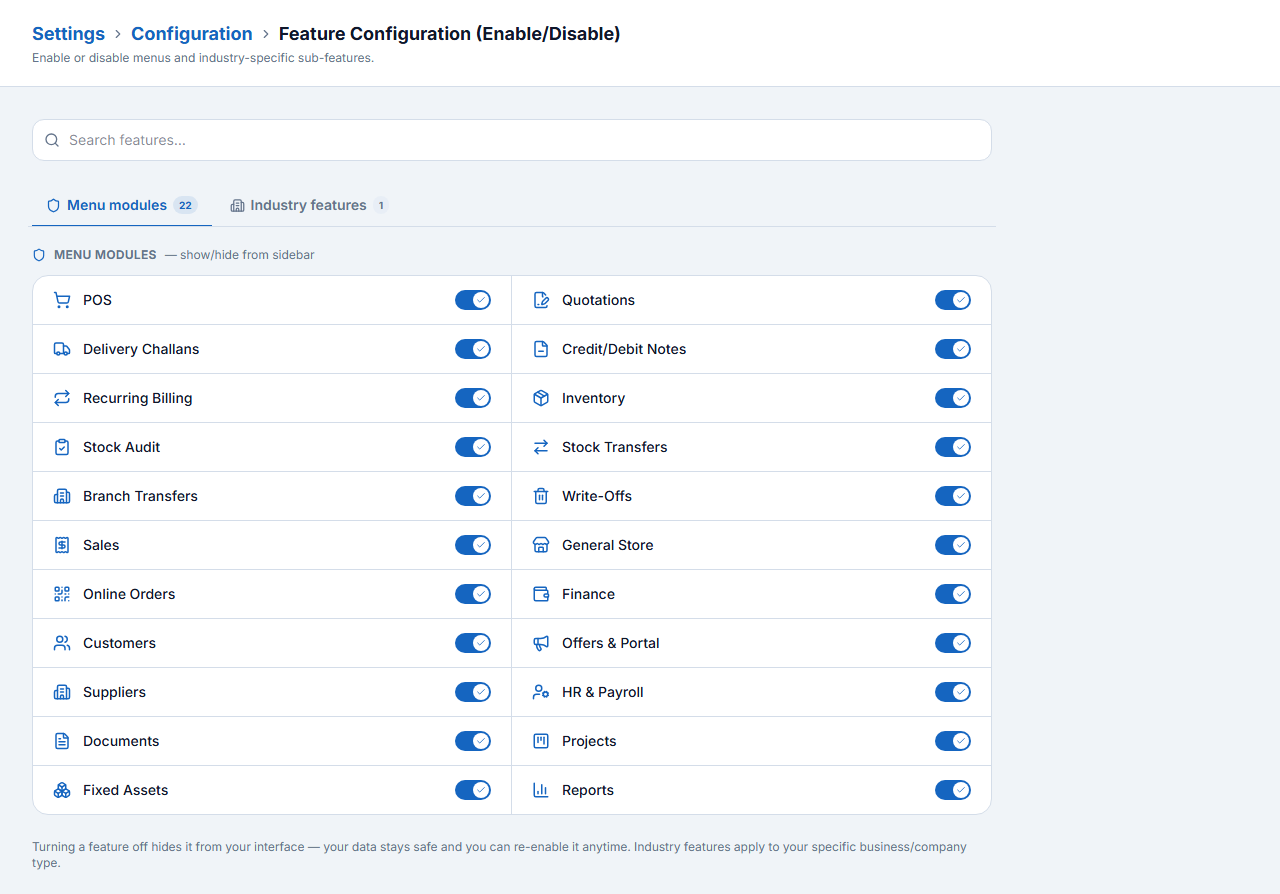
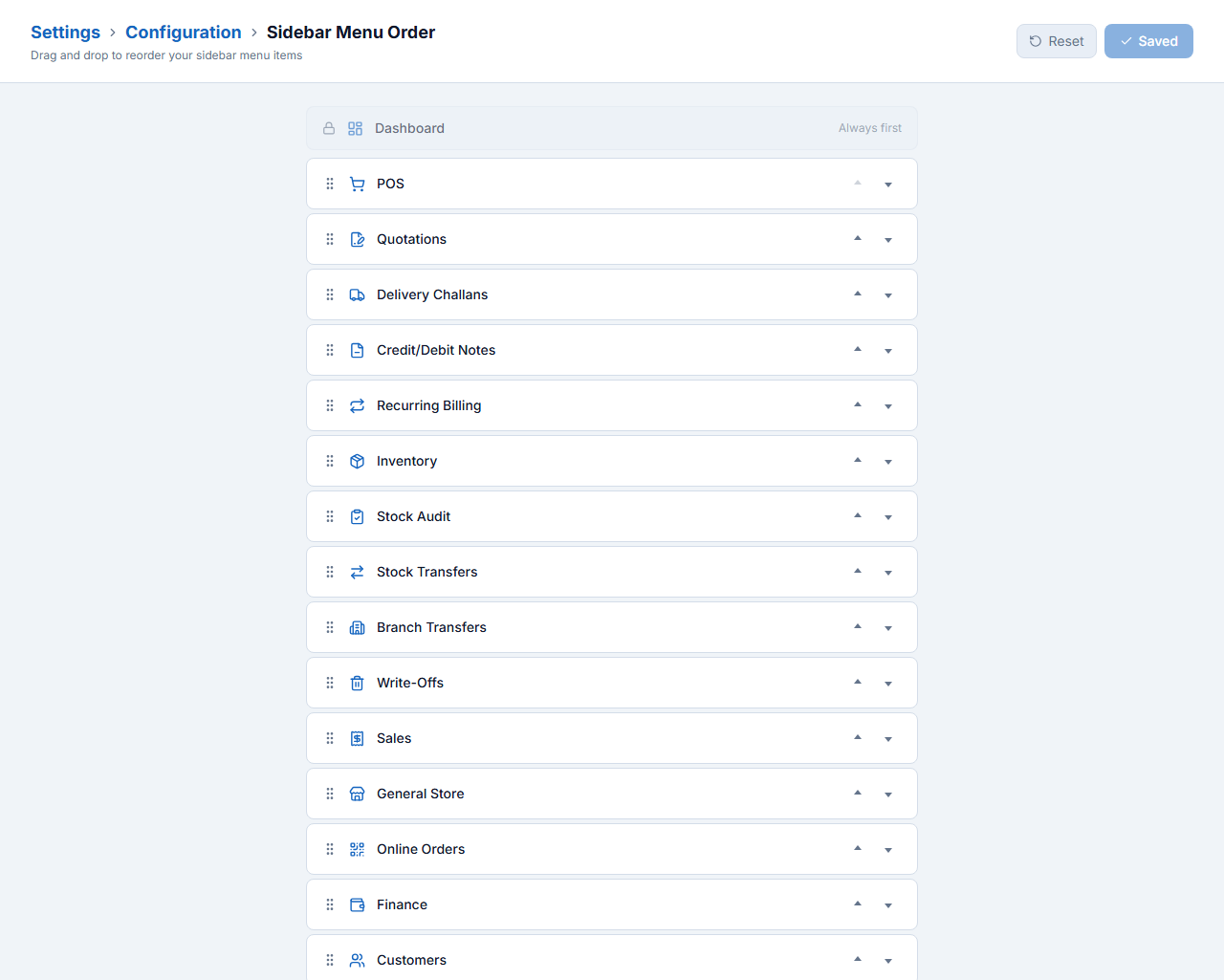
Settings → Configuration → Feature Configuration shows or hides menu modules (POS, Quotations, Delivery Challans, Recurring Billing, Stock Audit, HR & Payroll, Projects …). Turning a module off only hides it — your data stays safe. Sidebar Menu Order lets you drag the menu into the order your team prefers.
Units, price levels and price list§§settings-units-price-levels-and-price-list§§
Units
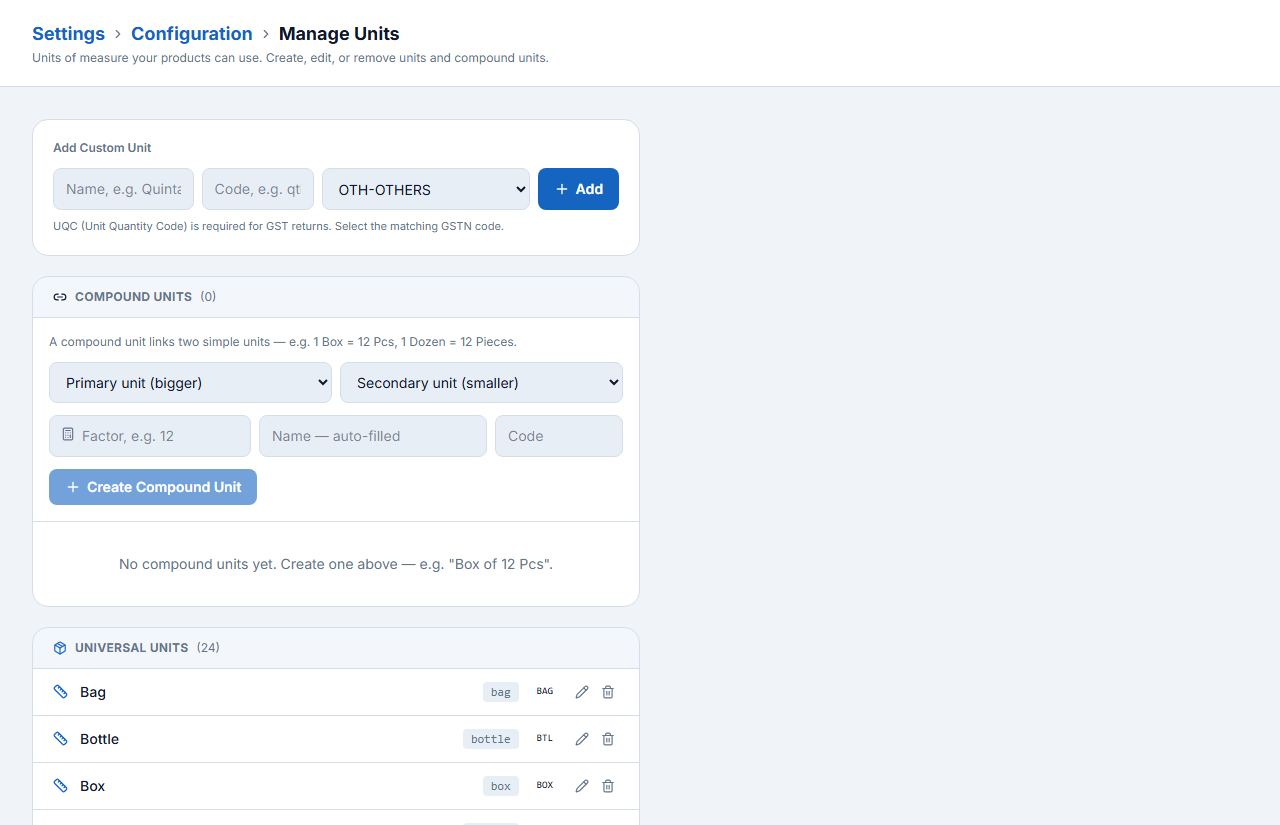
Settings → Configuration → Manage Units lists GST units (PCS, KGS, LTR, BOX, BTL, DOZ …). Add custom or compound units (e.g. 1 BOX = 12 PCS) with Add Custom Unit.
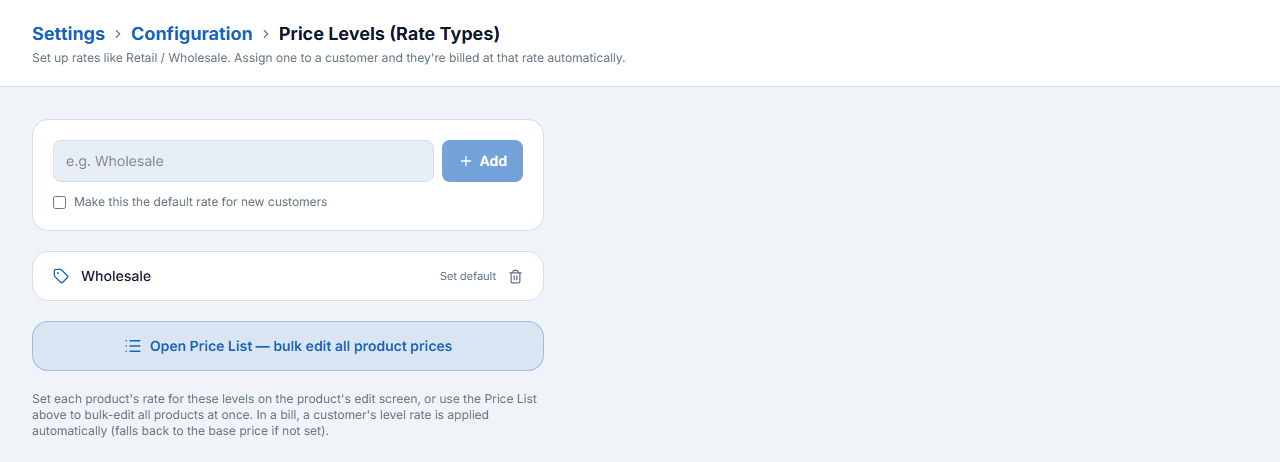
Price levels (rate types)
- Open Settings → Configuration → Price Levels.
- Type a name such as Wholesale and click Add. Optionally make one the default for new customers.
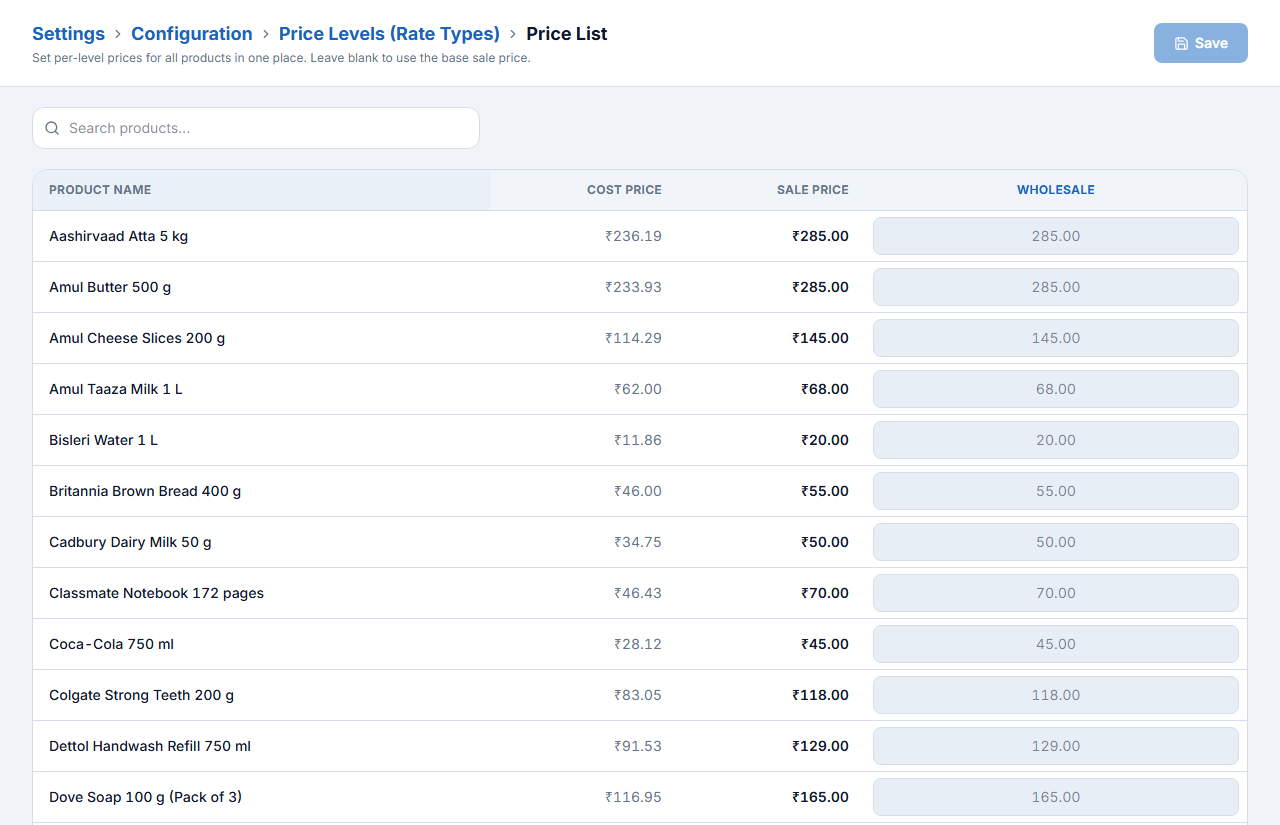
- Set each item’s Wholesale rate on the product form, or in bulk with Open Price List.
- Attach the level to a customer (Rate Type in the customer form). Their bills then use that rate automatically; the POS Rate box also lets you switch for one bill.
Bill charges and stock rules§§settings-bill-charges-and-stock-rules§§
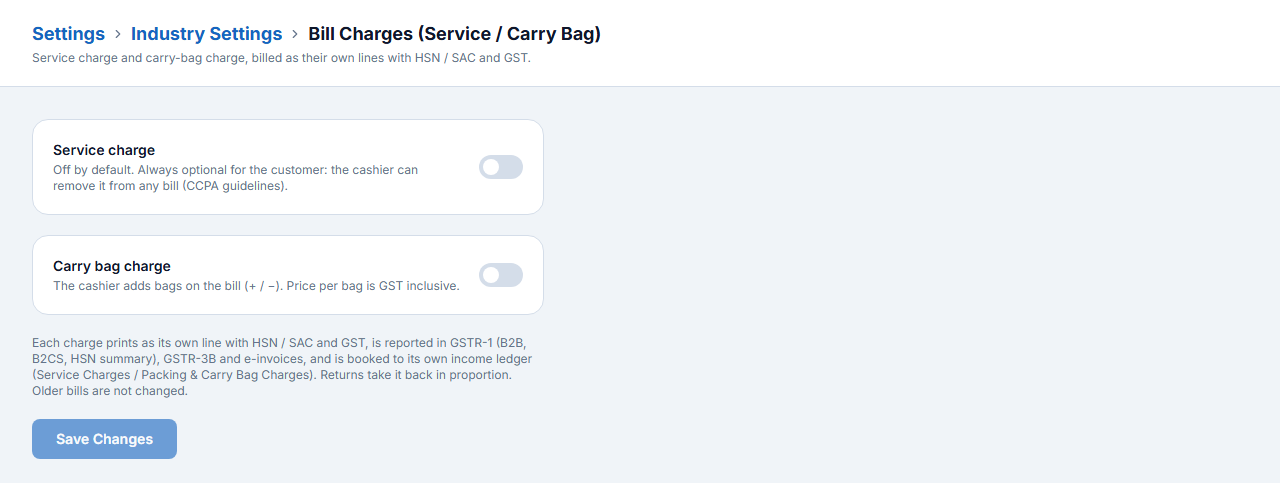
Settings → Industry Settings → Bill Charges adds an optional Service charge or a Carry bag charge to bills. Each prints as its own line with HSN / SAC and GST and goes to its own income ledger.
Settings → Configuration → Inventory Settings: Allow negative stock (sell even when the system shows zero) and Block sale above MRP.
Notifications: SMS, WhatsApp, email and online payments§§settings-notifications-sms-whatsapp-email-and-online-payments§§
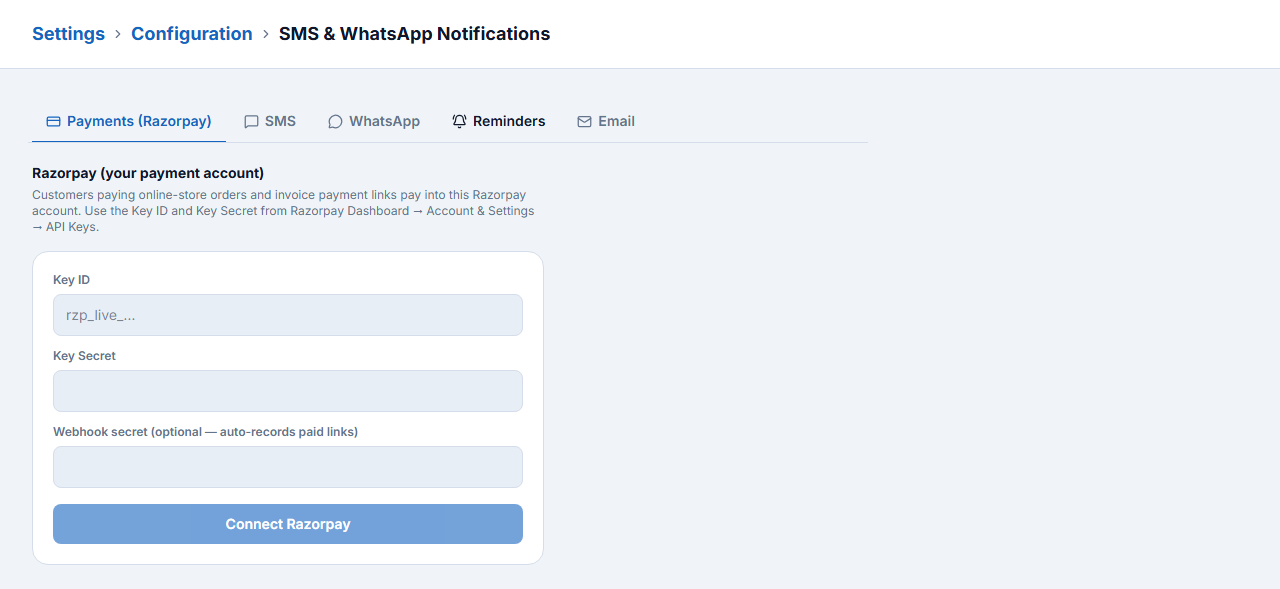
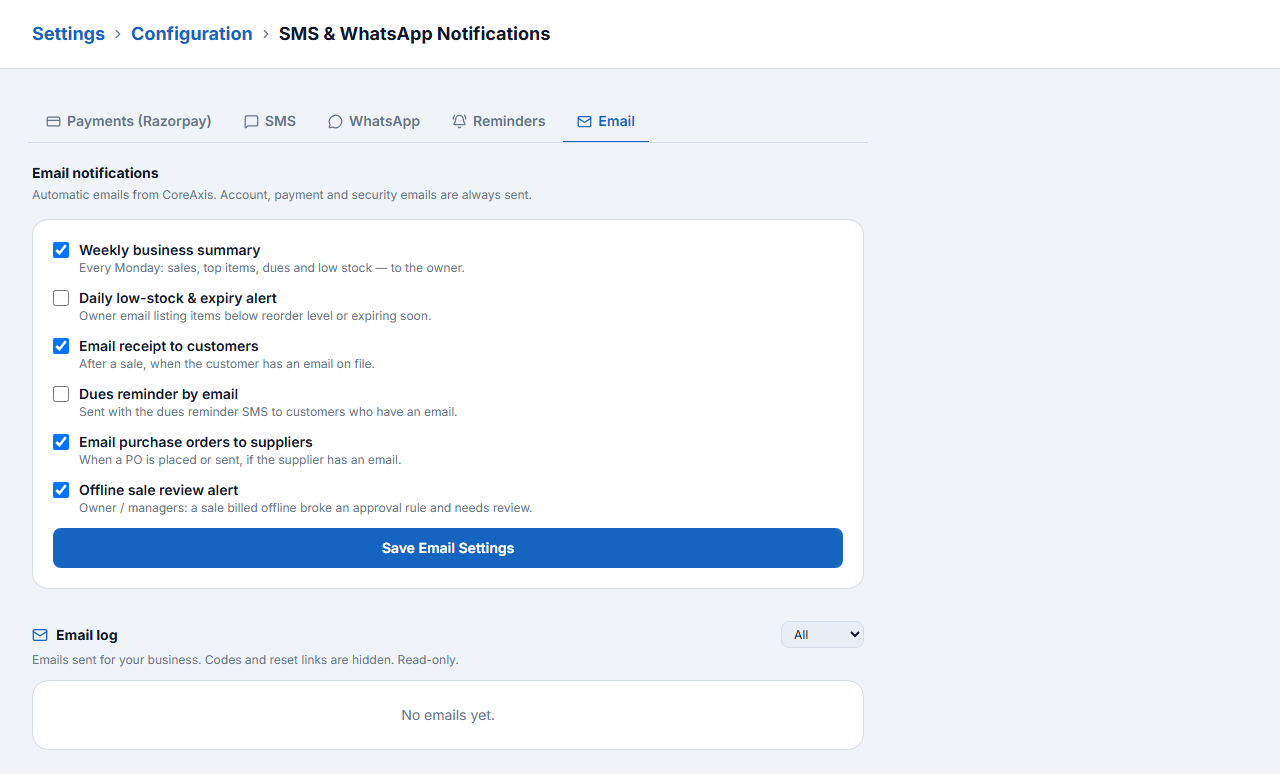
Settings → Configuration → SMS & WhatsApp Notifications has tabs for Payments (Razorpay), SMS, WhatsApp, Reminders and Email.
- Razorpay — connect your own Razorpay account so customers can pay invoice links and online orders.
- Email — weekly business summary, daily low-stock & expiry alert, email receipts to customers, dues reminders, purchase orders to suppliers.
- Reminders — automatic dues reminders for khata customers.
Branding and e-invoice§§settings-branding-and-e-invoice§§
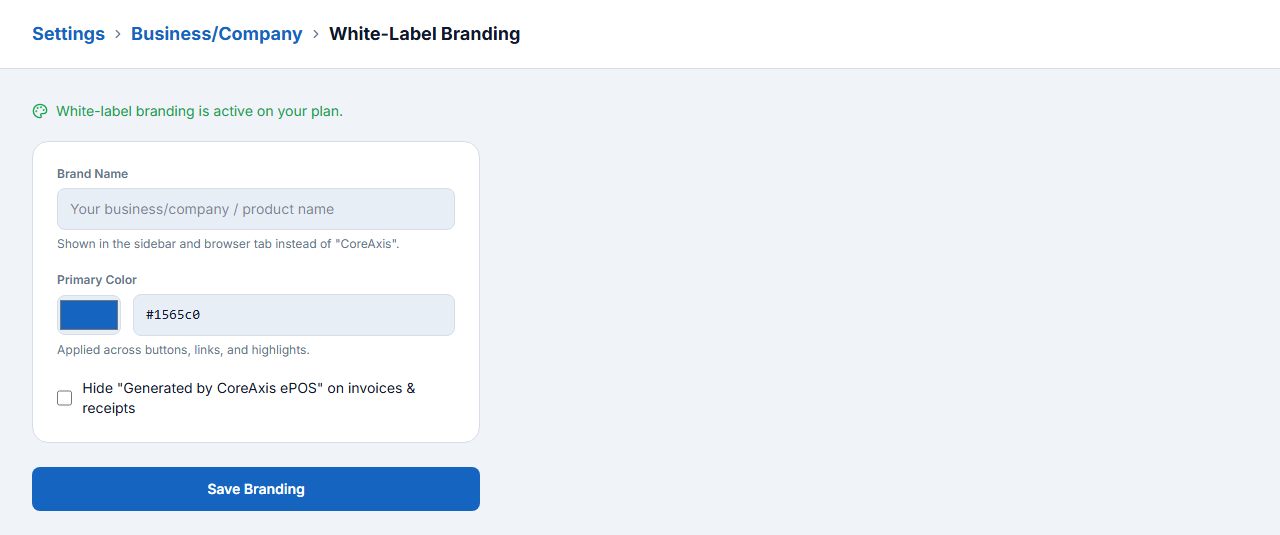
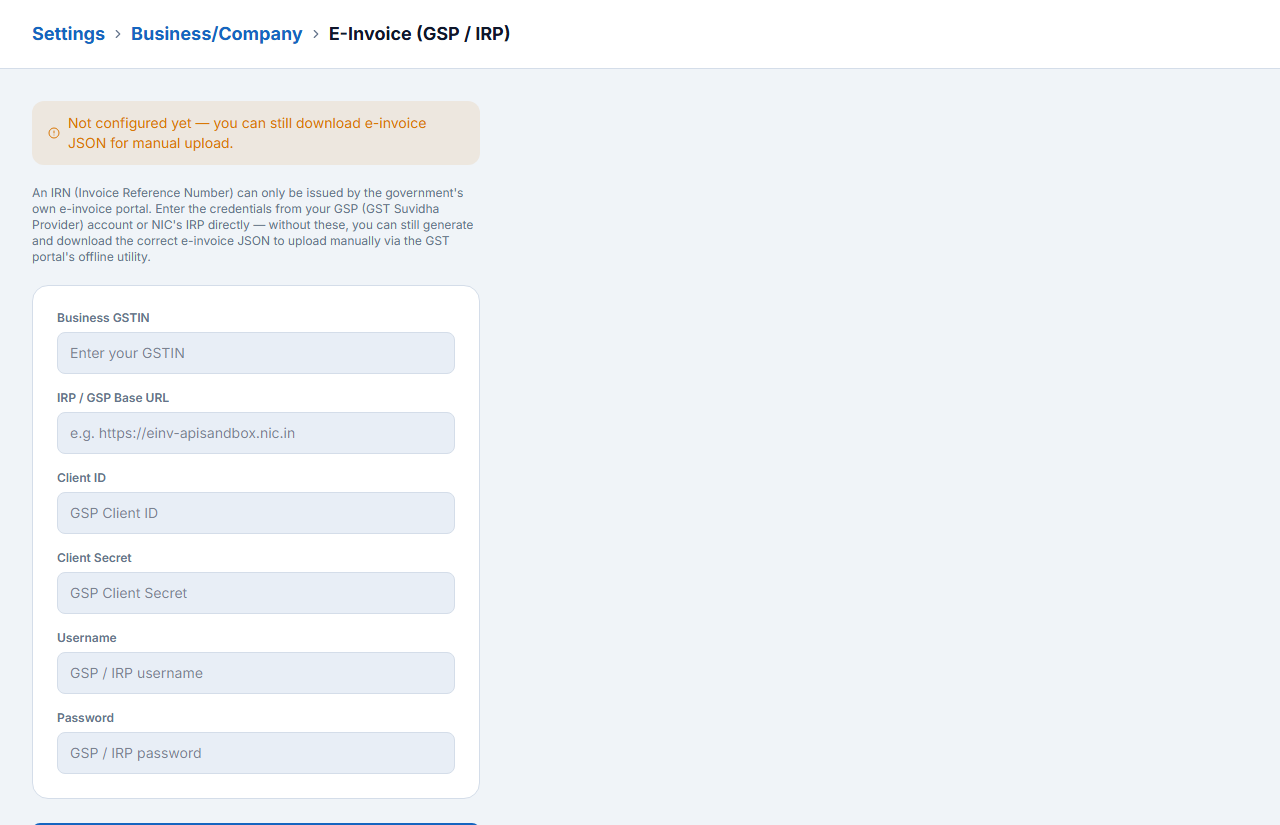
White-Label Branding (on plans that include it) lets you set your own brand name and colour and hide “Generated by CoreAxis ePOS” on invoices. E-Invoice (GSP / IRP) stores the credentials from your GST Suvidha Provider so IRNs are generated directly; without them you can still download the e-invoice JSON and upload it on the GST portal.
Import your existing data§§settings-import-your-existing-data§§
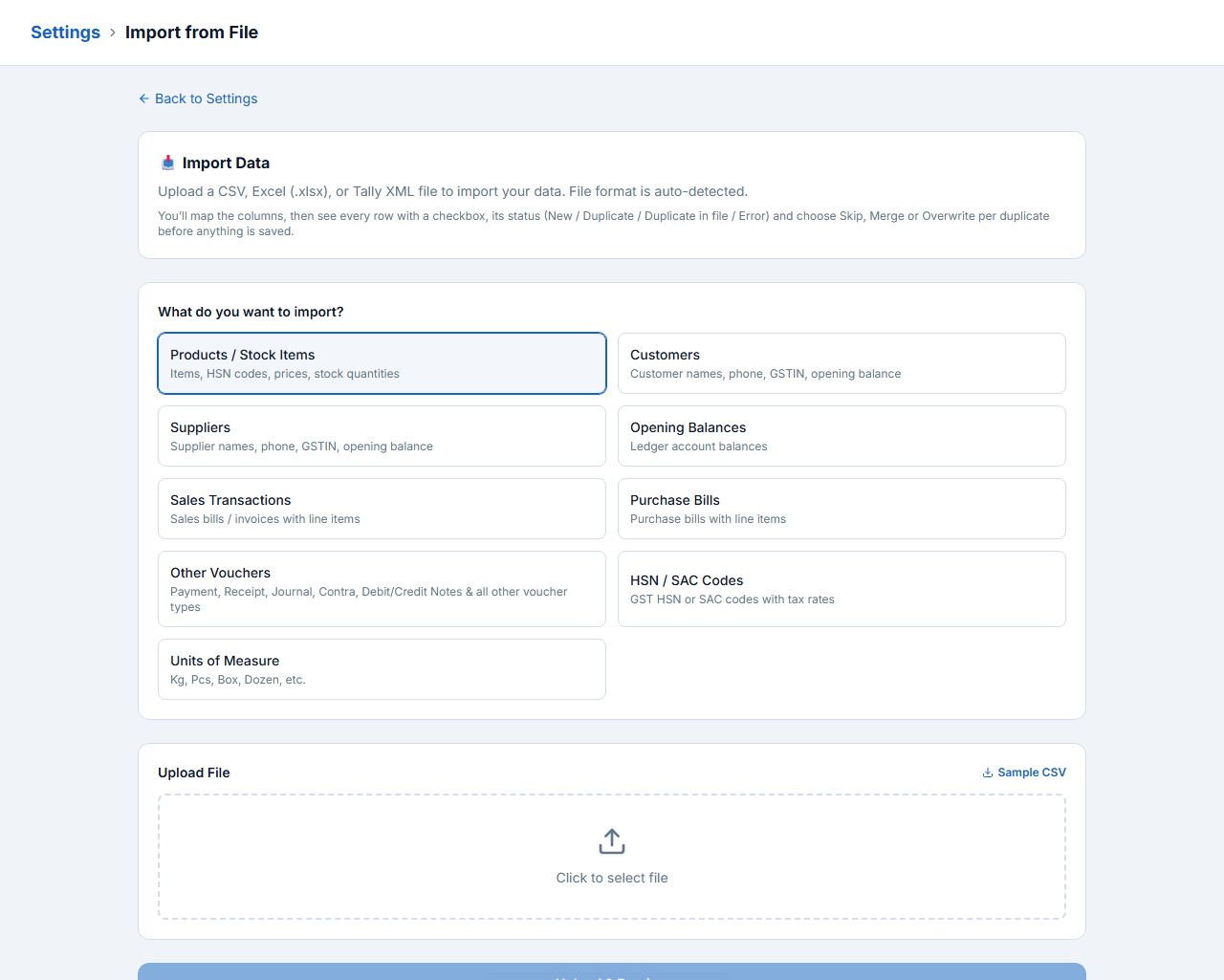
Moving from another software or Excel? Settings → Import from File accepts CSV, Excel (.xlsx) and Tally XML.
- Choose what to import: Products / Stock Items, Customers, Suppliers, Opening Balances, Sales or Purchase transactions, Other Vouchers, HSN codes or Units.
- Download the Sample CSV if you need a template, fill it and upload the file.
- Map your columns to CoreAxis fields.
- Review every row: New, Duplicate or Error. For duplicates choose Skip, Merge or Overwrite.
- Confirm. Nothing is saved until you confirm.
Users, Roles, Security and Your Data
Give every staff member their own login, decide exactly what each role can see and do, watch sign-in activity and keep your data backed up.
Har staff ko alag login dijiye. Team & Roles mein user banaiye, Staff Access se decide kijiye kaunse menu dikhenge, Role Permissions se create/edit/delete ki permission. Backup aur audit log bhi yahin hain.
Add a team member§§team-add-a-team-member§§
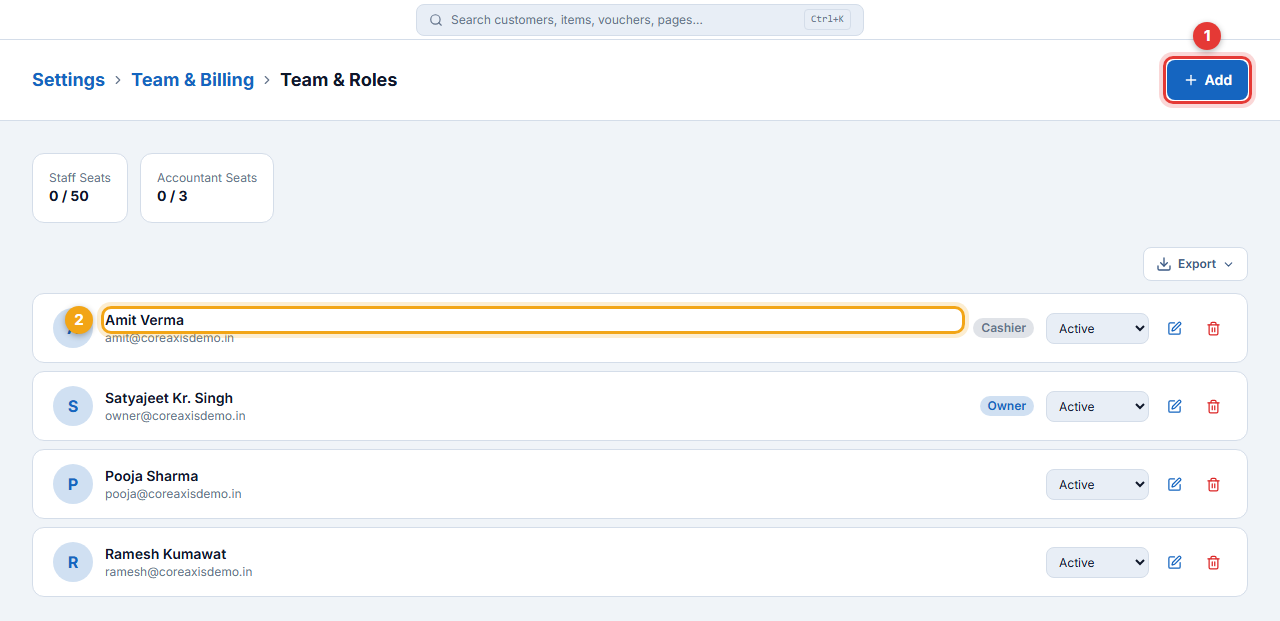
- Open Settings → Team & Billing → Team & Roles. The top shows the seats on your plan.
- Click Add (1).
- Enter the Full Name, Email and a starting Password.
- Choose the Role (Staff, Accountant or a custom role such as Cashier) and the Home branch. To keep someone to one branch, restrict them to it.
- Save. Give the person their email and password; they can change the password after signing in.
- Use the Active / Inactive / Suspended box on a row (2) to pause a login without deleting it.
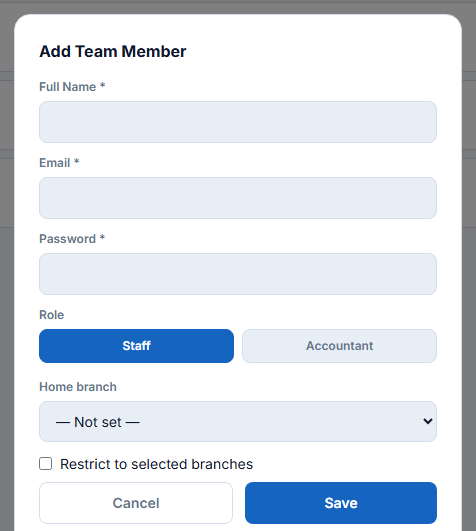
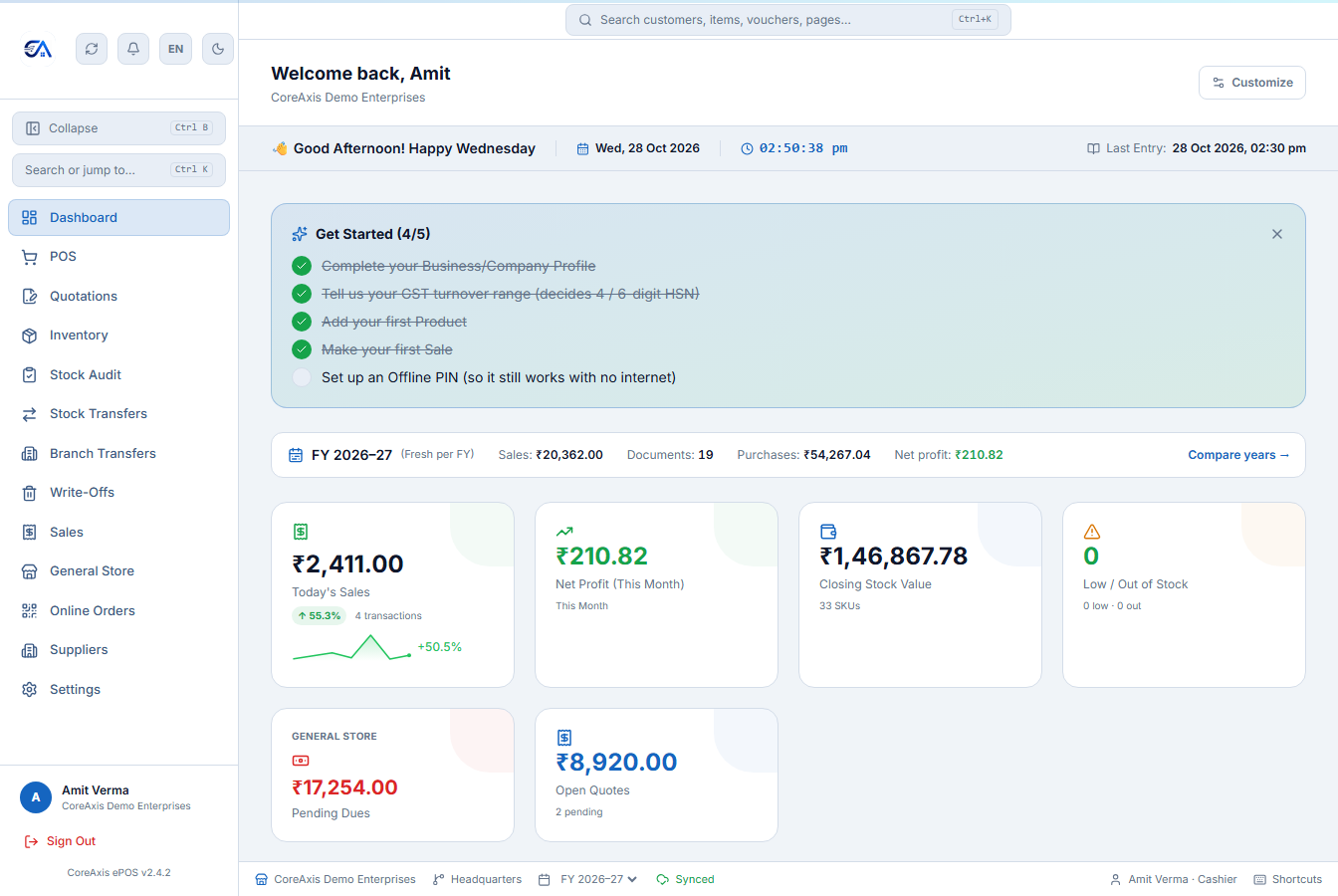
- Name: Amit Verma · Role: Cashier · Home branch: Headquarters (restricted)
- Amit can bill at the POS, look up customers and check stock, but cannot open Finance, Reports or Settings.
Staff Access — which menus a role sees§§team-staff-access-which-menus-a-role-sees§§
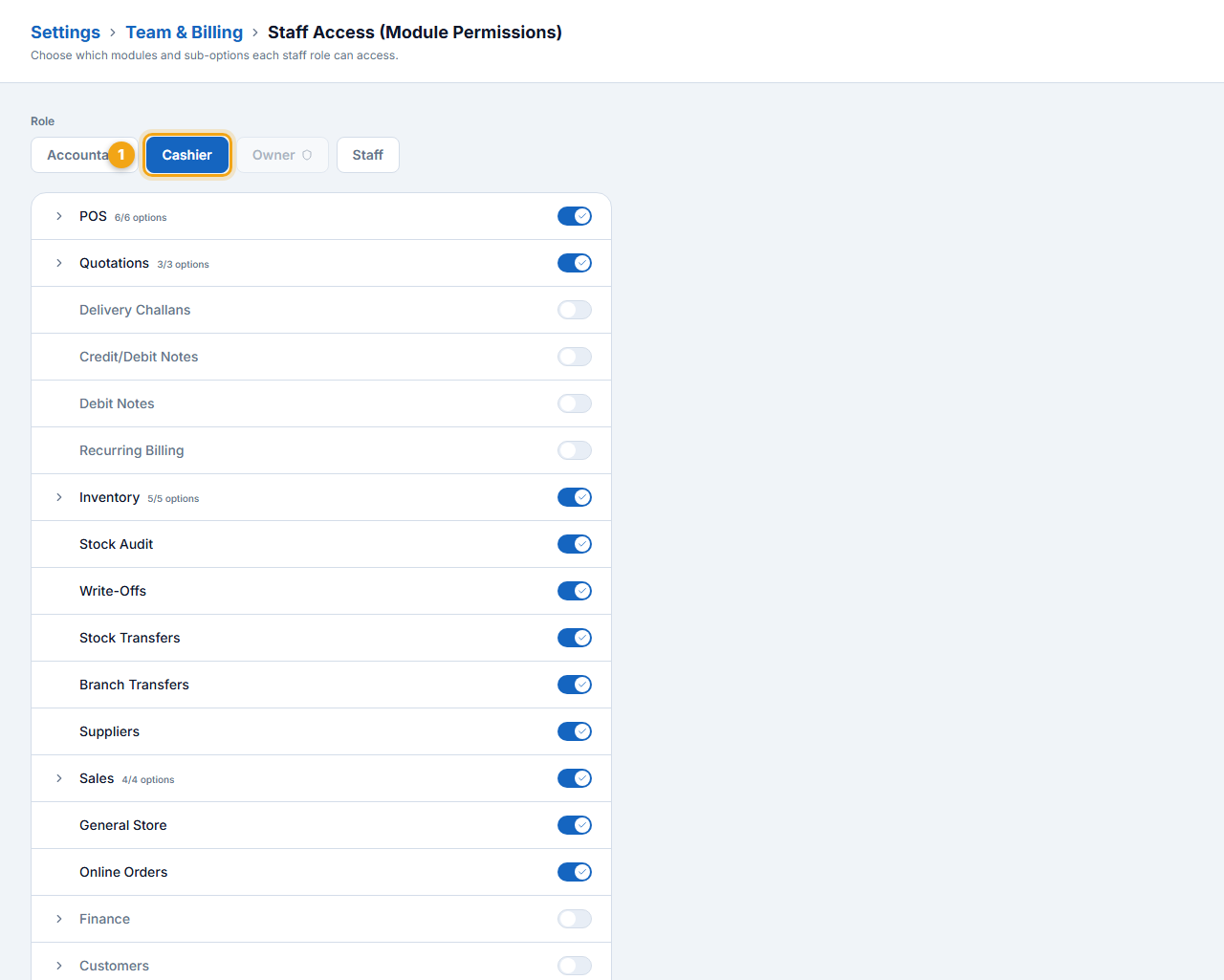
- Open Settings → Team & Billing → Staff Access.
- Pick the role at the top (Accountant, Cashier, Staff …).
- Switch each module on or off. Modules with “options” (POS, Inventory, Sales, Finance, Customers, Reports) open to finer switches — for example a cashier can create a sale but not cancel one.
- Click Save access.
Role Permissions — what a role can do§§team-role-permissions-what-a-role-can-do§§
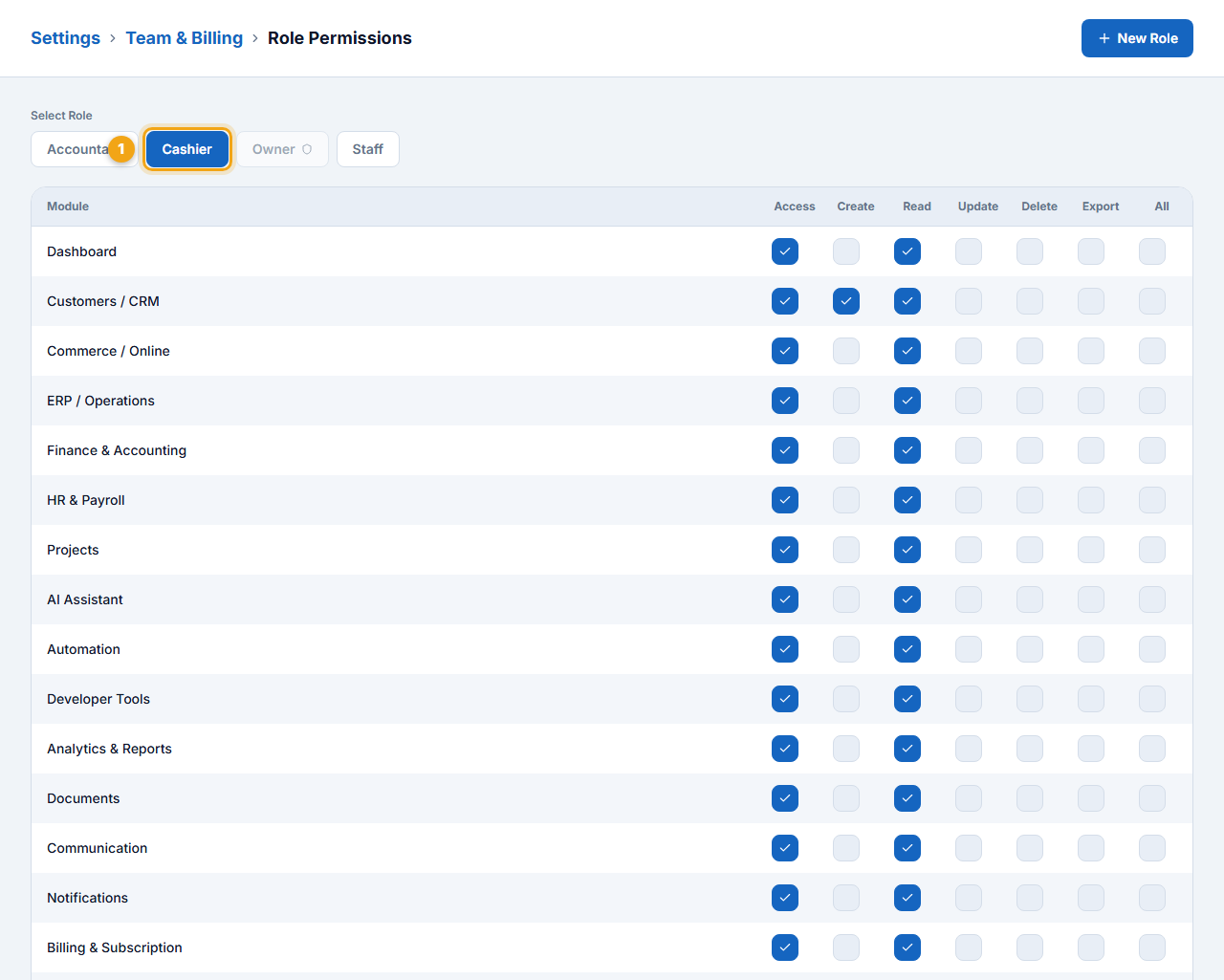
Settings → Team & Billing → Role Permissions is a grid of modules against Access, Create, Read, Update, Delete, Export. Select a role (1), tick the boxes, and the change applies to everyone with that role. Click New Role to create your own role.
This is what Amit (Cashier) sees after signing in — only the menus the role allows, with his name and role in the status bar:
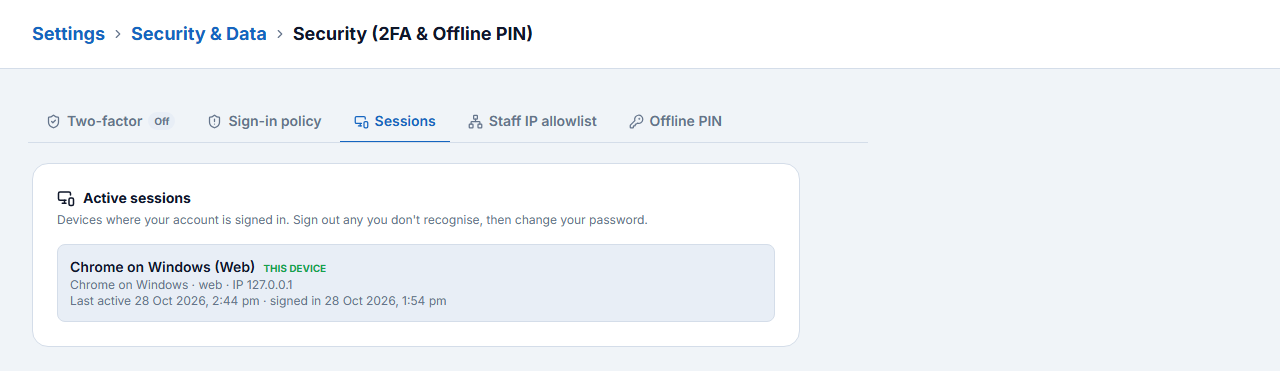
Security: sign-in policy, sessions and Offline PIN§§team-security-sign-in-policy-sessions-and-offline-pin§§
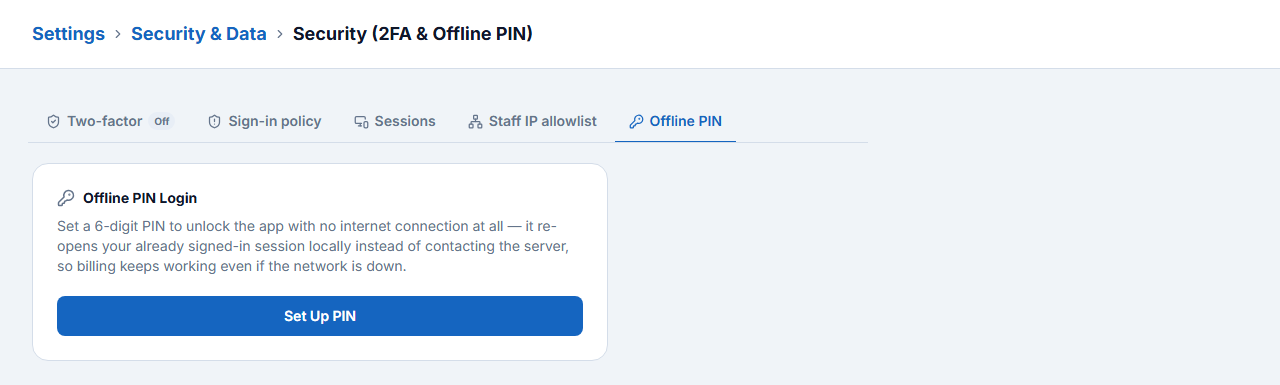
Settings → Security & Data → Security has five tabs.
| Tab | Use it to |
|---|---|
| Two-factor | Turn on authenticator codes at sign-in (Chapter 2) |
| Sign-in policy | Rules such as password strength and when a new-device code is required |
| Sessions | See where the account is signed in and end a session you do not recognise |
| Staff IP allowlist | Allow staff to sign in only from your shop’s internet connection |
| Offline PIN | A short PIN that unlocks the app on this device when there is no internet |
Login activity and audit logs
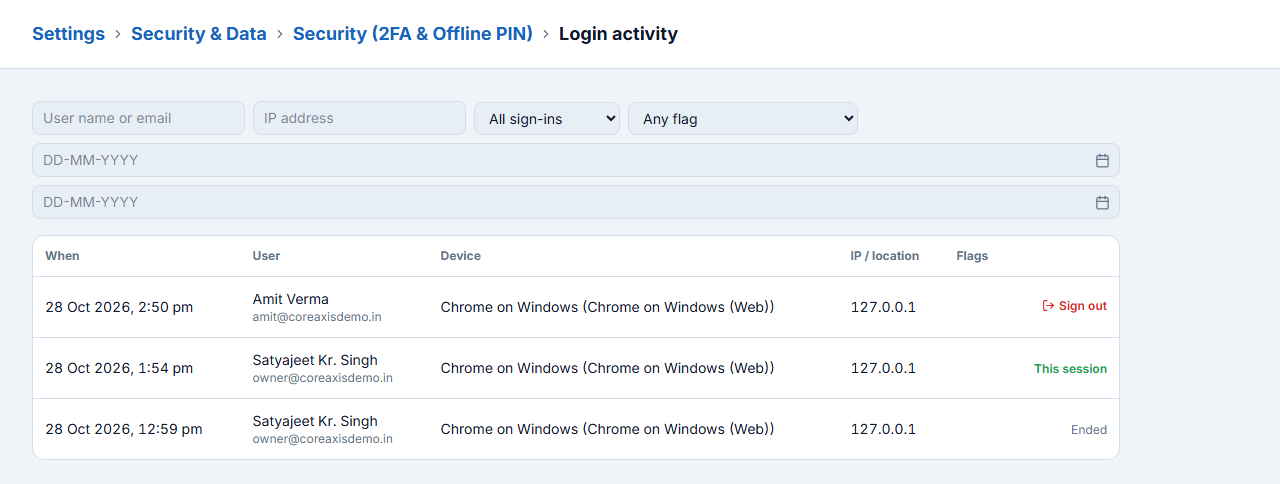
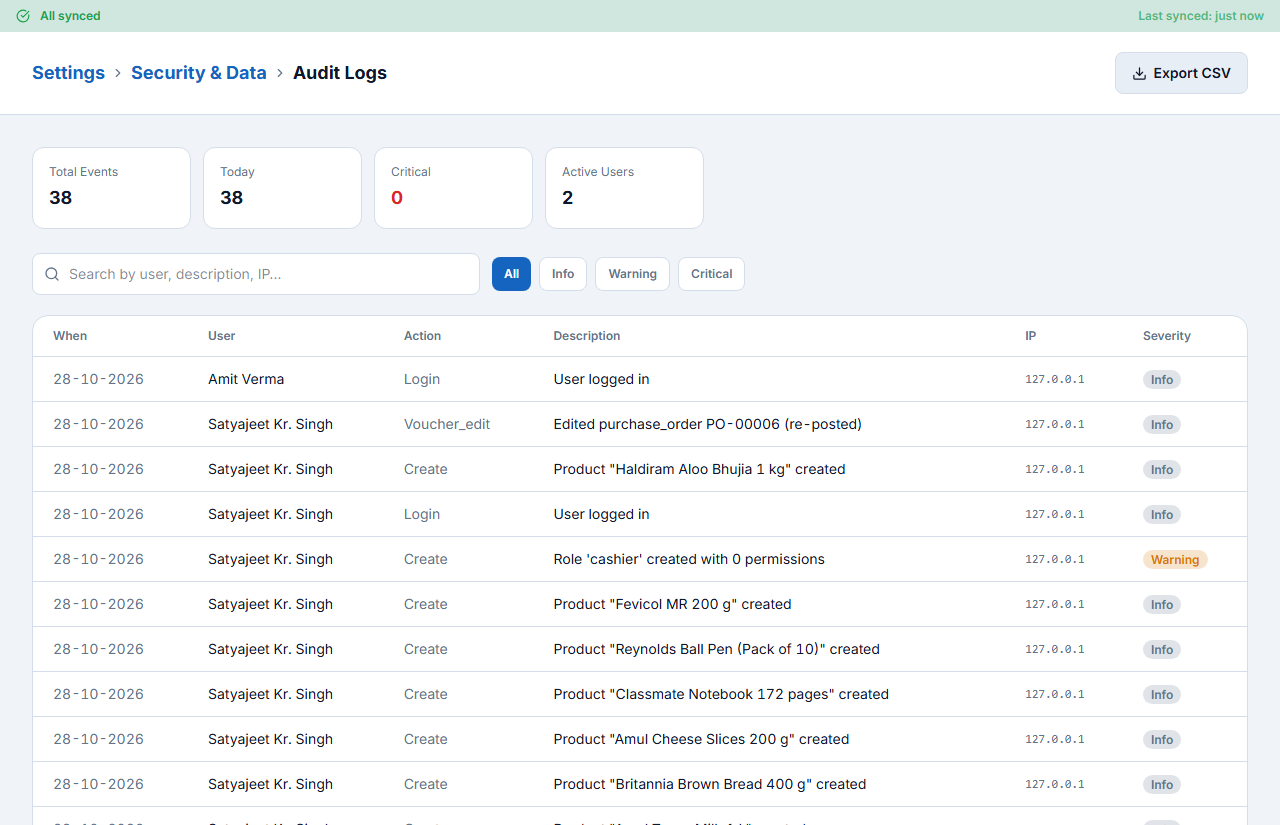
Login activity lists every sign-in with user, device, IP and flags (new device, new country, impossible travel). Audit Logs record important actions — logins, products created, roles changed — with user, time and severity. Edit Log keeps the before and after of every edited voucher.
Backup, restore and sync§§team-backup-restore-and-sync§§
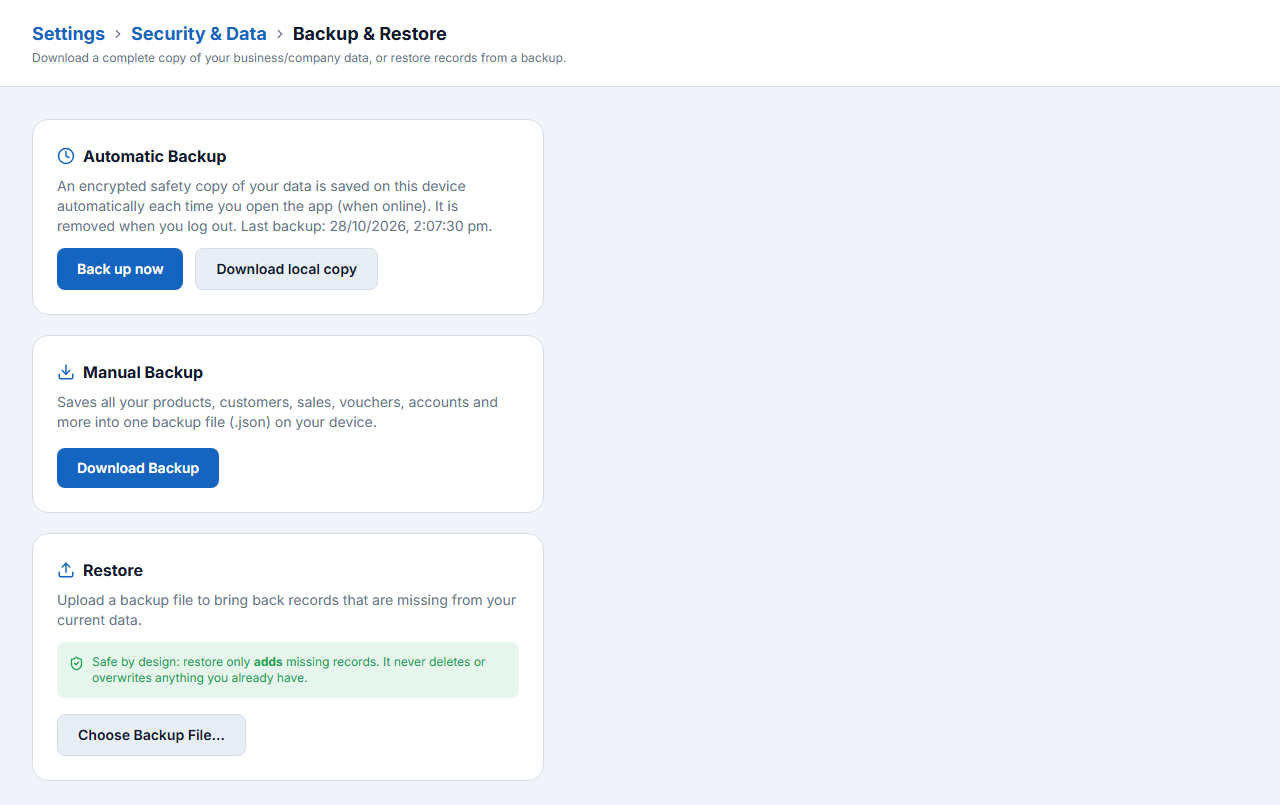
- Automatic backup — an encrypted safety copy is saved on the device each time you open the app online. Back up now makes one immediately.
- Manual backup — Download Backup saves products, customers, sales, vouchers and accounts in one .json file.
- Restore — upload a backup file to bring back missing records. Restore only adds what is missing; it never deletes or overwrites.
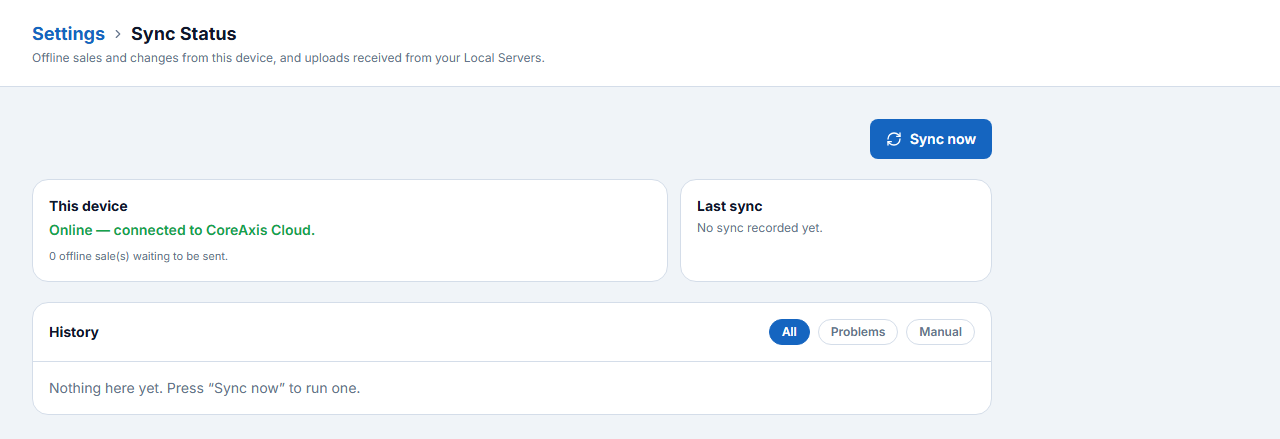
- Sync Status — shows whether this device is online, offline sales waiting to be sent, and a Sync now button.
Subscription§§team-subscription§§
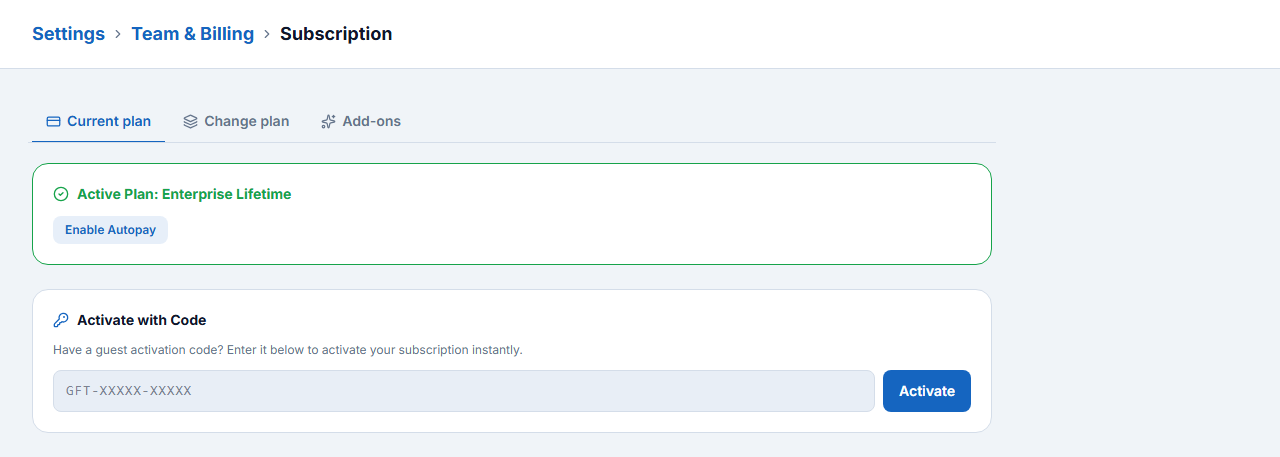
Settings → Team & Billing → Subscription shows the active plan (Enterprise Lifetime in the example), lets you change plan, buy add-ons, turn on autopay or activate with a code.
POS Billing
The POS (point of sale) is the billing counter. This chapter takes you through a complete bill from CoreAxis Demo Enterprises: customer, items by name, barcode and the stock list, quantity and discounts, split payment, checkout and printing — plus hold, credit and new-customer shortcuts.
POS kholne ke liye sidebar se POS ya g p. Party chuniye (ya walk-in), item ka naam/barcode type karke Enter, quantity daaliye, payment mode chuniye aur Checkout (F4). Bill hold: F5, naya bill: F2.
The POS screen§§pos-the-pos-screen§§
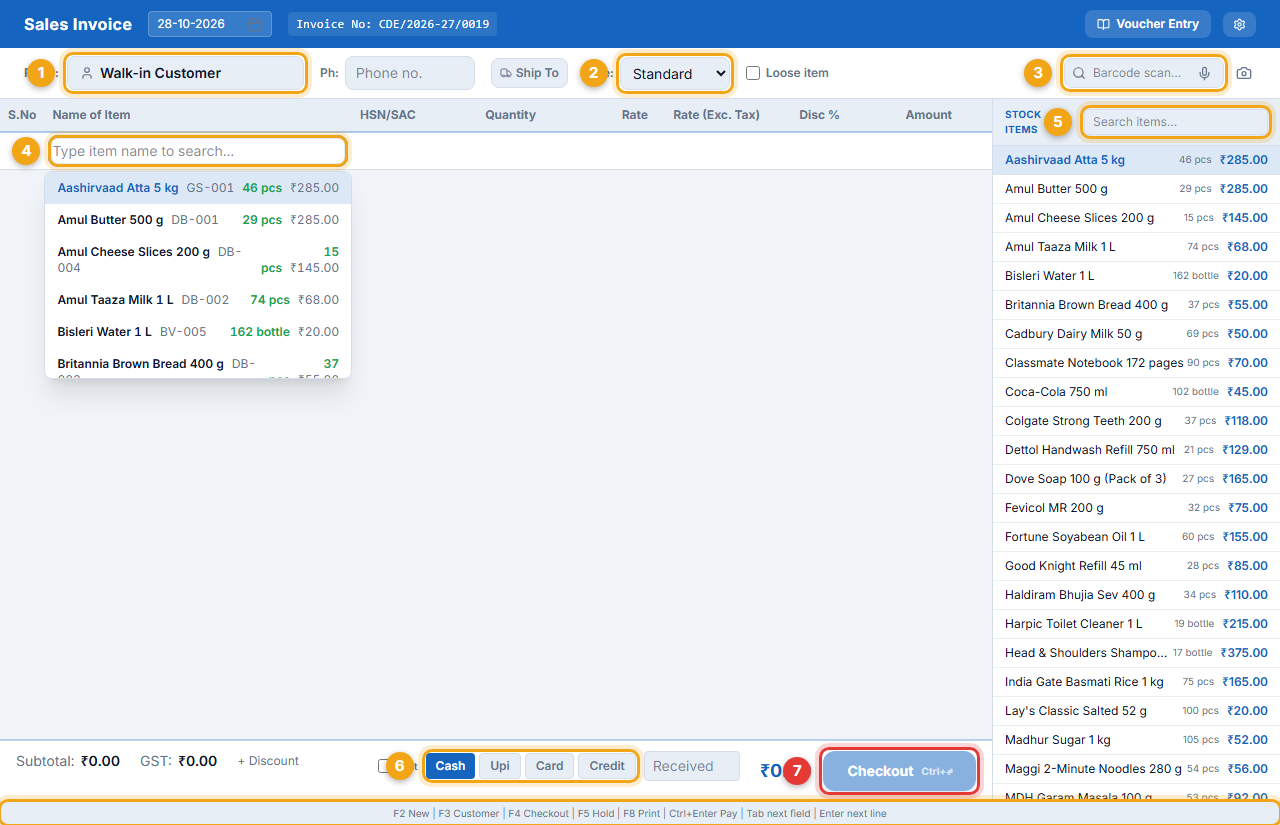
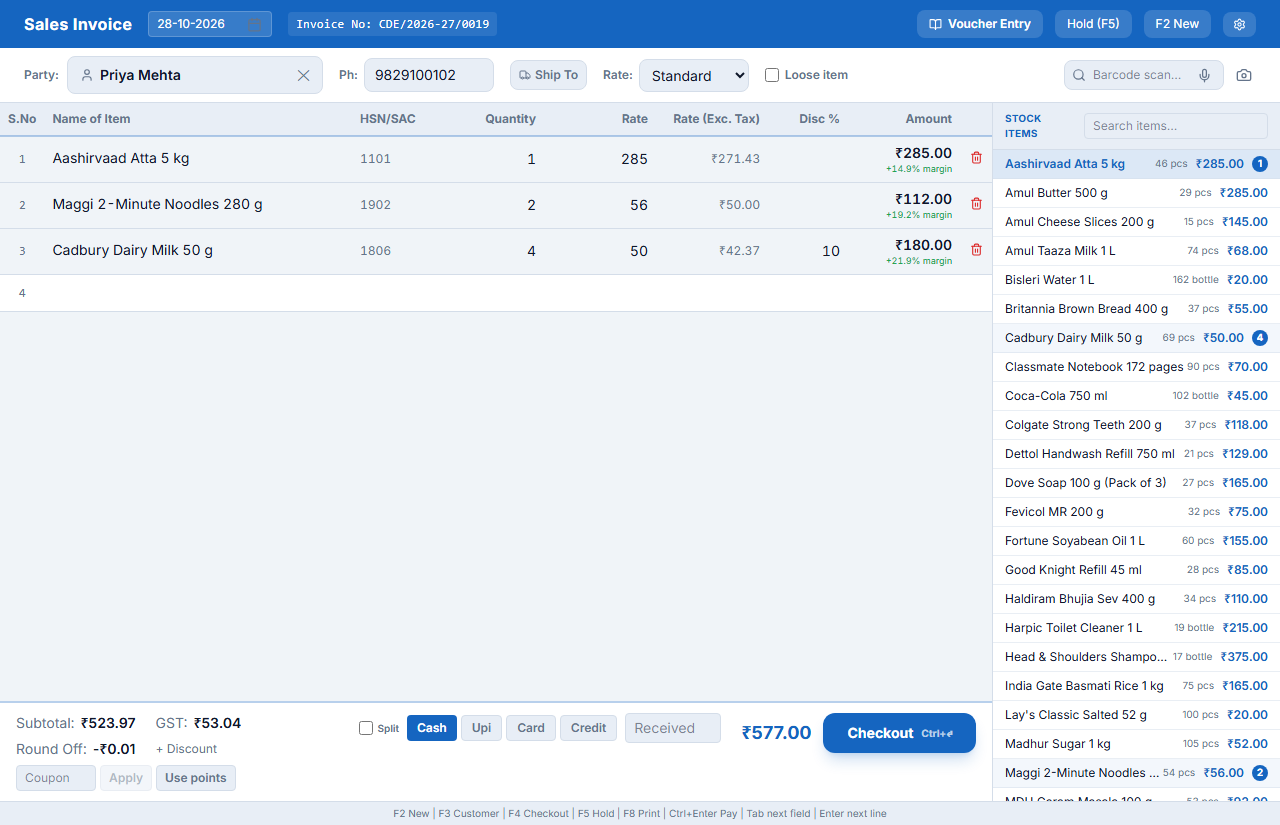
- Party (1) — leave it as Walk-in Customer or search a customer by name or phone.
- Rate (2) — Standard or a price level such as Wholesale.
- Barcode scan (3) — for a USB / Bluetooth barcode scanner; the camera icon scans with a webcam.
- Item line (4) — type an item name, SKU or barcode.
- Stock items (5) — the item list with stock and price; click an item to add it.
- Payment mode (6) — Cash, UPI, Card or Credit; tick Split to divide the payment.
- Checkout (7) — saves the bill (F4 or Ctrl+Enter).
- Shortcut bar (8) — F2 New · F3 Customer · F4 Checkout · F5 Hold · F8 Print.
Worked example: a complete bill§§pos-worked-example-a-complete-bill§§
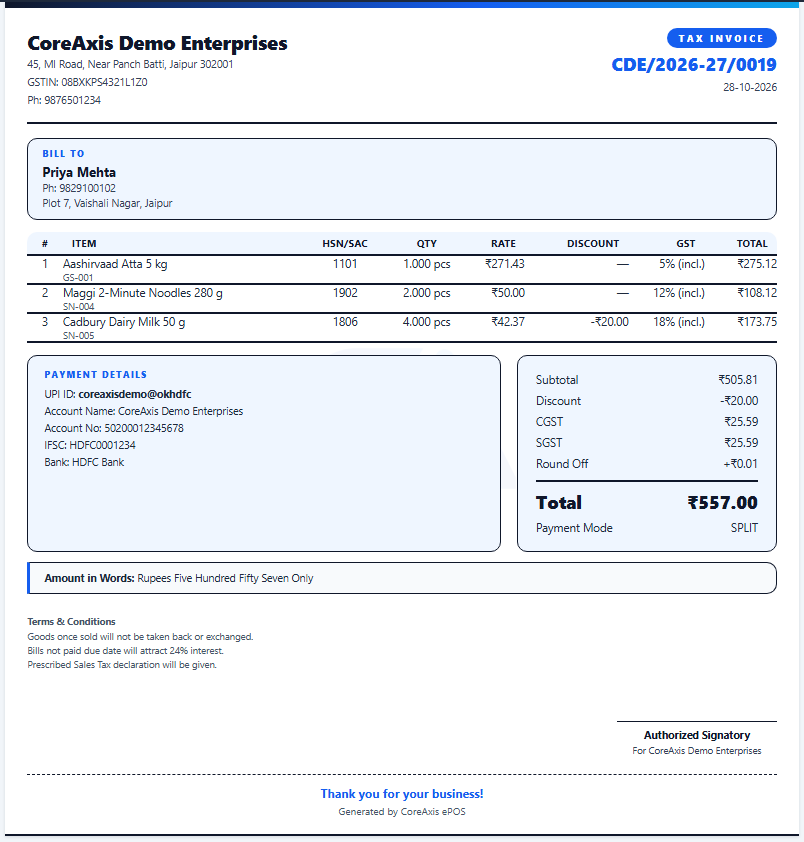
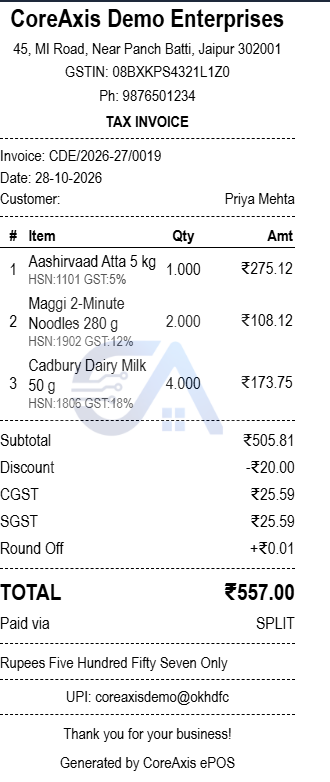
- Aashirvaad Atta 5 kg — 1 × ₹285 (searched by name)
- Maggi 2-Minute Noodles 280 g — 2 × ₹56 (barcode 8901058862317)
- Cadbury Dairy Milk 50 g — 4 × ₹50 with 10% item discount = ₹180 (from the stock list)
- Bill total ₹577 − bill discount ₹20 = ₹557
- Paid ₹300 cash + ₹257 UPI (split payment)
1. Choose the customer
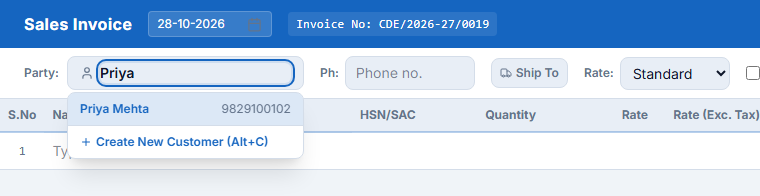
- Click the Party box (or press F3) and type part of the name or phone — Priya.
- Pick Priya Mehta. Her phone fills in and loyalty points are tracked on this bill.
2. Add items by name
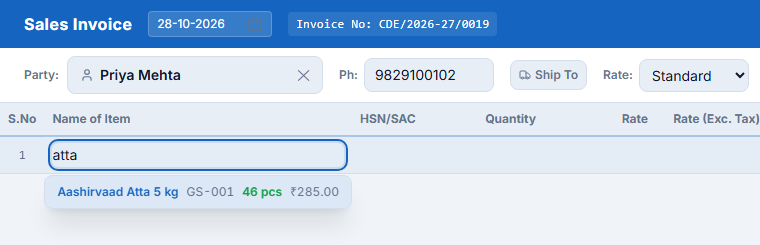
- Click the first item line and type atta.
- The list shows matching items with SKU, stock and price. Press Enter to take the top match (or click it).
- The cursor moves to Quantity. Type the quantity and press Enter — a new line opens.
3. Add an item by barcode
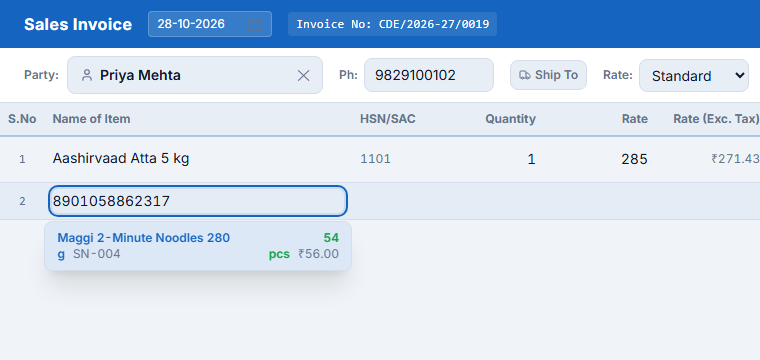
- On the new line, scan the barcode (or type it): 8901058862317.
- Maggi 2-Minute Noodles is found. Press Enter, type quantity 2 and press Enter.
4. Add from the stock list, change quantity and discount
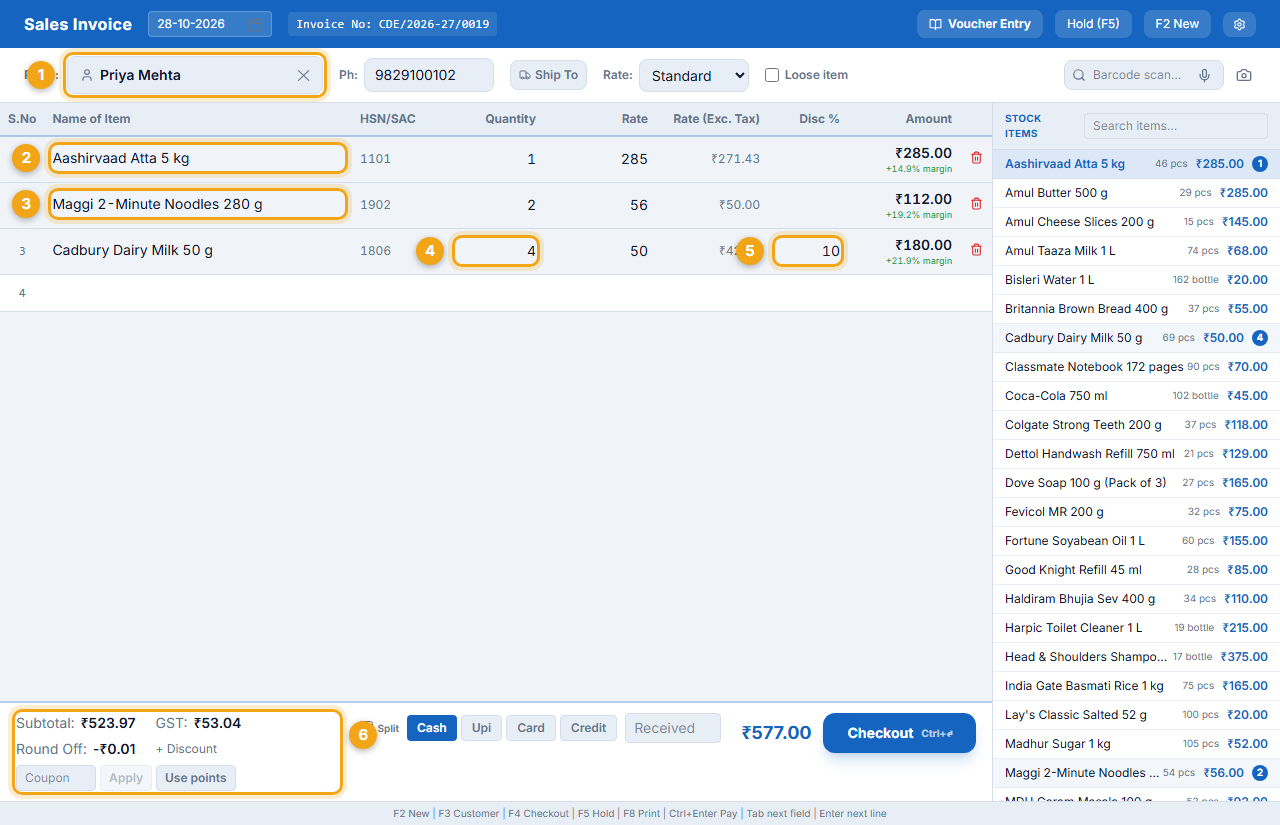
- In Stock Items type cadbury and click Cadbury Dairy Milk 50 g.
- Change its Quantity (4) to 4.
- Type 10 in Disc % (5). The line amount becomes ₹180.
- The totals box (6) shows Subtotal (taxable value), GST and round-off.
5. Bill discount
- Click + Discount under the totals.
- Choose ₹ (or %) and type 20 (1).
- The bill total drops to ₹557 (2). GST is reduced in proportion.

6. Split payment and checkout
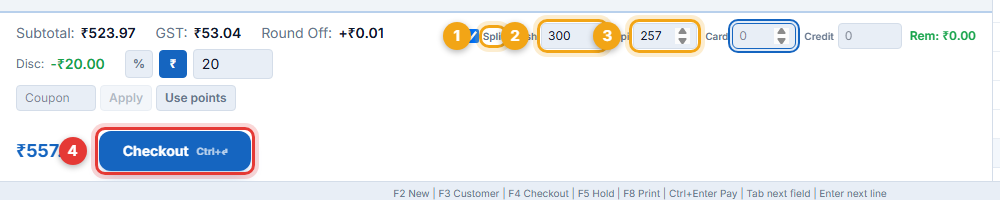
- Tick Split (1). Boxes for Cash, UPI, Card and Credit appear with the remaining amount (“Rem”).
- Type 300 in Cash (2) and 257 in UPI (3). Rem becomes ₹0.
- Click Checkout (4) or press F4.
7. Print or share
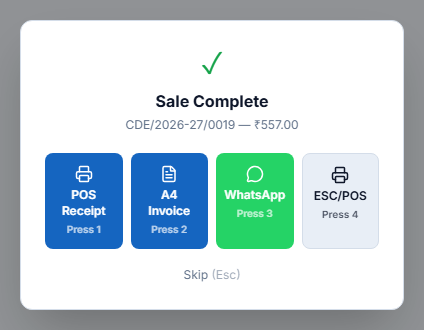
The Sale Complete window shows the bill number and amount. Press 1 for a POS Receipt (thermal), 2 for an A4 Invoice, 3 for WhatsApp, 4 for direct ESC/POS printing, or Esc to skip. The POS is cleared for the next customer.
Other ways to pay§§pos-other-ways-to-pay§§
| Mode | How | What happens in the books |
|---|---|---|
| Cash | Click Cash (Alt+1), type Received to see the change to return | Cash-in-hand goes up |
| UPI | Click Upi (Alt+2); the bill prints your UPI QR | Bank / UPI account goes up |
| Card | Click Card (Alt+3) | Bank account goes up |
| Credit (khata) | Select a customer first, then Credit (Alt+4) | The customer’s ledger shows the amount as due |
| Split | Tick Split and enter each part | Each part goes to its own account |
- Hotel Pink City Residency (GSTIN 08AAKFK1212E1ZS) bought 24 Bisleri, 12 Coca-Cola and 6 Parle-G for ₹1,620 on credit.
- The bill is a B2B invoice; the ₹1,620 is added to the hotel’s dues and later cleared with a receipt (Chapter 11).
Hold a bill, new customer and more§§pos-hold-a-bill-new-customer-and-more§§
Hold (park) a bill
A customer forgot something? Press F5 or click Hold (F5). The bill is parked and the POS is cleared for the next person. The top bar shows 1 Held; click it to bring the bill back.

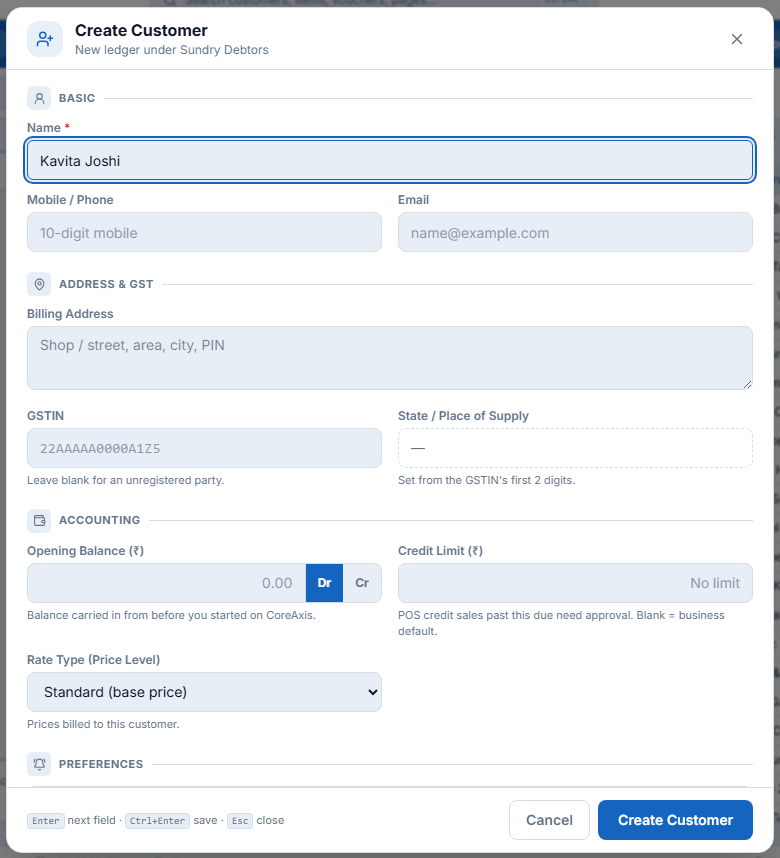
Create a customer from the POS
Type a new name in the Party box and press Alt+C. The Create Customer window opens with the name filled; add the mobile, address, GSTIN, opening balance, credit limit and rate type, and click Create Customer.
Useful options on the POS bar
- Ship To — a delivery address different from the billing address.
- Loose item — sell by weight or a typed amount without a barcode.
- Voucher Entry — switch to the full keyboard voucher screen (Chapter 11).
- Settings (gear) — choose which columns the bill grid shows: HSN, rate with / without tax, discount, GST %, unit, batch, expiry, barcode, narration.
- F8 reprints the last receipt; F2 starts a new bill.
Sales, Returns and Sales Documents
After billing, everything about a sale lives in Sales: find a bill, reprint or share it, take back items, cancel, and prepare quotations, delivery challans, credit / debit notes and recurring bills.
Purane bill Sales mein milenge — invoice number ya customer naam se search kijiye. Bill kholkar print, WhatsApp, return ya cancel. Quotation, delivery challan aur credit note bhi isi chapter mein.
Sales history§§sales-sales-history§§
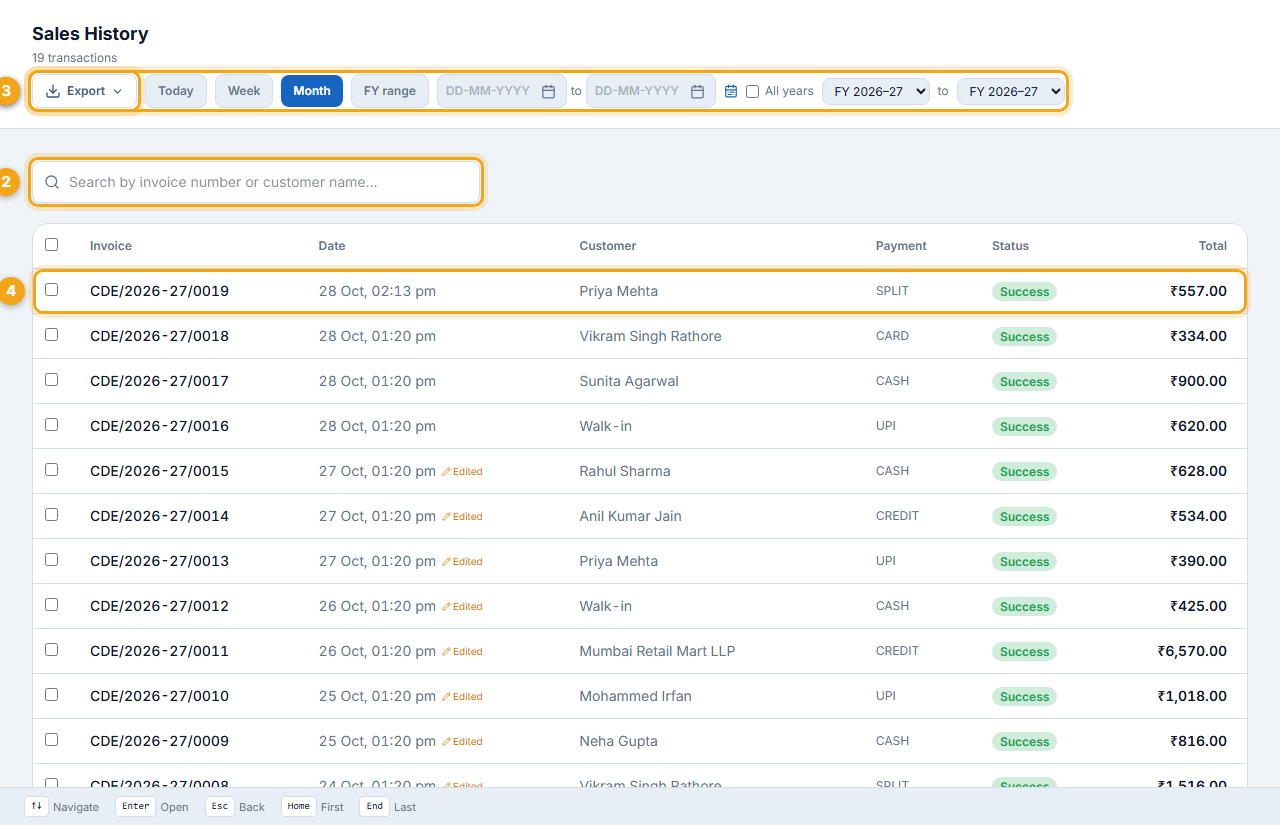
- Open Sales from the sidebar (or g s).
- Pick the period (1): Today, Week, Month, an FY range or your own dates.
- Search by invoice number or customer name (2).
- Use Export (3) for Excel / PDF.
- Click a bill (4) — or use ↑ ↓ and Enter — to open it.
Open a bill: print, share, edit§§sales-open-a-bill-print-share-edit§§
The bill page shows the customer, items with HSN and GST split, taxable amount, CGST / SGST, discount and grand total.
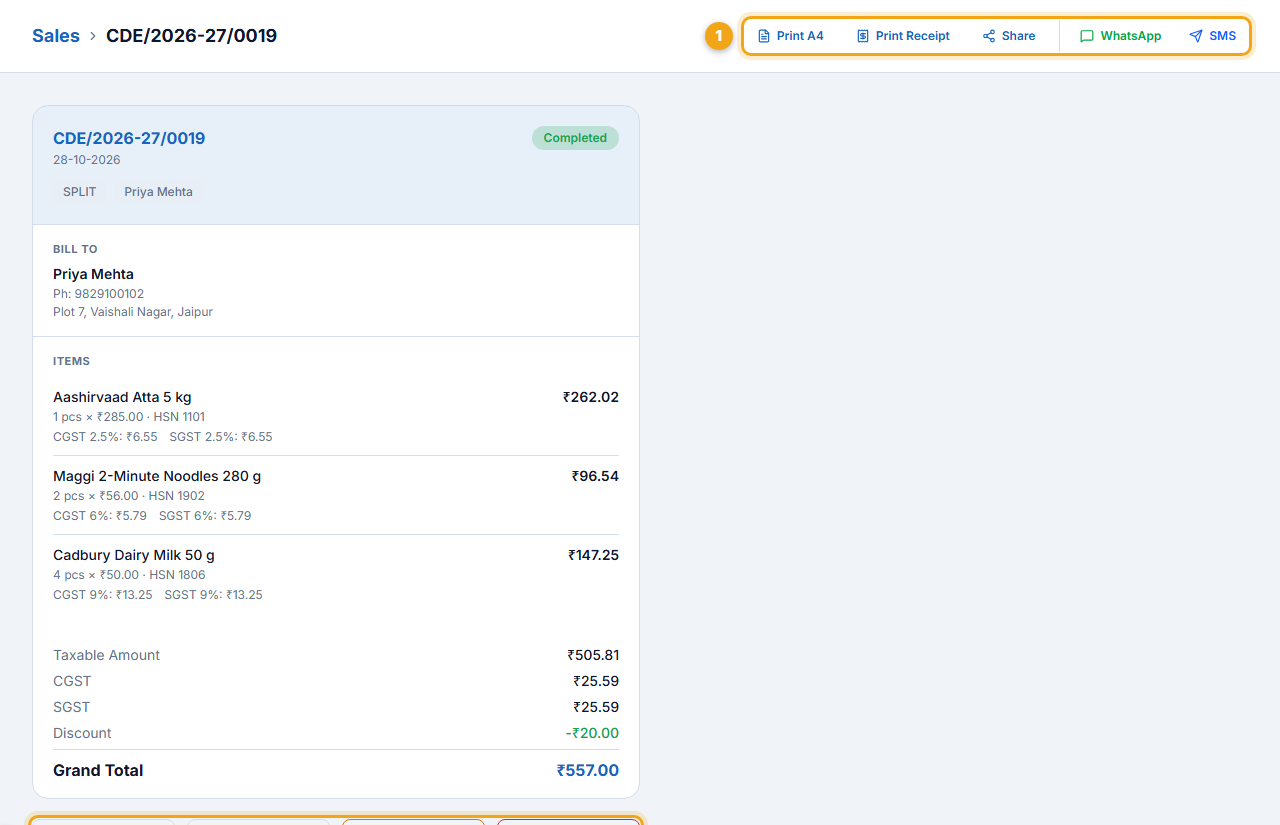
- Print A4 / Print Receipt (1) — reprint in either format.
- Share, WhatsApp, SMS — send the bill to the customer.
- Edit Sale, Return Items, Cancel Sale, Delete Sale (2) — shown only to roles that may use them.
Sales return§§sales-sales-return§§
- Open the bill and click Return Items.
- For each item, type the quantity coming back. The window shows how many were sold and how many can still be returned.
- Add a reason (optional) and click Confirm Return.
- Stock goes back up, a credit note is created and the refund or adjustment is posted.
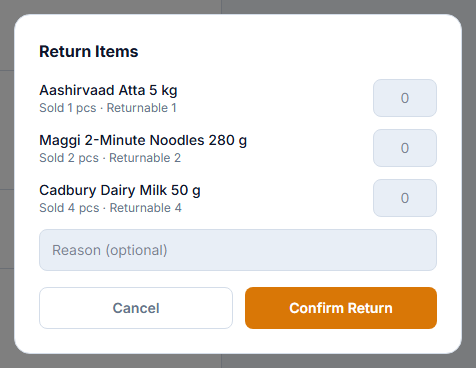
- Sunita Agarwal returned 1 Surf Excel Easy Wash 1 kg from bill CDE/2026-27/0004 (paid by card).
- Credit note CN-00001 for ₹145 was created; stock of Surf Excel went up by 1.
Cancel a sale§§sales-cancel-a-sale§§
Use Cancel Sale when the whole bill was a mistake. You are asked to confirm; the bill keeps its number with status Cancelled, stock comes back and the accounts are reversed.
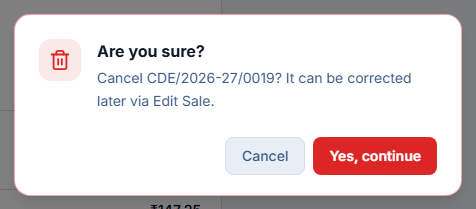
Quotations§§sales-quotations§§
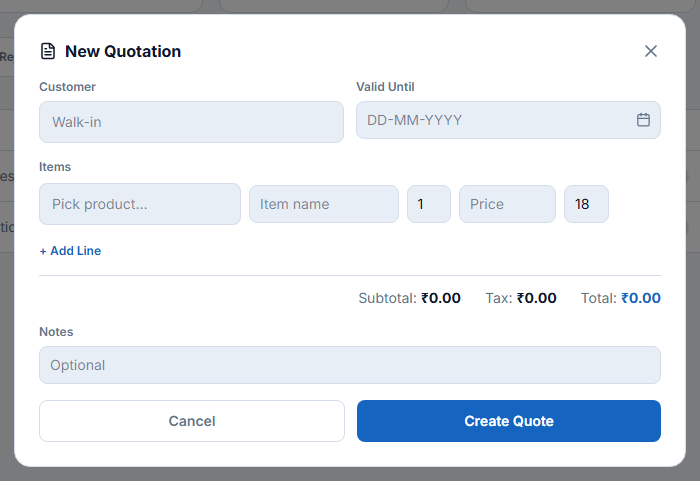
A quotation gives a customer your prices before they buy. When they agree, convert it to a bill in one click.
- Open Quotations and click New Quote (1).
- Choose the customer and a Valid Until date.
- Add items (pick a product, quantity, price and GST) with + Add Line. Totals update as you type.
- Add notes and click Create Quote.
- Track status in the list (2): Draft → Sent → Accepted / Rejected → Converted. Use the WhatsApp and print icons to send it.
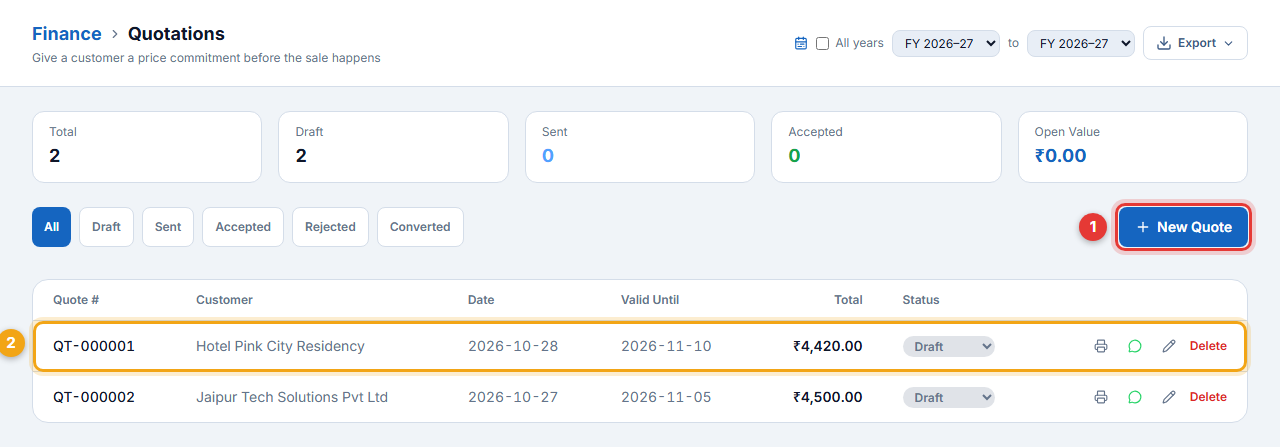
- Customer: Hotel Pink City Residency · valid till 10-11-2026
- 48 Bisleri 1 L, 24 Coca-Cola 750 ml, 12 Parle-G 800 g, 4 Tata Tea Premium — total ₹4,420
- When the hotel confirms, open the quote and convert it into a sale.
Delivery challans§§sales-delivery-challans§§
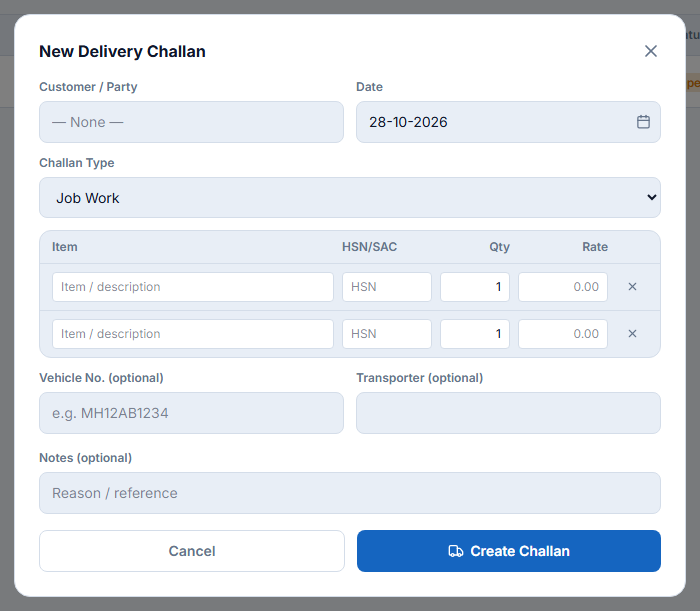
A delivery challan goes with goods that are not a sale yet — on approval, job work or stock transfer. It is not a tax invoice.
- Open Delivery Challans and click New Challan.
- Choose the customer / party, date and Challan Type (Job Work, Stock Transfer, On Approval / Sale-or-Return, Other).
- Add items with HSN, quantity and rate, and the vehicle number and transporter if any.
- Click Create Challan. Print it to send with the goods.

Credit and debit notes§§sales-credit-and-debit-notes§§
Credit/Debit Notes is the full register of sales returns, purchase returns and standalone notes.
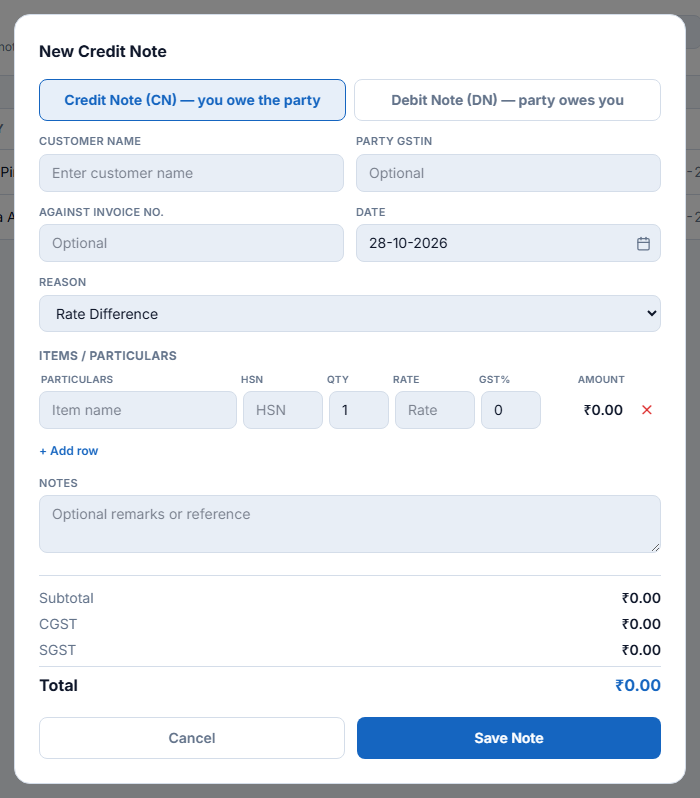
- Credit note (CN) — you owe the party: a return, a rate difference or a discount after the sale.
- Debit note (DN) — the party owes you: for example a rate increase or goods returned to a supplier.
- Click New Note and choose Credit Note or Debit Note.
- Enter the party name and GSTIN, the invoice it relates to, the date and the Reason.
- Add particulars with HSN, quantity, rate and GST %.
- Save. The note is reported in GSTR-1 (CDNR / CDNUR).
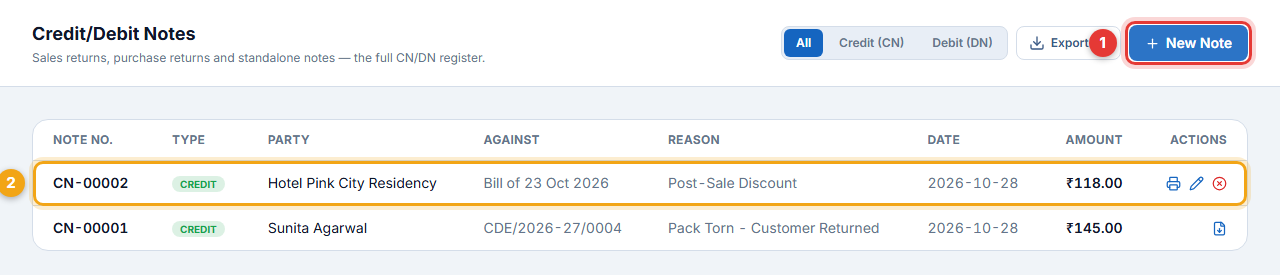
- Hotel Pink City Residency was given ₹100 + 18% GST off after the 23 Oct bill → CN-00002 for ₹118.
Sales invoices (accounts view) and recurring billing§§sales-sales-invoices-accounts-view-and-recurring-billing§§
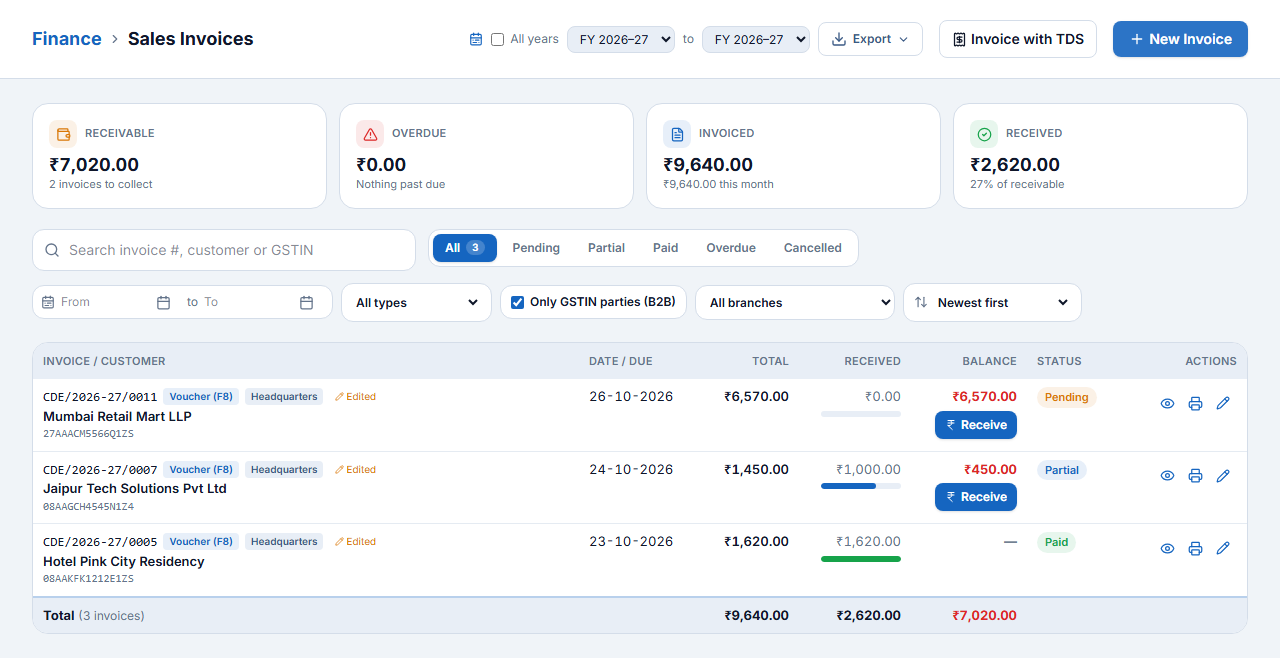
Finance → Sales Invoices shows credit and B2B bills with total, received, balance and status (Pending, Partial, Paid, Overdue). Click Receive to record a payment against a bill.
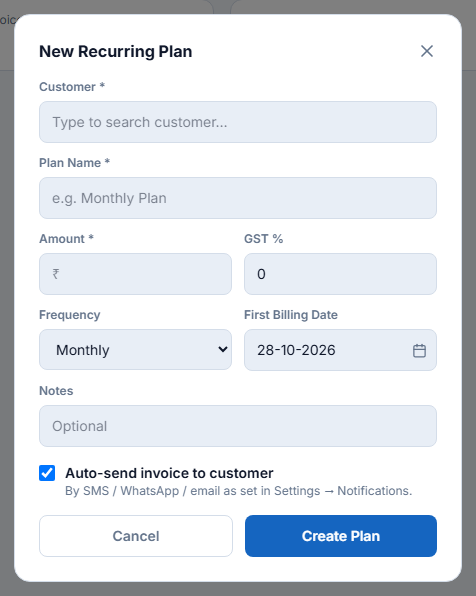
Recurring Billing bills a customer automatically on a schedule — memberships, rent, AMC. Click New Plan, choose the customer, plan name, amount, GST %, frequency and first billing date.
Inventory: Items and Stock
Create your items with the right HSN and GST, keep stock correct in every branch and godown, count stock, move it between branches, write off damaged goods and print barcode labels.
Item banane ke liye Inventory → Add Product: naam, SKU, barcode, selling price, MRP, cost, HSN, GST rate, opening stock, unit aur category. Stock check, transfer, write-off aur barcode label bhi Inventory mein.
The Inventory page§§inventory-the-inventory-page§§
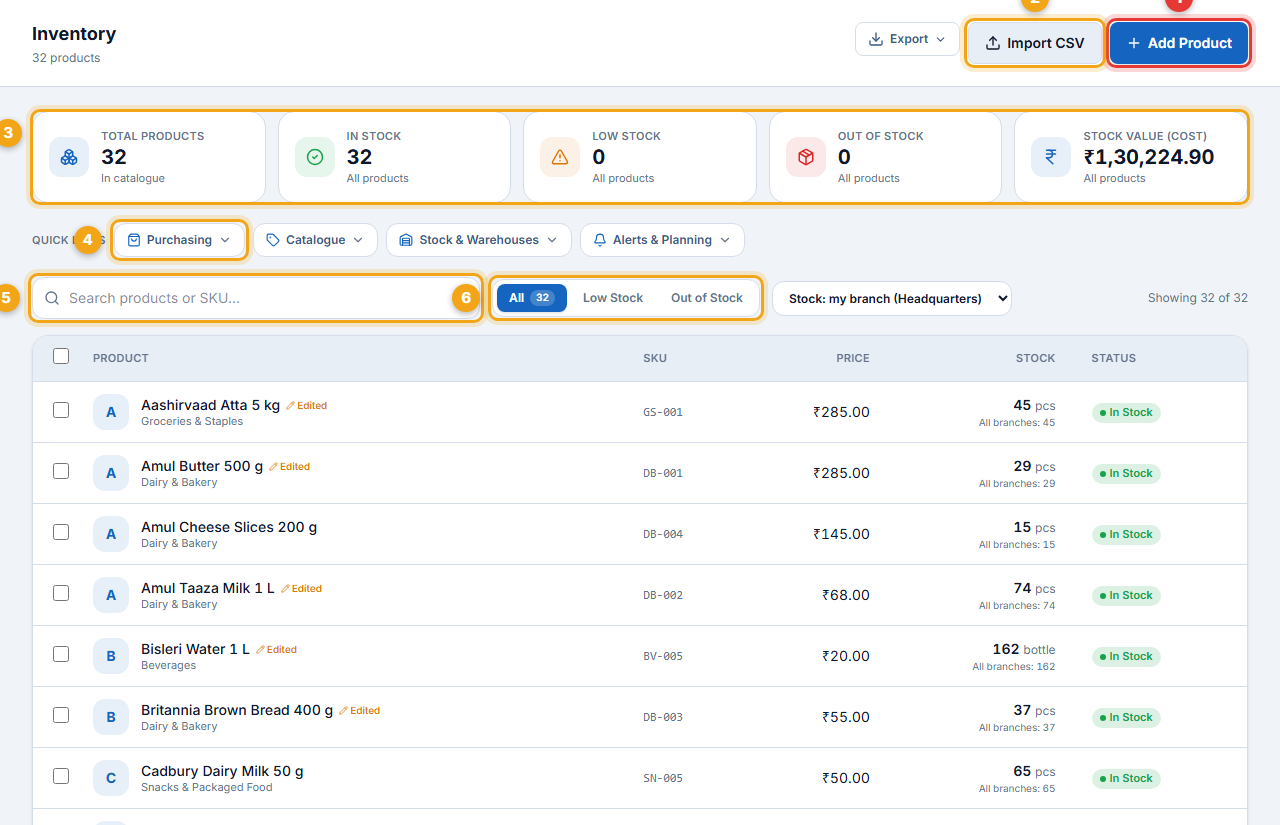
- Add Product (1) and Import CSV (2) — add one item or many.
- Summary tiles (3) — total products, in stock, low stock, out of stock and stock value.
- Quick links (4) — Purchasing, Catalogue (categories, brands, barcode labels), Stock & Warehouses and Alerts & Planning.
- Search (5) by name or SKU.
- Filters (6) — All, Low Stock, Out of Stock; and which branch’s stock to show.
Categories§§inventory-categories§§
Open Inventory → Catalogue → Categories. Create categories under Product — only items in Product and its sub-categories show at the POS. The example uses Groceries & Staples, Beverages, Snacks & Packaged Food, Personal Care, Household & Cleaning, Dairy & Bakery and Stationery.
Add a product§§inventory-add-a-product§§
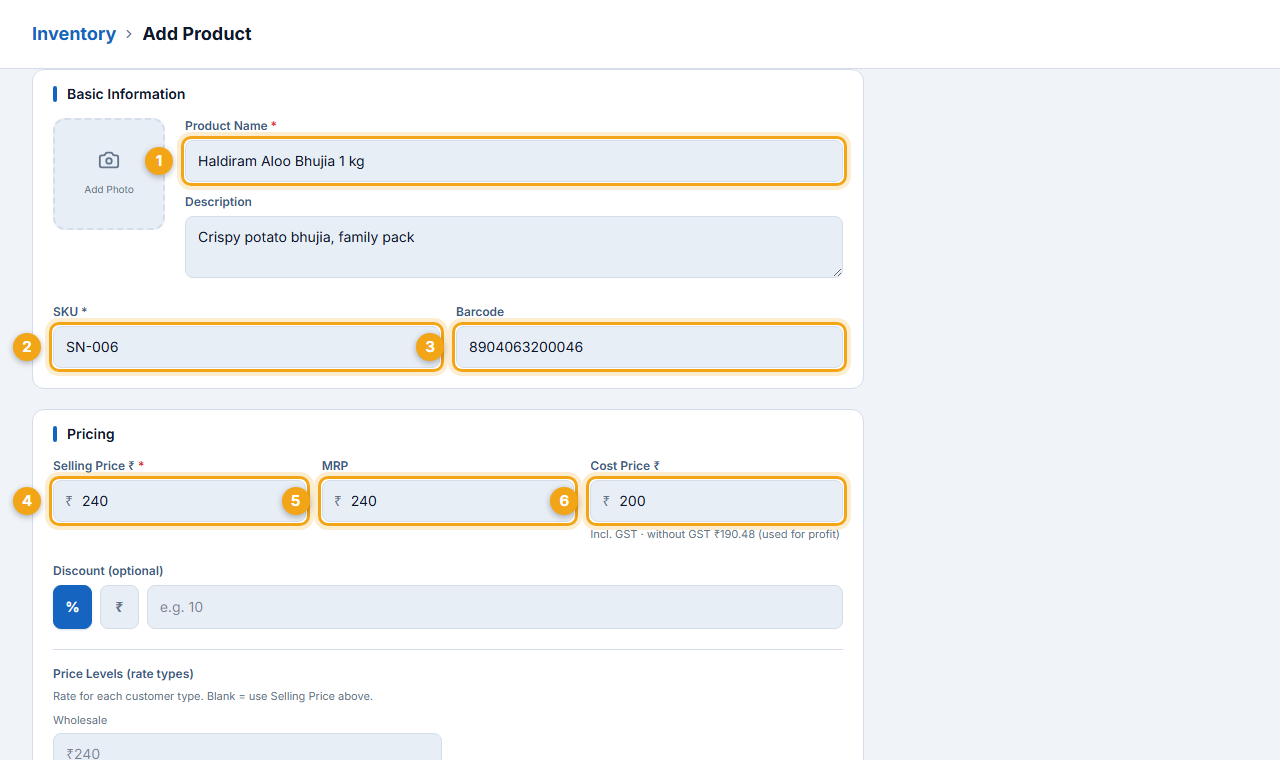
- SKU SN-006 · barcode 8904063200046
- Selling price ₹240 (incl. GST) · MRP ₹240 · cost ₹200
- HSN 2106 · GST 5% · opening stock 24 pcs · reorder level 6
- Category Snacks & Packaged Food · supplier Shree Balaji Traders
- Click Inventory → Add Product.
- Basic information: Product Name (1), an optional description and photo, a unique SKU (2) and the Barcode (3) — scan it into the box.
- Pricing: Selling Price (4), MRP (5) and Cost Price (6). An optional discount and the rate for each price level (e.g. Wholesale) can be set here.
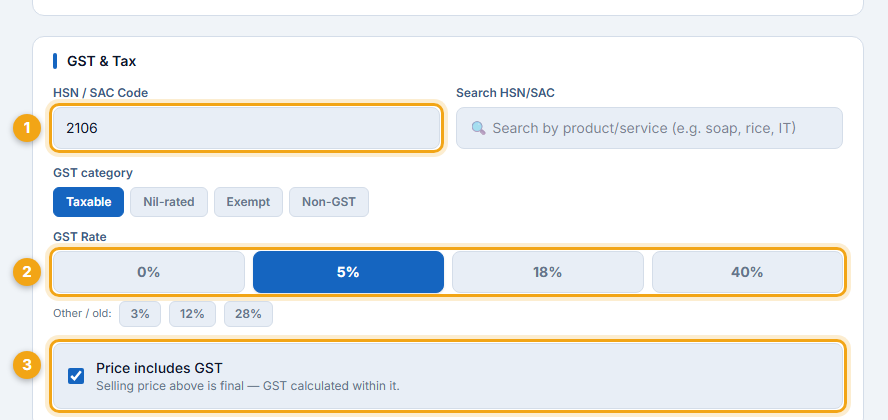
- GST & Tax: type the HSN / SAC Code (1) or search it by product name, choose the GST category and the GST Rate (2).
- Keep Price includes GST (3) ticked if the selling price is the final price the customer pays.
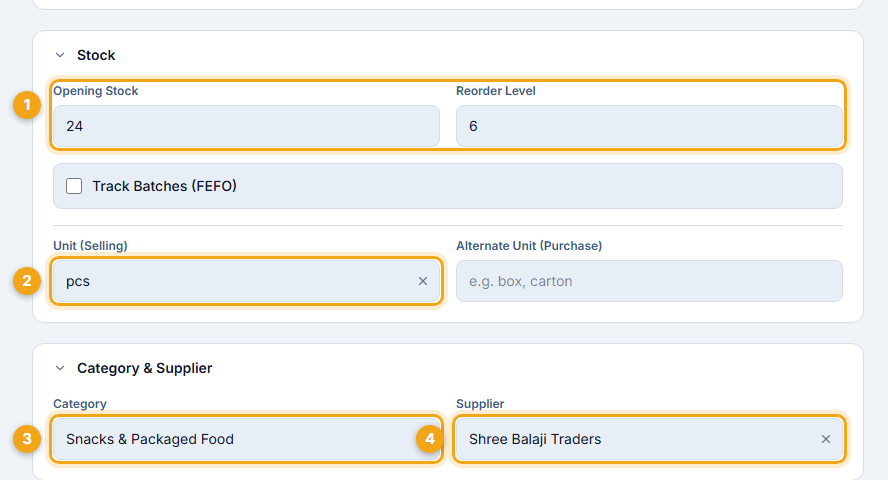
- Stock: Opening Stock and Reorder Level (1). Tick Track Batches (FEFO) for items with batch / expiry.
- Choose the selling Unit (2) and, if you buy in a bigger unit, an Alternate Unit (Purchase) such as box or carton.
- Category & Supplier: pick the Category (3) and the usual Supplier (4).
- Click Save Product. The item is ready to bill and its opening stock is booked at cost.
Product details and stock adjustment§§inventory-product-details-and-stock-adjustment§§
Click any item in the list to open its page: stock, reorder level, selling price, margin, stock value, pricing details and Recent stock movements — every sale, purchase and adjustment that changed the stock.
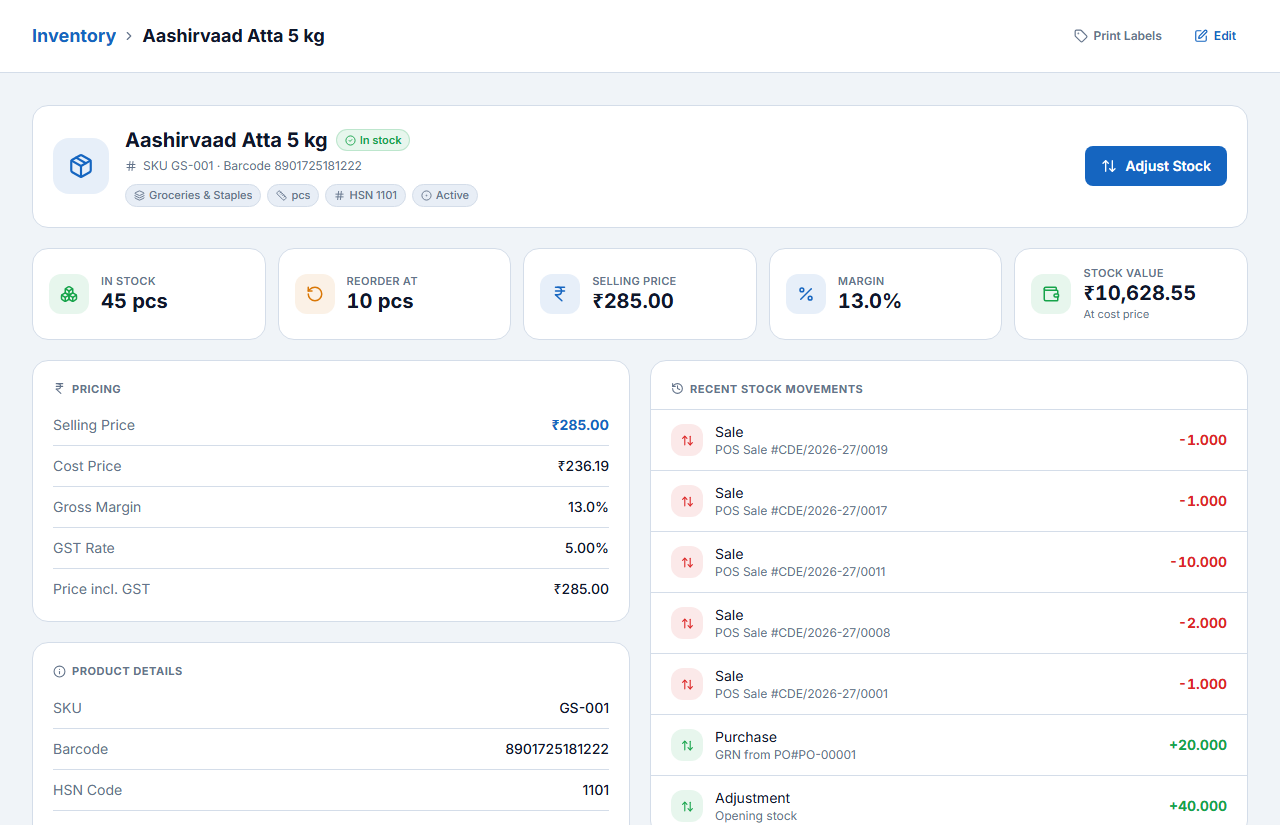
- Click Adjust Stock to correct the quantity after a count or breakage, with a reason.
- Edit changes the item; Print Labels prints barcode labels for it.
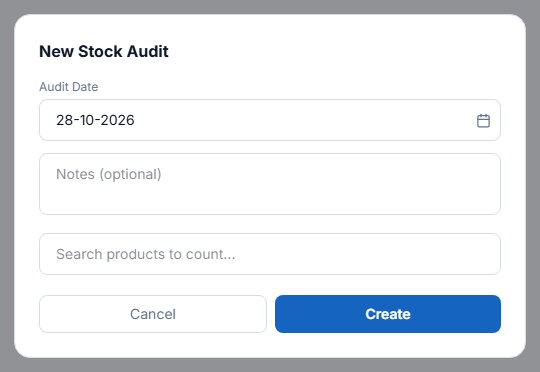
Stock audit (physical count)§§inventory-stock-audit-physical-count§§
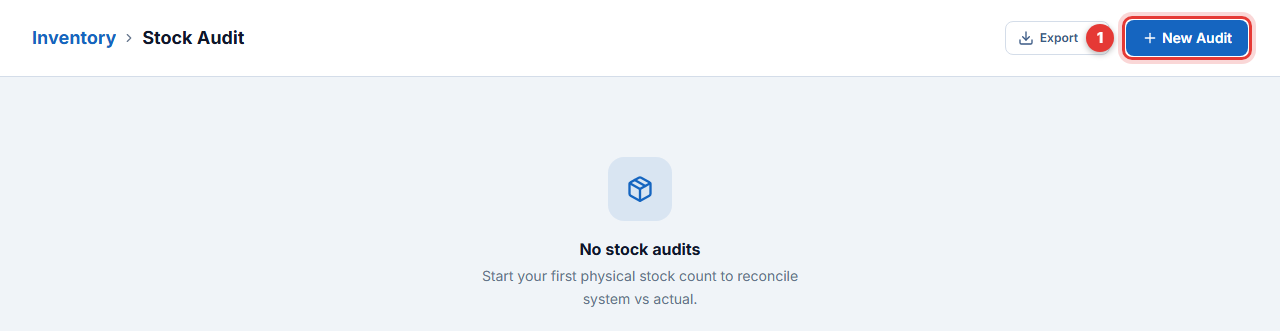
- Open Stock Audit and click New Audit.
- Choose the audit date and add a note.
- Search and add the products to count (or count everything), then Create.
- Enter the counted quantity for each item. The audit shows the difference against the system.
- Finish the audit to post the differences as stock adjustments.
Stock transfers, branch transfers and godowns§§inventory-stock-transfers-branch-transfers-and-godowns§§
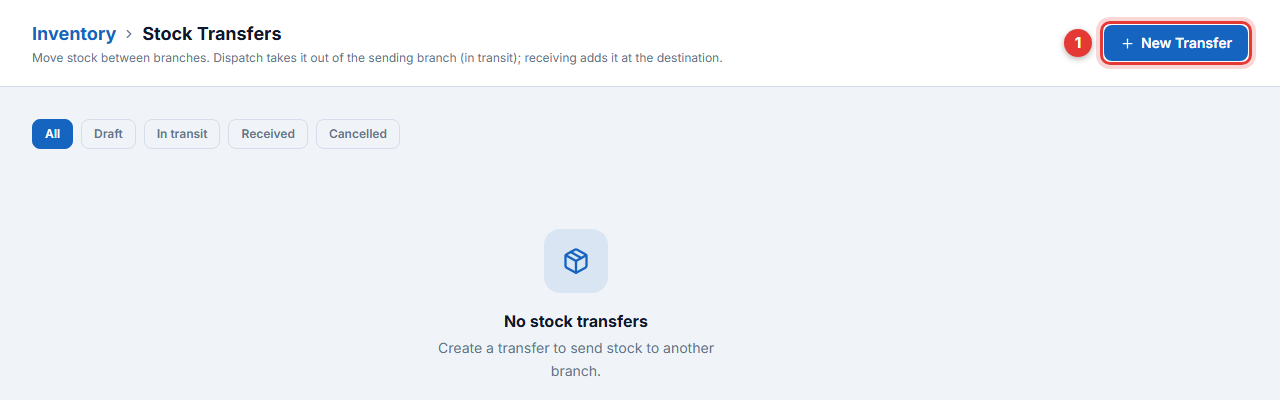
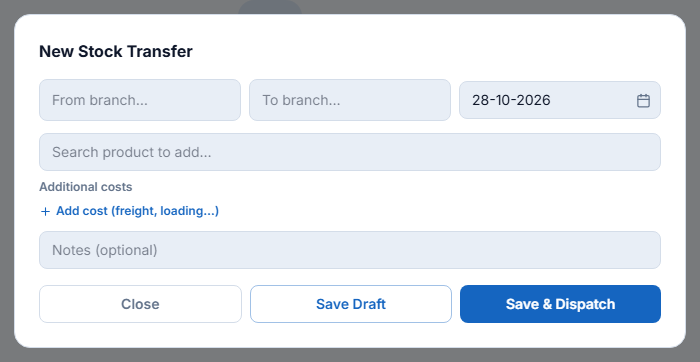
Stock Transfers move stock between branches: dispatch takes it out of the sending branch (in transit) and receiving adds it at the destination.
- Click New Transfer.
- Choose From branch and To branch and the date.
- Search and add the products with quantities, and any freight or loading cost.
- Click Save & Dispatch (or Save Draft). The receiving branch confirms when the goods arrive.
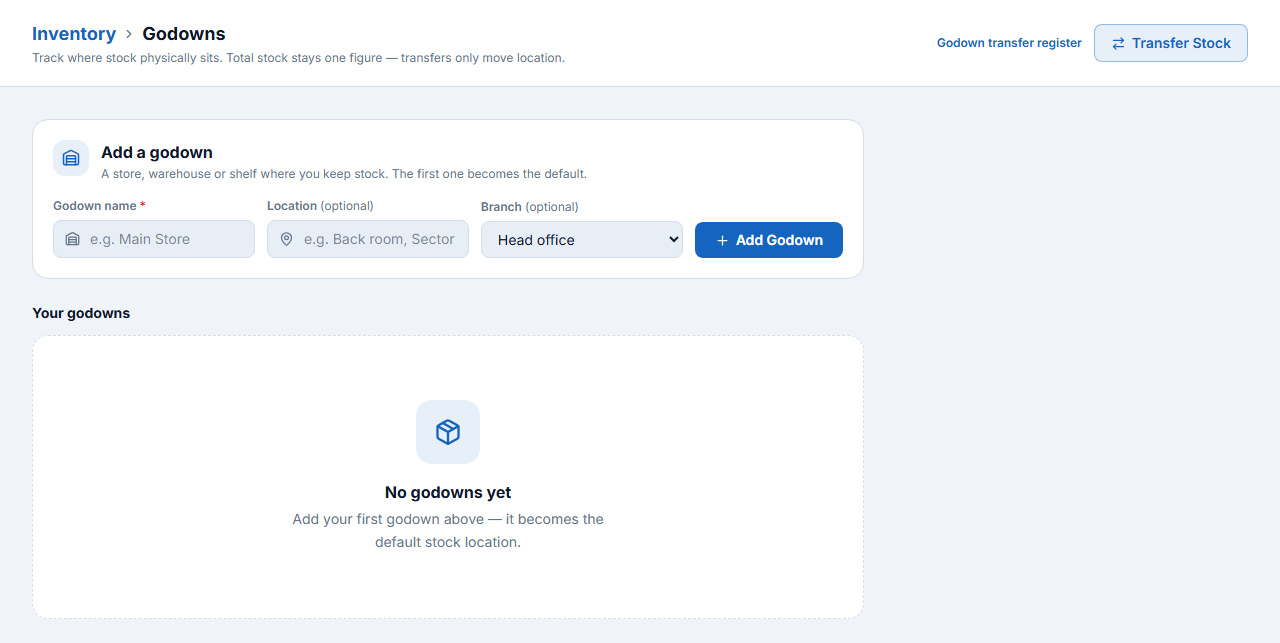
Branch Transfers also move assets, cash and staff between branches. Godowns track where stock physically sits inside a branch (store room, warehouse, shelf) — total stock stays one figure; godown moves only change the location.
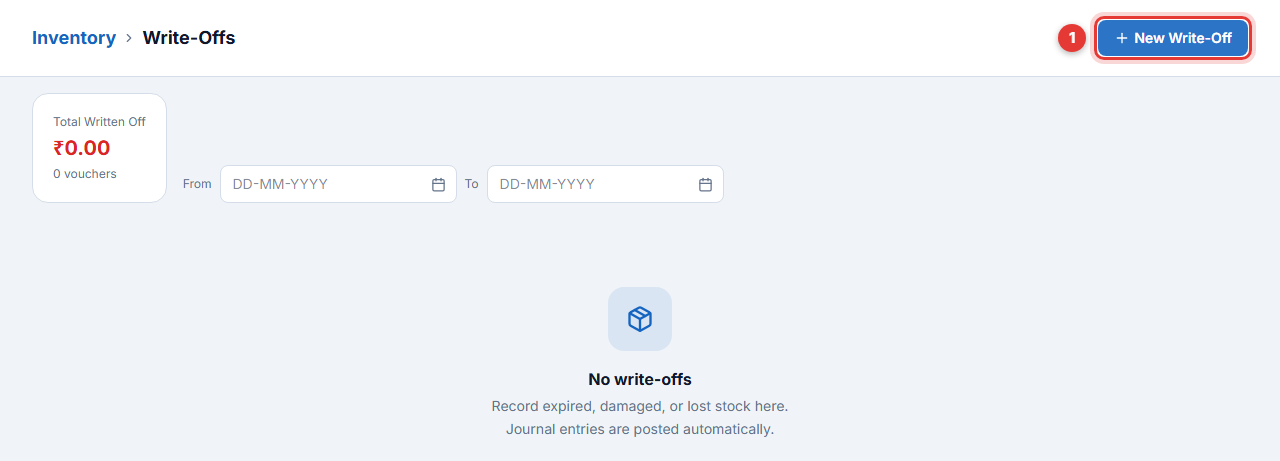
Write-offs§§inventory-write-offs§§
Record expired, damaged, lost or obsolete stock in Write-Offs. Stock is reduced and the loss is posted to accounts automatically.
- Click New Write-Off.
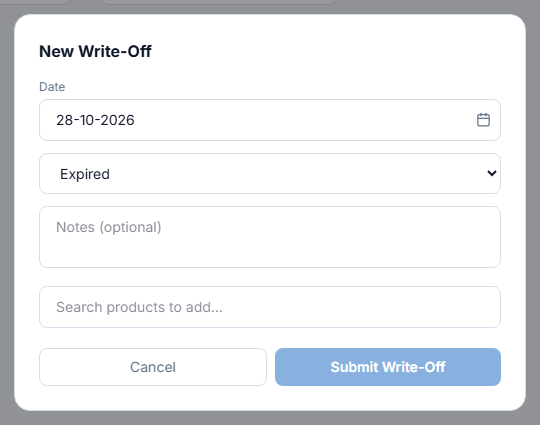
- Pick the date and the reason (Expired, Damaged, Lost, Obsolete, Quality defect).
- Add the products and quantities and click Submit Write-Off.
Barcode labels and stock alerts§§inventory-barcode-labels-and-stock-alerts§§
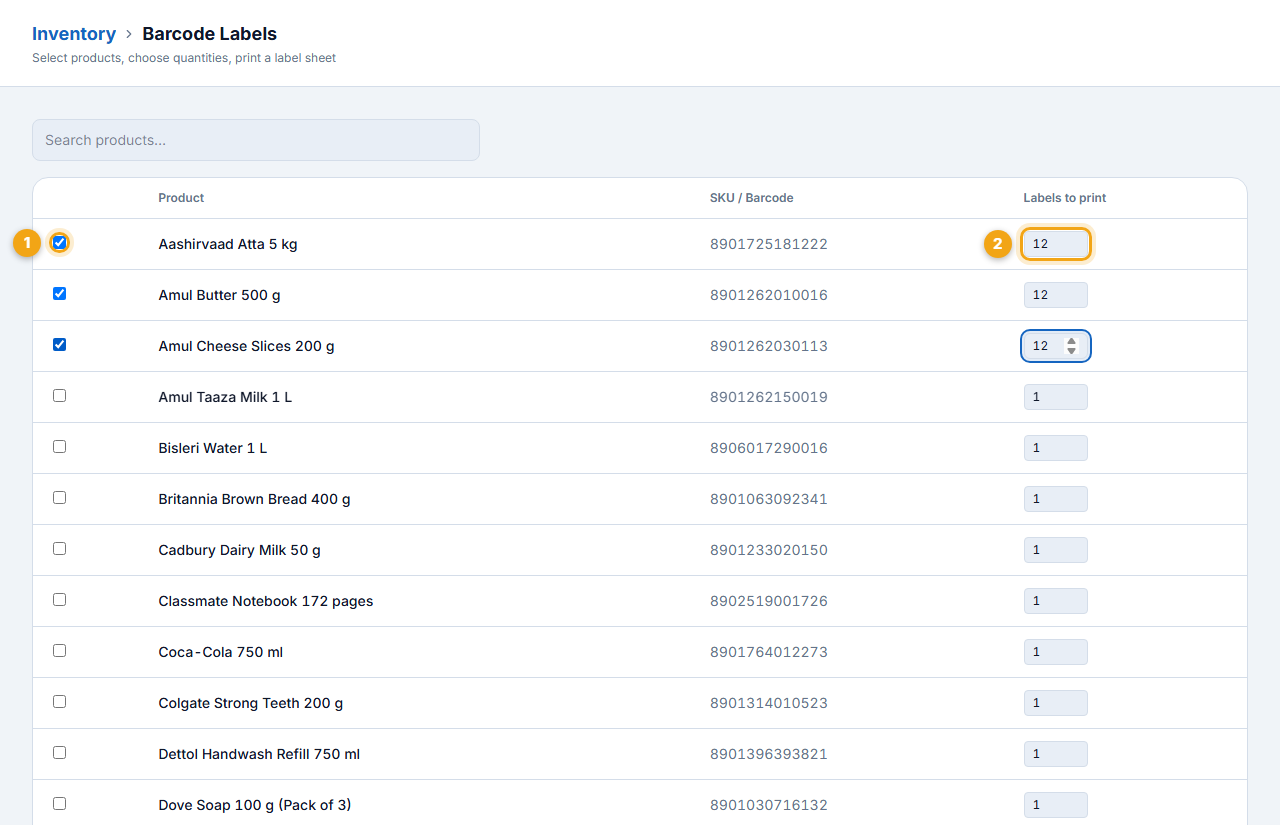
- Open Inventory → Catalogue → Barcode Labels.
- Tick the products (1) and type how many labels each needs (2).
- Print the label sheet on your label printer or A4 label paper.
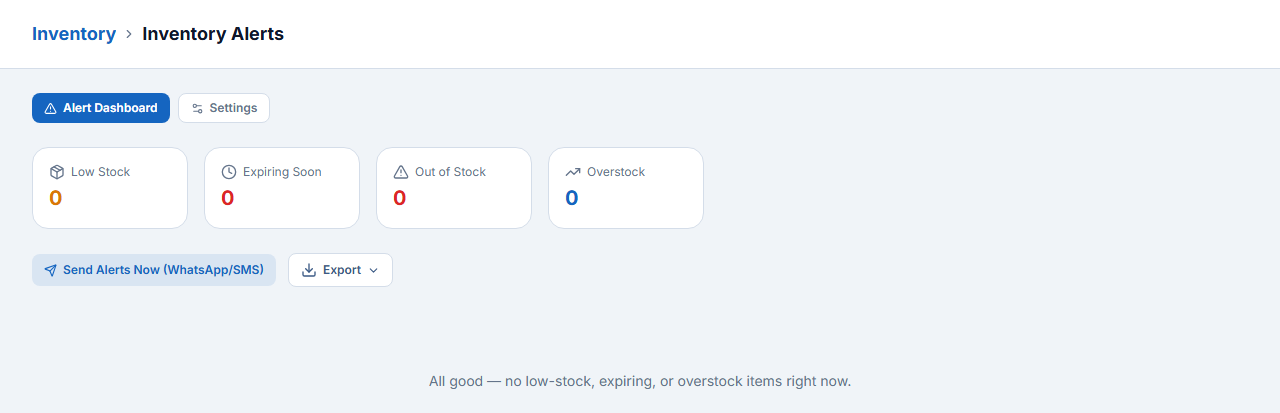
Inventory Alerts lists low-stock, expiring, out-of-stock and overstock items, and can send them to you on WhatsApp / SMS (Send Alerts Now).
Purchases and Suppliers
Keep a ledger for every supplier, place purchase orders, record supplier bills with the right GST so you can claim input tax credit, receive goods, return goods and see what you owe.
Supplier Inventory → Suppliers mein banaiye (GSTIN ke saath). Supplier ka bill Purchase (F9) se entry kijiye — GST aur stock dono update hote hain. Order dena ho to Purchase Orders → New PO, maal aane par Mark Fully Received.
Suppliers§§purchase-suppliers§§
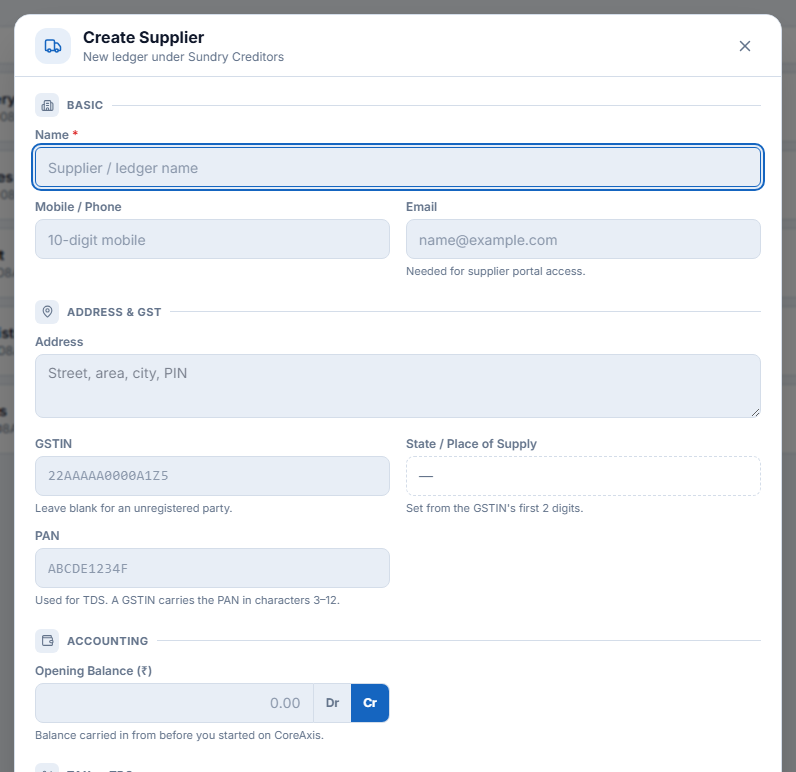
- Open Suppliers (sidebar) and click Add Supplier (1).
- Enter the name, mobile and email.
- Enter the GSTIN — the state fills in from its first two digits — and the PAN (needed for TDS).
- Enter an Opening Balance if you already owe them money (or they owe you) on the day you start.
- Save. A ledger under Sundry Creditors is created for the supplier.
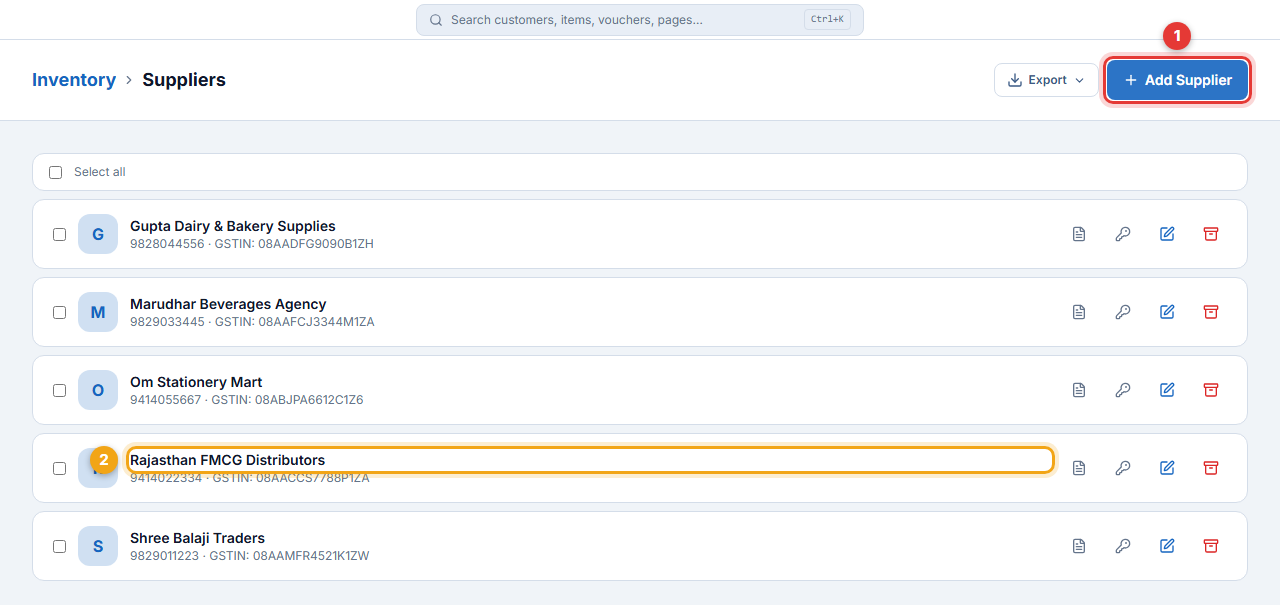
| Supplier | GSTIN | Opening balance (we owe) |
|---|---|---|
| Rajasthan FMCG Distributors | 08AACCS7788P1ZA | ₹42,000 |
| Shree Balaji Traders | 08AAMFR4521K1ZW | ₹18,500 |
| Gupta Dairy & Bakery Supplies | 08AADFG9090B1ZH | ₹6,500 |
| Marudhar Beverages Agency | 08AAFCJ3344M1ZA | — |
| Om Stationery Mart | 08ABJPA6612C1Z6 | — |
Record a supplier bill — Purchase voucher (F9)§§purchase-record-a-supplier-bill-purchase-voucher-f9§§
When goods arrive with the supplier’s tax invoice, enter it as a purchase. This adds stock, books the GST as input tax credit and adds the amount to the supplier’s ledger.
- Press F9 (or Purchase in the Action Pane).
- Enter the Supplier Inv No (1) exactly as printed and check the date.
- Choose the Supplier (2). Their phone, current balance and GSTIN appear. Leave A/c empty for a credit purchase, or pick Cash / Bank if you paid now.
- Tick Interstate for a supplier from another state (IGST) and Rates include GST (3) if the bill rates include tax.
- Add each item (4): type the name, Enter, quantity, Enter. The cost rate fills from the item; change it to the bill rate.
- Add freight, packing or a discount as Ledger charges if the bill has them.
- Check the GST (5) against the supplier’s bill and click Save Purchase (6).
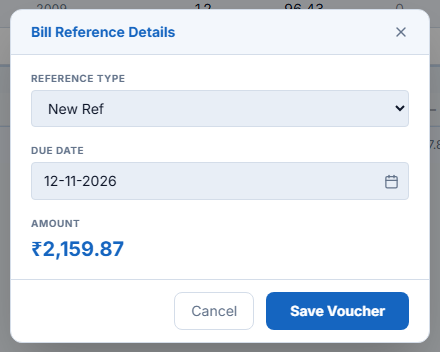
- In Bill Reference Details keep New Ref, add the Due Date and click Save Voucher.
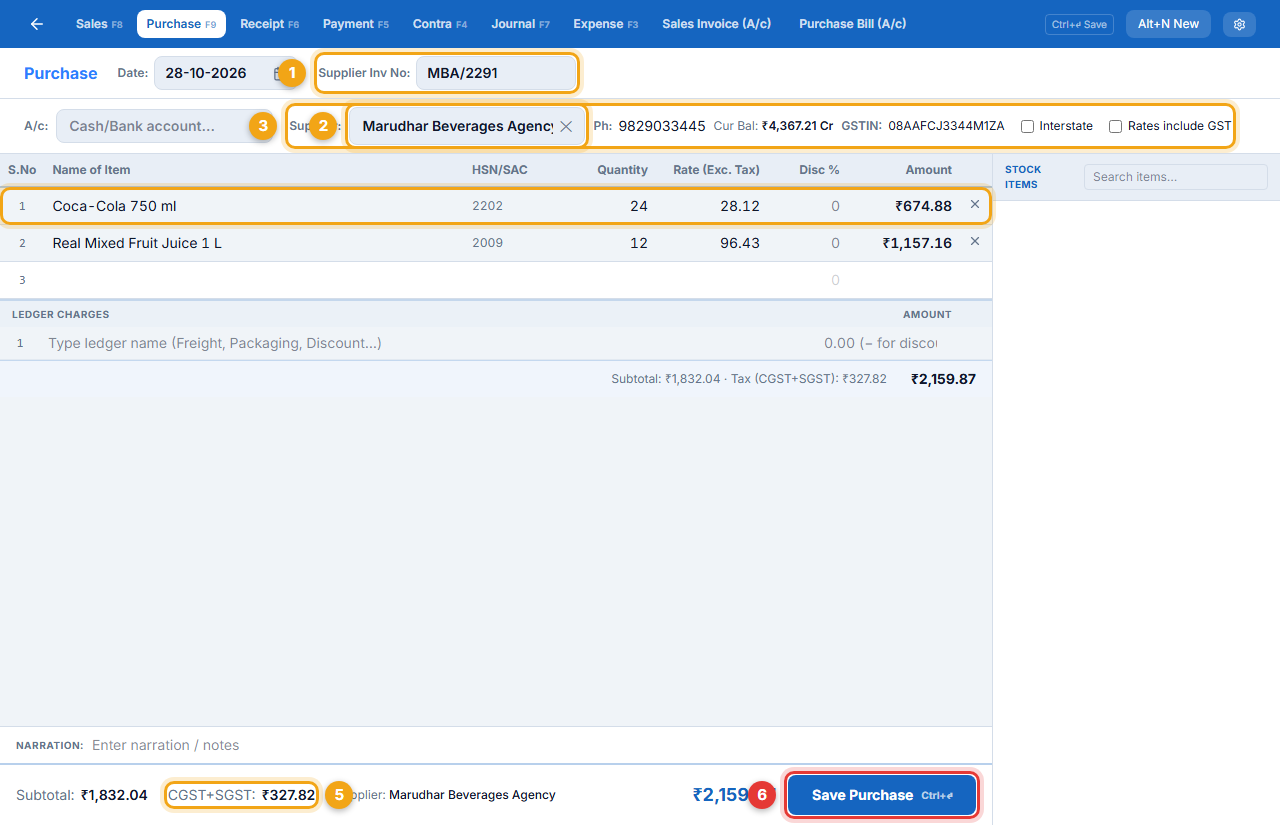
- 24 Coca-Cola 750 ml @ ₹28.12 + 28% GST and 12 Real Mixed Fruit Juice 1 L @ ₹96.43 + 12% GST
- Taxable ₹1,832.04 + GST ₹327.82 = ₹2,159.87, on credit, due 12-11-2026
- Stock of both items goes up and ₹327.82 is available as ITC.
Purchase orders§§purchase-purchase-orders§§
Use a purchase order to order goods before they arrive.
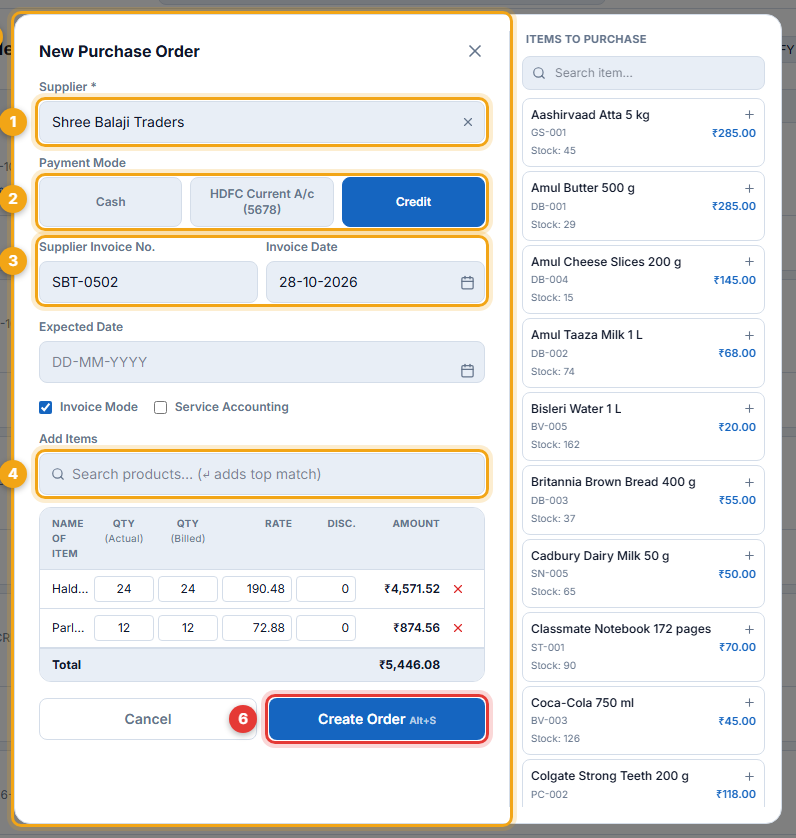
- Open Purchase Orders and click New PO.
- Choose the Supplier (1) and the Payment Mode (2): Cash, your bank, or Credit.
- Enter the supplier invoice number and date (3) if you already have the bill, and an expected date.
- Add items (4) from the search box or the list on the right.
- For each line enter Qty (Actual) — what you receive — and Qty (Billed) — what the supplier charges — plus rate and discount (5).
- Click Create Order (6).
Receive the goods
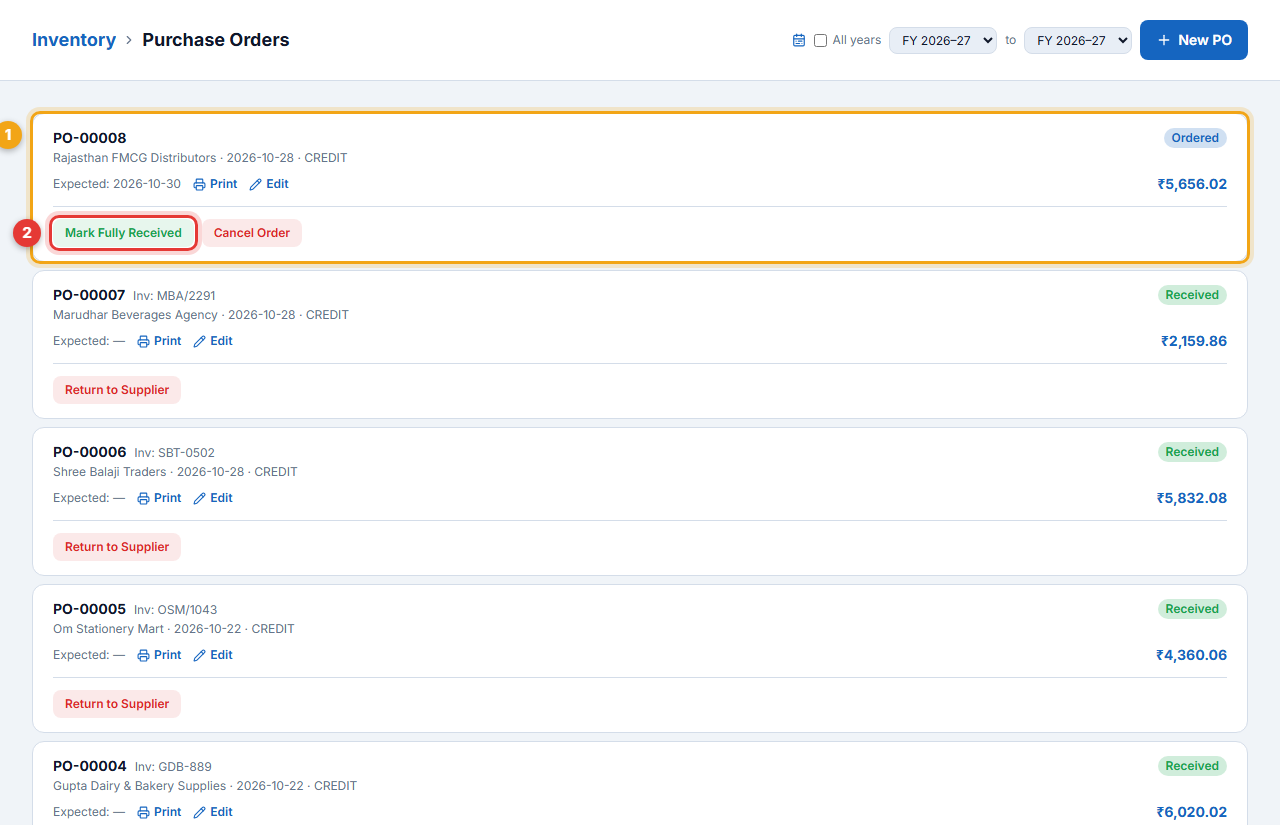
An open order shows Ordered. When the goods arrive, click Mark Fully Received (2). Stock goes up and the bill is booked to the supplier. Cancel Order cancels an order that will not come.
Purchase returns and the purchase register§§purchase-purchase-returns-and-the-purchase-register§§
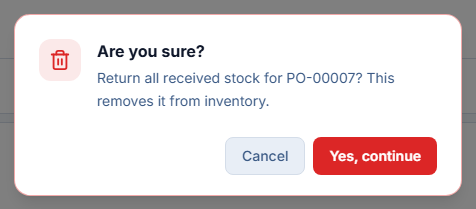
- Open the received purchase in Purchase Orders and click Return to Supplier.
- Confirm. The stock goes back out and a debit note is created against the supplier.
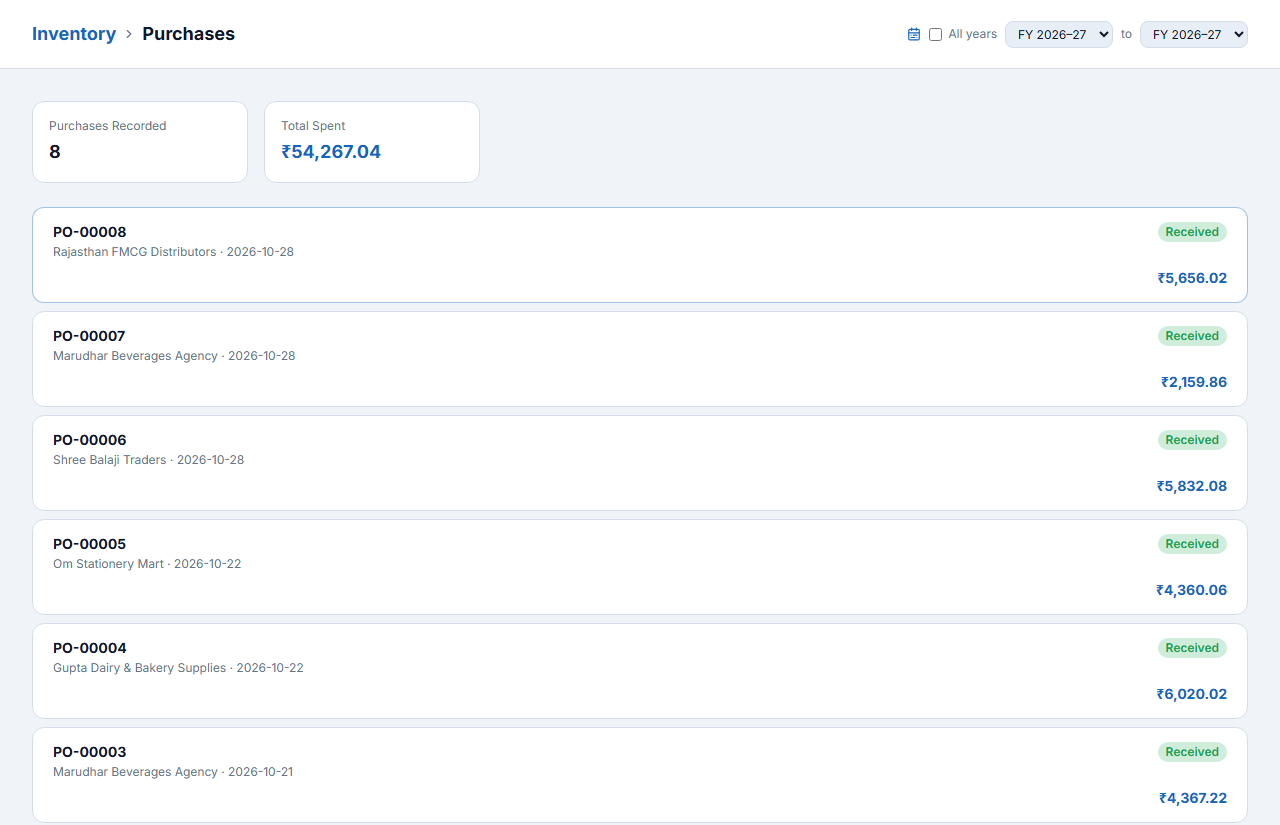
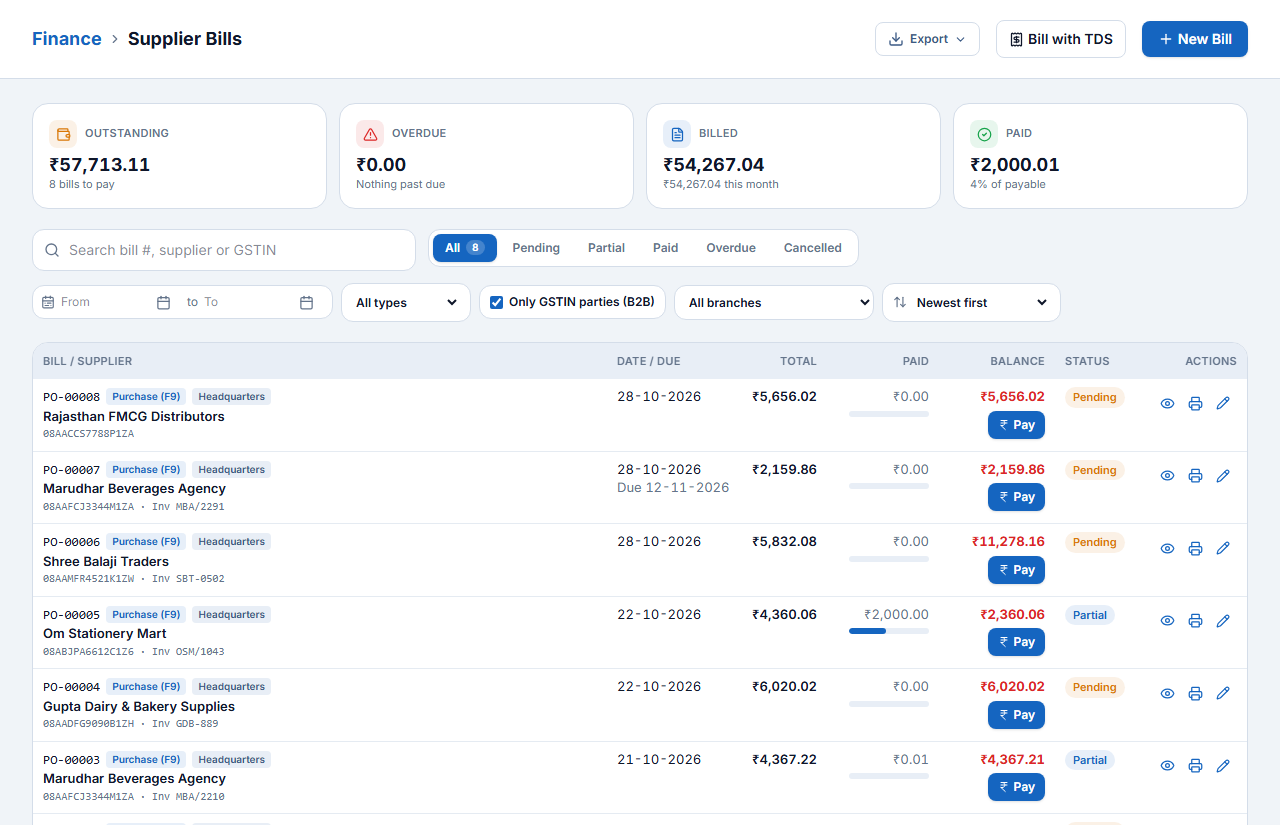
Purchases lists every purchase with the total spent; Finance → Supplier Bills shows each bill with due date, paid amount, balance and status, and a Pay button.
Customers, Khata and Offers
Save regular customers to sell on credit, track what they owe, reward loyalty and send reminders and offers.
Customer Customers → Add Customer se banaiye. Credit limit set kijiye, khata (udhaar) General Store → Khata Ledger mein dikhega. WhatsApp reminder aur coupon Offers & Portal se.
Customer list§§customers-customer-list§§
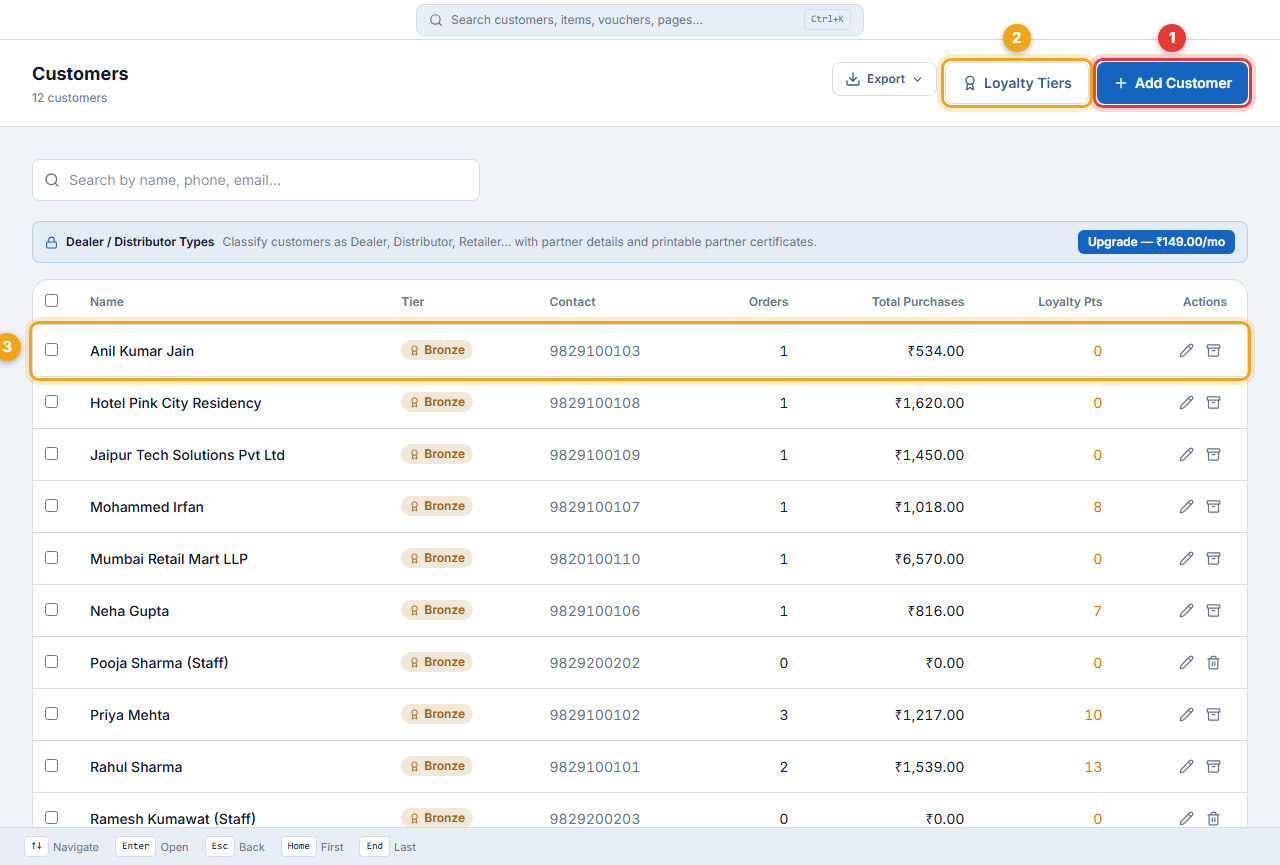
- Add Customer (1) — new customer.
- Loyalty Tiers (2) — Bronze, Silver, Gold rules and points rate.
- Click a customer (3) to open their profile.
Add a customer§§customers-add-a-customer§§
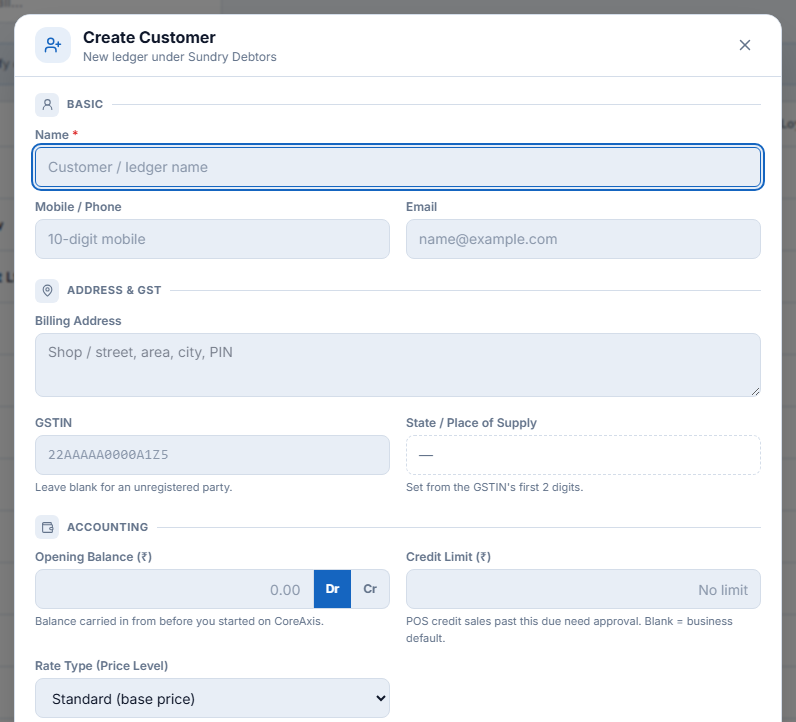
- Click Add Customer.
- Enter the Name and Mobile — the mobile is how you find them at the counter. Add the email if you will email bills.
- Enter the billing address. For a business customer enter the GSTIN; the state fills in automatically and their bills become B2B invoices.
- Enter an Opening Balance (Dr = they owe you) and a Credit Limit.
- Choose a Rate Type (price level) such as Wholesale if they get special prices.
- Click Create Customer.
| Customer | Type | Credit limit | Opening due |
|---|---|---|---|
| Hotel Pink City Residency | B2B, GSTIN 08AAKFK1212E1ZS | ₹50,000 | ₹8,500 |
| Jaipur Tech Solutions Pvt Ltd | B2B, GSTIN 08AAGCH4545N1Z4 | ₹40,000 | — |
| Mumbai Retail Mart LLP | B2B, other state (27 — Maharashtra), IGST | ₹25,000 | — |
| Anil Kumar Jain | Retail | ₹10,000 | ₹1,200 |
| Rahul Sharma, Priya Mehta, Sunita Agarwal … | Retail | ₹3,000 – ₹8,000 | — |
Customer profile and ledger§§customers-customer-profile-and-ledger§§
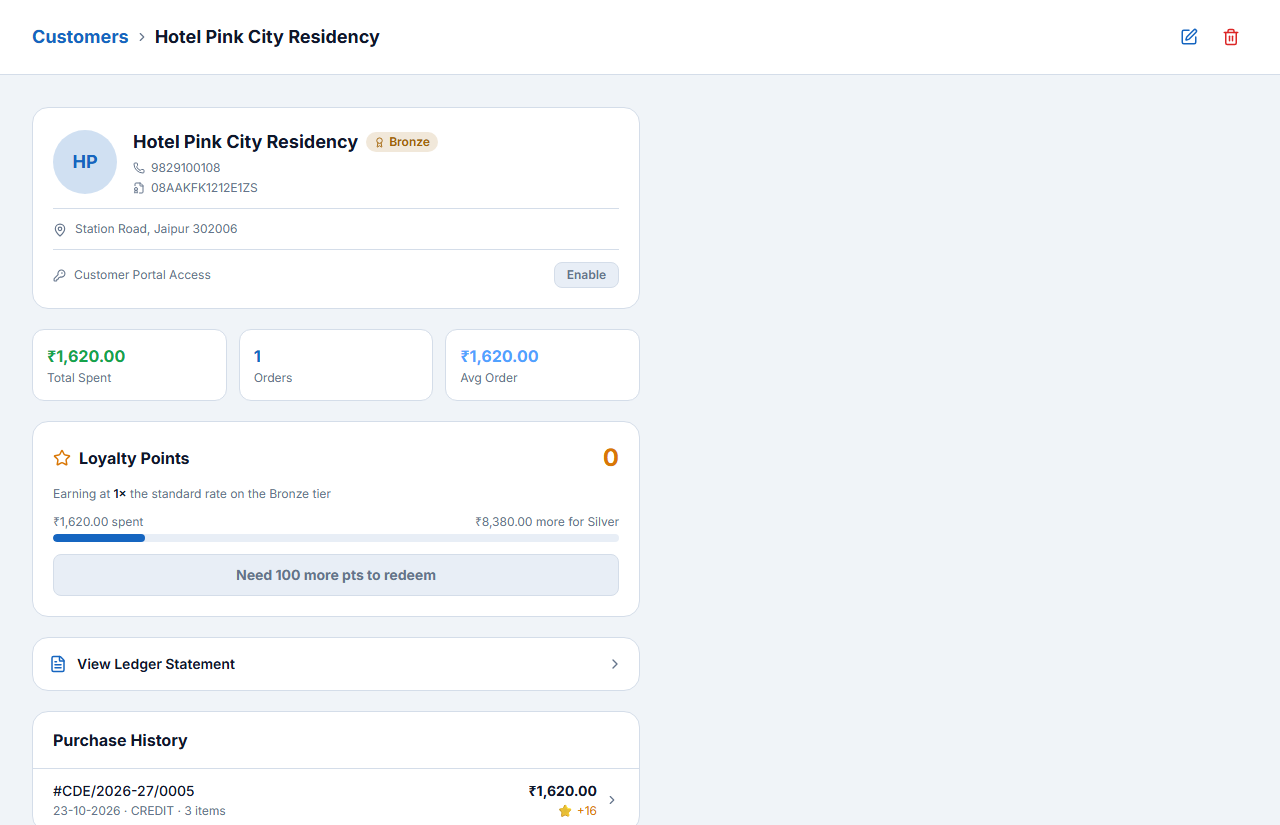
The profile shows contact details, total spent, orders, average order, loyalty points and purchase history. View Ledger Statement opens every bill, receipt and adjustment with the running balance; you can print or share it.
Khata (credit) ledger and reminders§§customers-khata-credit-ledger-and-reminders§§
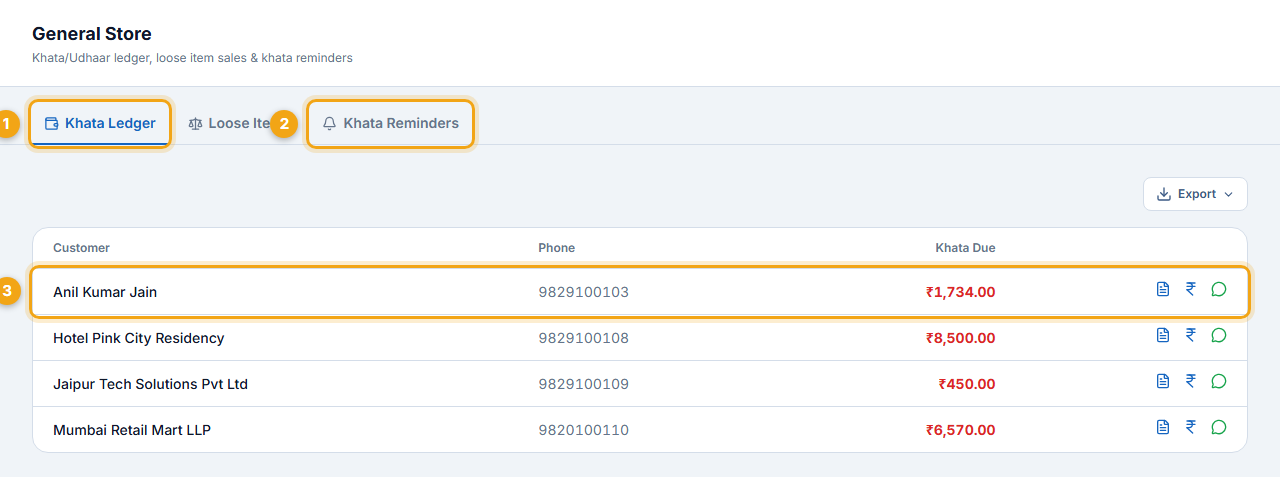
General Store (for general-store businesses) brings the khata together: Khata Ledger (1) lists every customer with dues, Loose Items handles weighed goods, and Khata Reminders (2) sends WhatsApp / SMS reminders. Each row (3) has statement, receive-payment and WhatsApp buttons.
Offers, loyalty and the customer portal§§customers-offers-loyalty-and-the-customer-portal§§
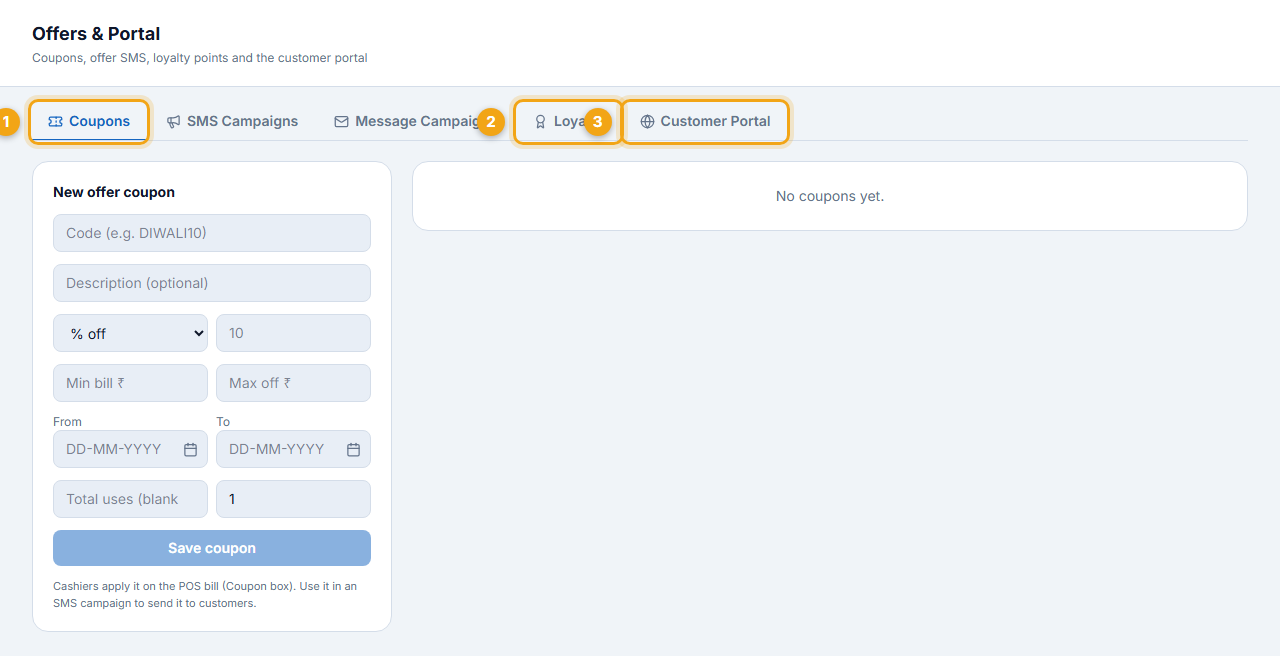
Offers & Portal has tabs for Coupons (1), SMS and message campaigns, Loyalty (2) and the Customer Portal (3).
- On Coupons, type a code such as DIWALI10, a description, % or ₹ off, minimum bill and maximum discount, the valid dates and the total uses.
- Click Save coupon. The cashier types the code in the POS Coupon box.
- Send the coupon to customers through an SMS or WhatsApp campaign.
Finance and Accounting
Every bill, purchase, receipt and expense is posted to the accounts automatically. This chapter shows how to read the books, collect and pay money, record expenses, move cash to the bank and pass journal entries.
Accounts apne aap bante hain. Customer se paisa aaya → Receipt (F6), supplier ko diya → Payment (F5), kharcha → Expense (F3), cash bank mein jama → Contra (F4). Cash Book, Day Book, P&L sab Finance mein.
Finance overview§§finance-finance-overview§§
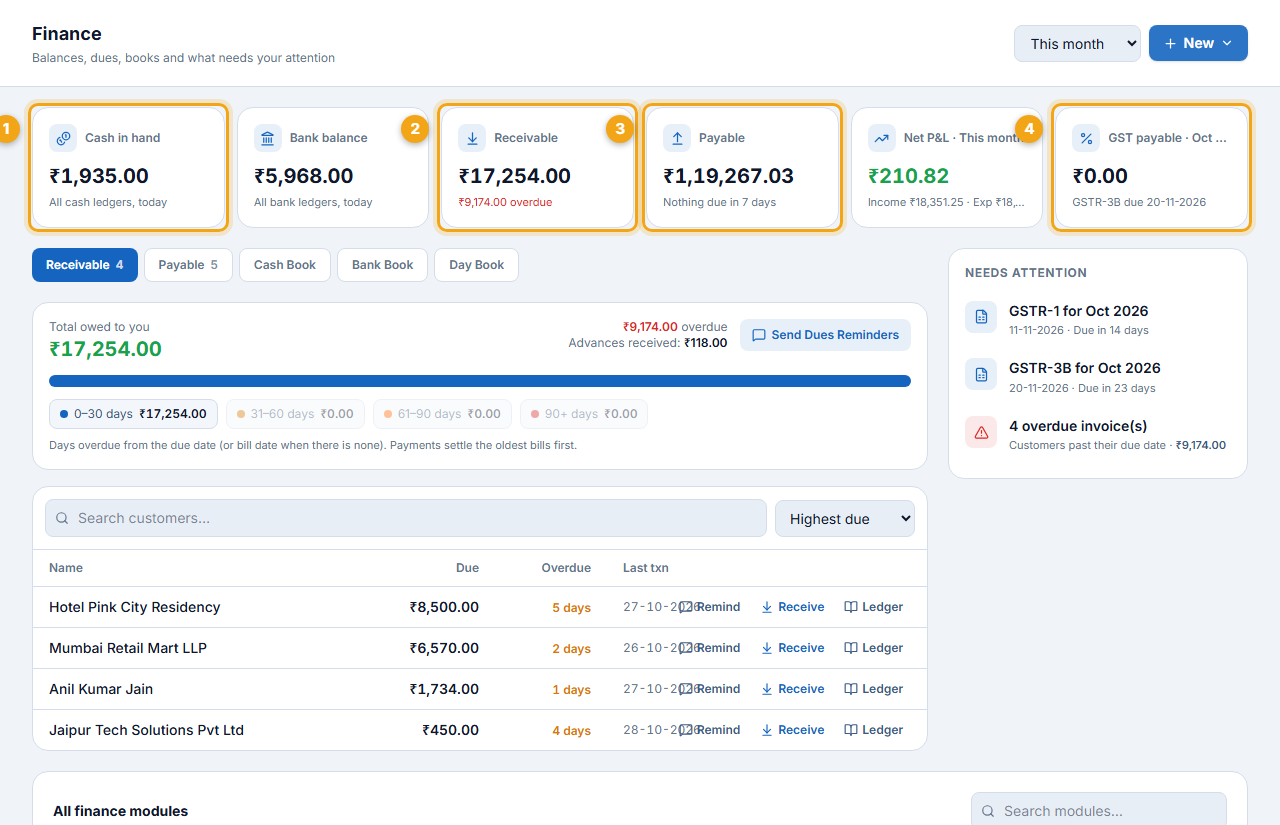
- Cash in hand (1) and bank balance — today, all cash and bank ledgers.
- Receivable (2) — what customers owe you, with the overdue part.
- Payable (3) — what you owe suppliers.
- Net P&L for the period and GST payable (4) with the GSTR-3B due date.
- Below: ageing of dues (0–30, 31–60, 61–90, 90+ days), Send Dues Reminders, a list of who owes what with Remind, Receive and Ledger buttons, and Needs attention (returns due, overdue invoices).
Chart of accounts§§finance-chart-of-accounts§§
Finance → Chart of Accounts holds every ledger, grouped Tally-style: Current Assets, Fixed Assets, Current Liabilities, Capital, Sales, Direct and Indirect Income and Expenses. Customers sit under Sundry Debtors and suppliers under Sundry Creditors automatically.
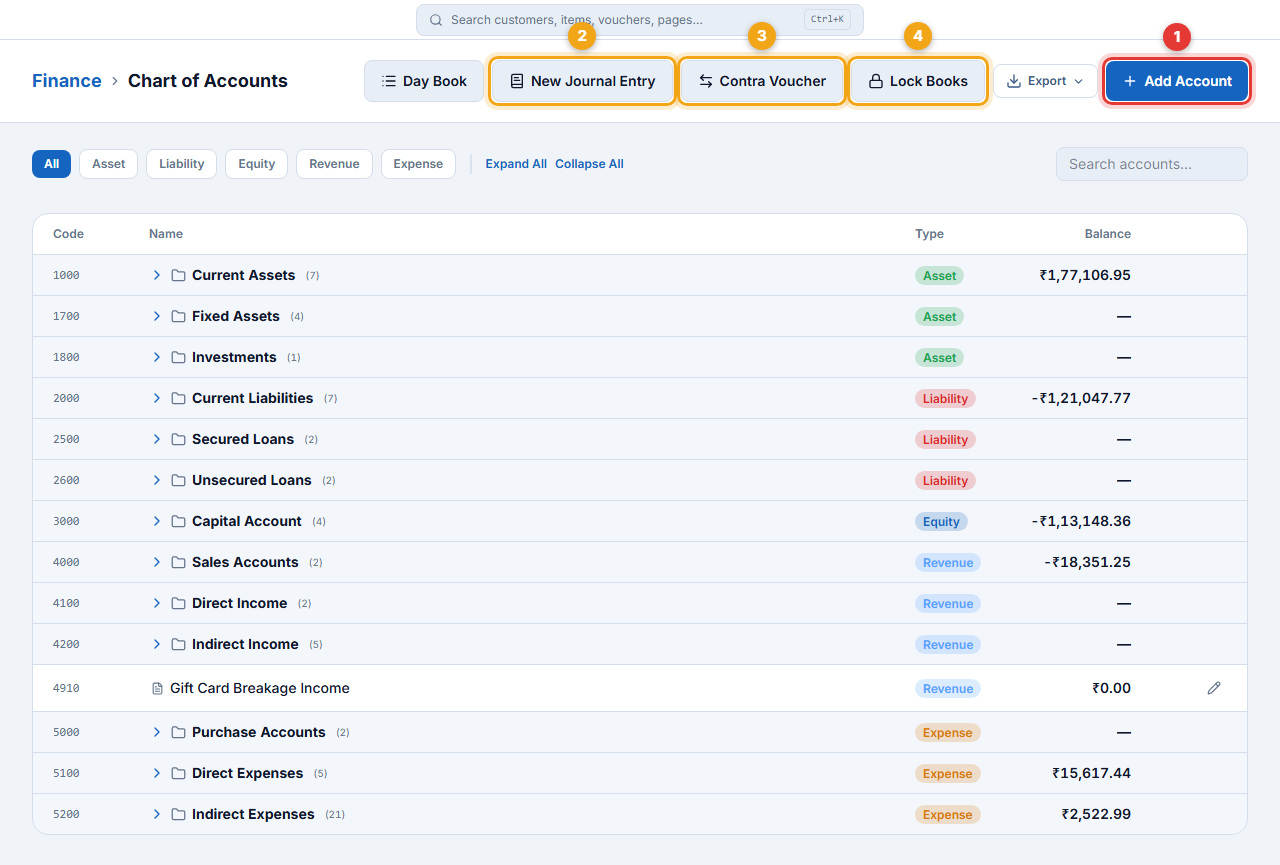
- Add Account (1) — a new ledger, e.g. a second bank account or a loan.
- New Journal Entry (2) and Contra Voucher (3).
- Lock Books (4) — stop changes up to a date.
Receive money from a customer — Receipt (F6)§§finance-receive-money-from-a-customer-receipt-f6§§
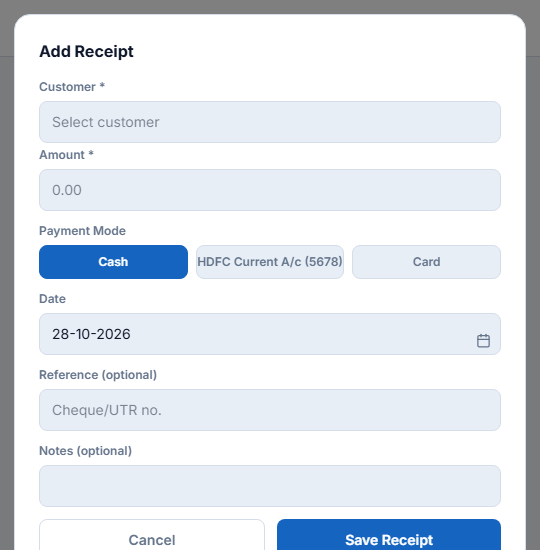
- Open Finance → Customer Receipts and click Add Receipt (or press F6).
- Choose the Customer. Their pending bills are listed.
- Enter the Amount and choose how it was paid: Cash, your bank account (UPI / NEFT) or Card.
- Enter the date and the cheque / UTR number in Reference.
- Allocate the amount to the bills it pays (oldest first by default) and save.
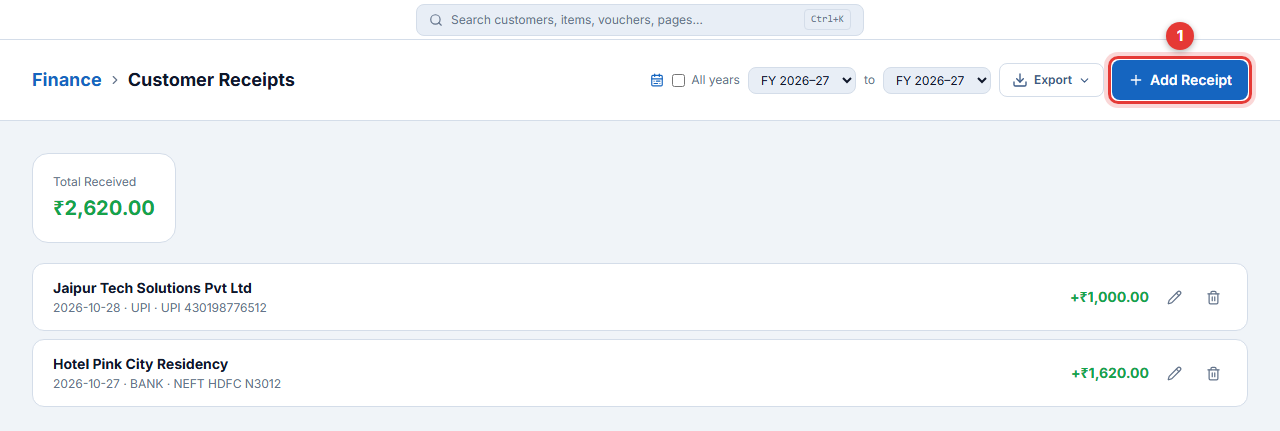
- 27 Oct: Hotel Pink City Residency paid ₹1,620 by NEFT (ref NEFT HDFC N3012) against bill CDE/2026-27/0005.
- 28 Oct: Jaipur Tech Solutions paid ₹1,000 by UPI as part payment of ₹1,450.
Pay a supplier — Payment (F5)§§finance-pay-a-supplier-payment-f5§§
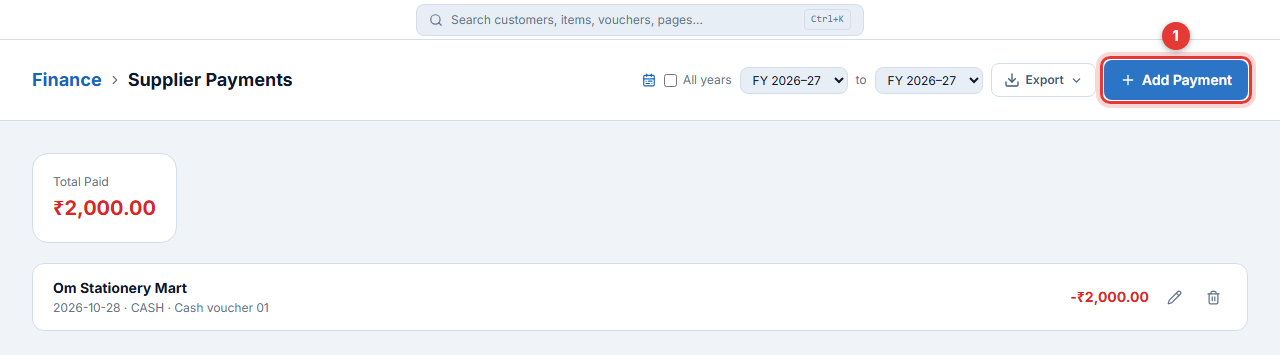
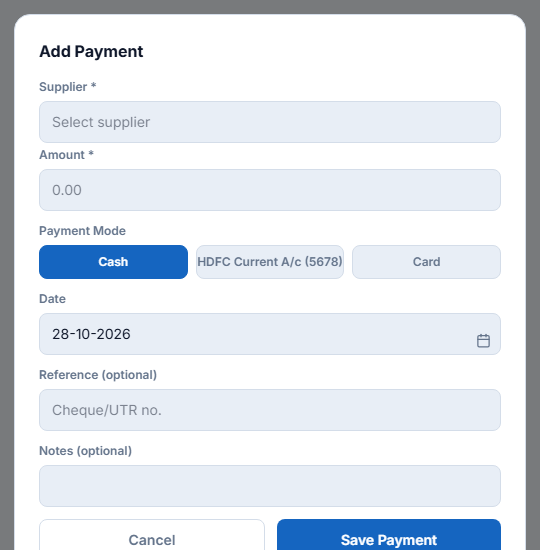
- Open Finance → Supplier Payments and click Add Payment (or press F5).
- Choose the supplier, enter the amount, the payment mode, date and reference.
- Allocate it to their bills and save.
Expenses — Expense (F3)§§finance-expenses-expense-f3§§
- Open Finance → Expenses and click Add Expense (or press F3).
- Enter a Title and the Amount before GST.
- Choose the Category (Rent, Utilities, Salaries, Transport, Marketing, Maintenance …); the expense ledger fills in.
- If the expense has a GST bill, enter the GST rate, SAC and the supplier’s GSTIN so the input tax credit is claimed.
- Choose the payment mode and save. Set Recurrence for monthly bills such as rent.
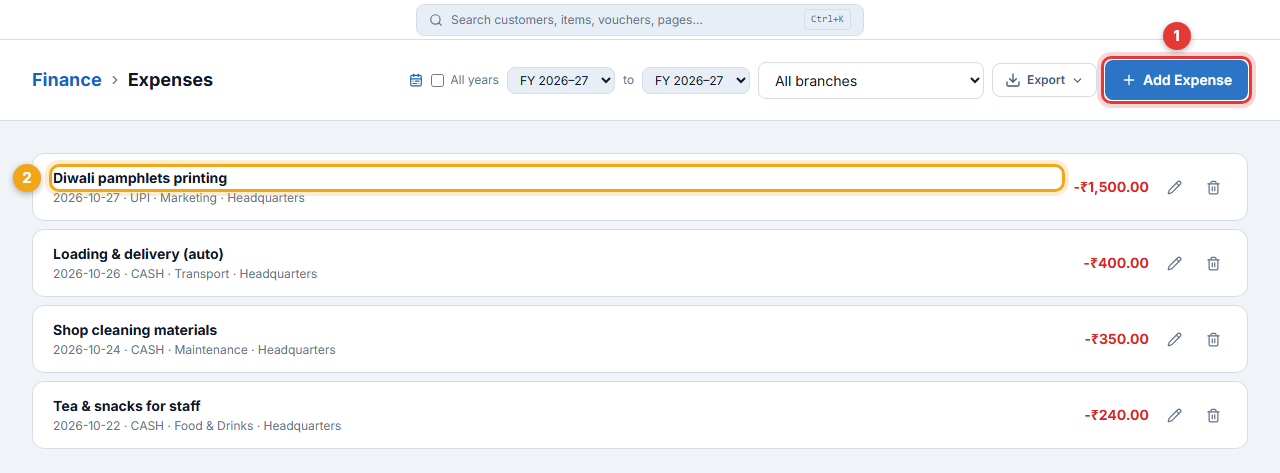
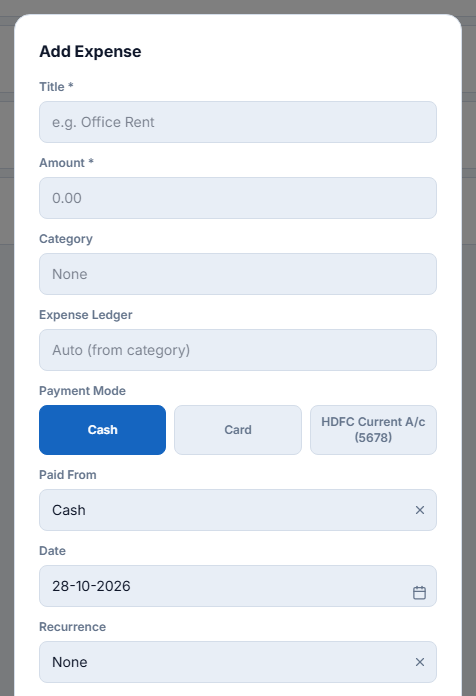
- Title: Diwali pamphlets printing · Category: Marketing · ₹1,500 + 18% GST (SAC 998912)
- Paid by UPI · supplier GSTIN 08AAMFR4521K1ZW → ITC ₹270 claimed
Voucher entry: receipt, payment, contra and journal§§finance-voucher-entry-receipt-payment-contra-and-journal§§
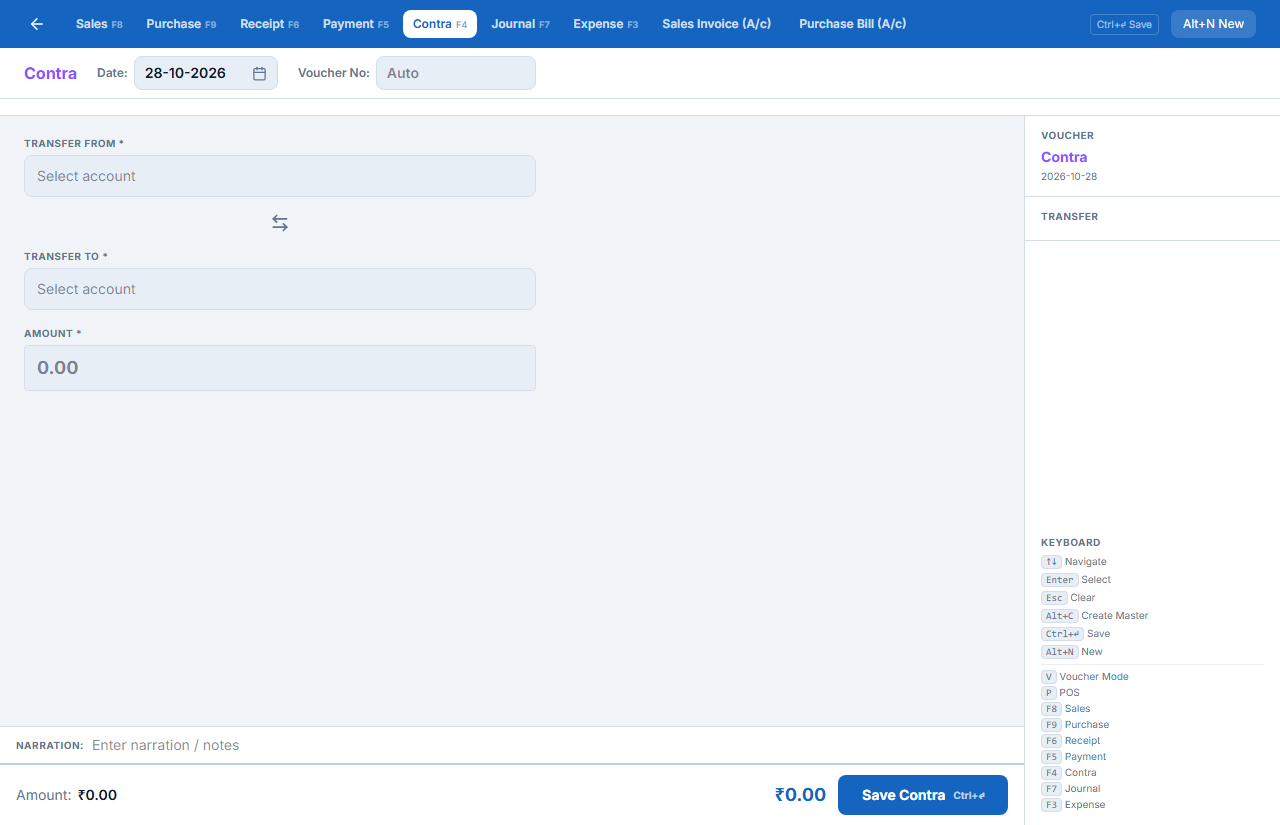
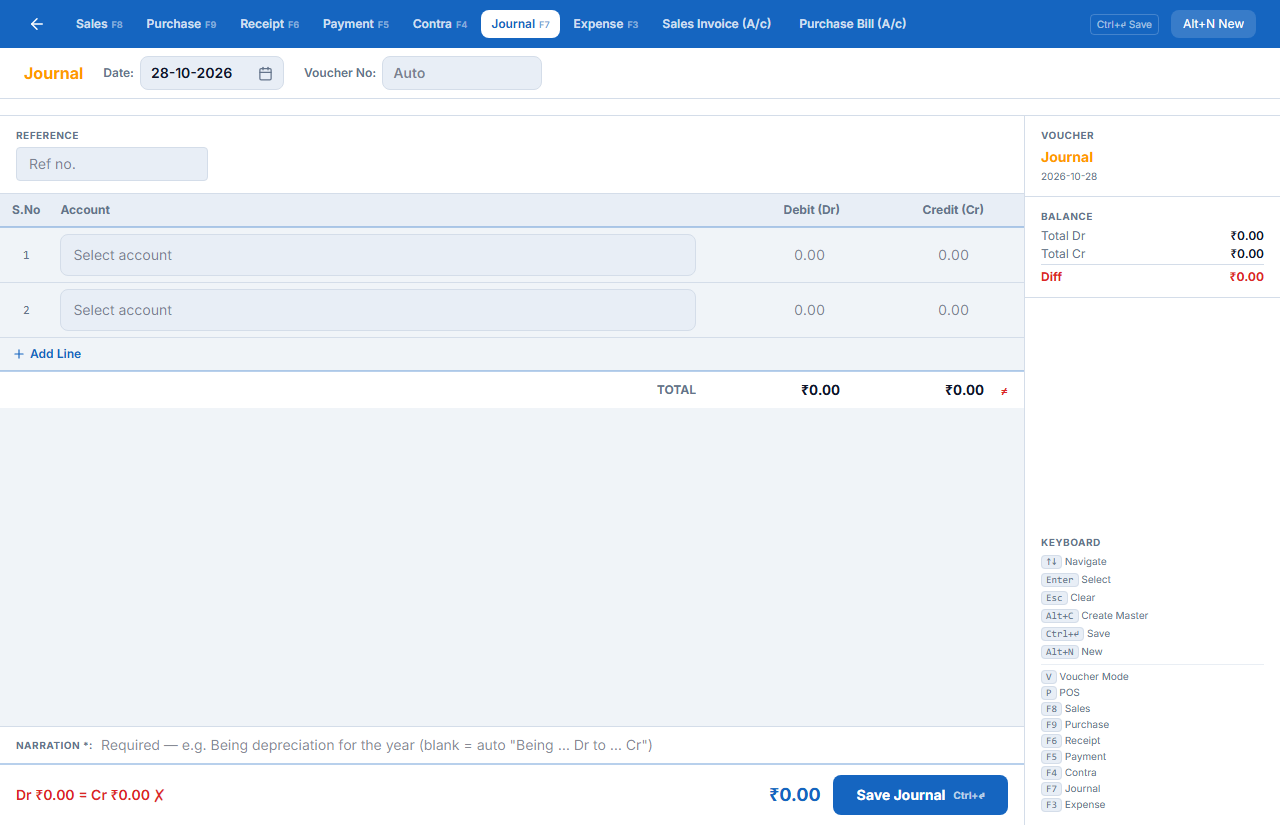
Voucher Entry (V) is the keyboard screen for all vouchers. Tabs along the top: Sales F8, Purchase F9, Receipt F6, Payment F5, Contra F4, Journal F7, Expense F3, Sales Invoice (A/c) and Purchase Bill (A/c). Ctrl+Enter saves; Alt+N starts a new one; Alt+C creates a ledger on the spot.
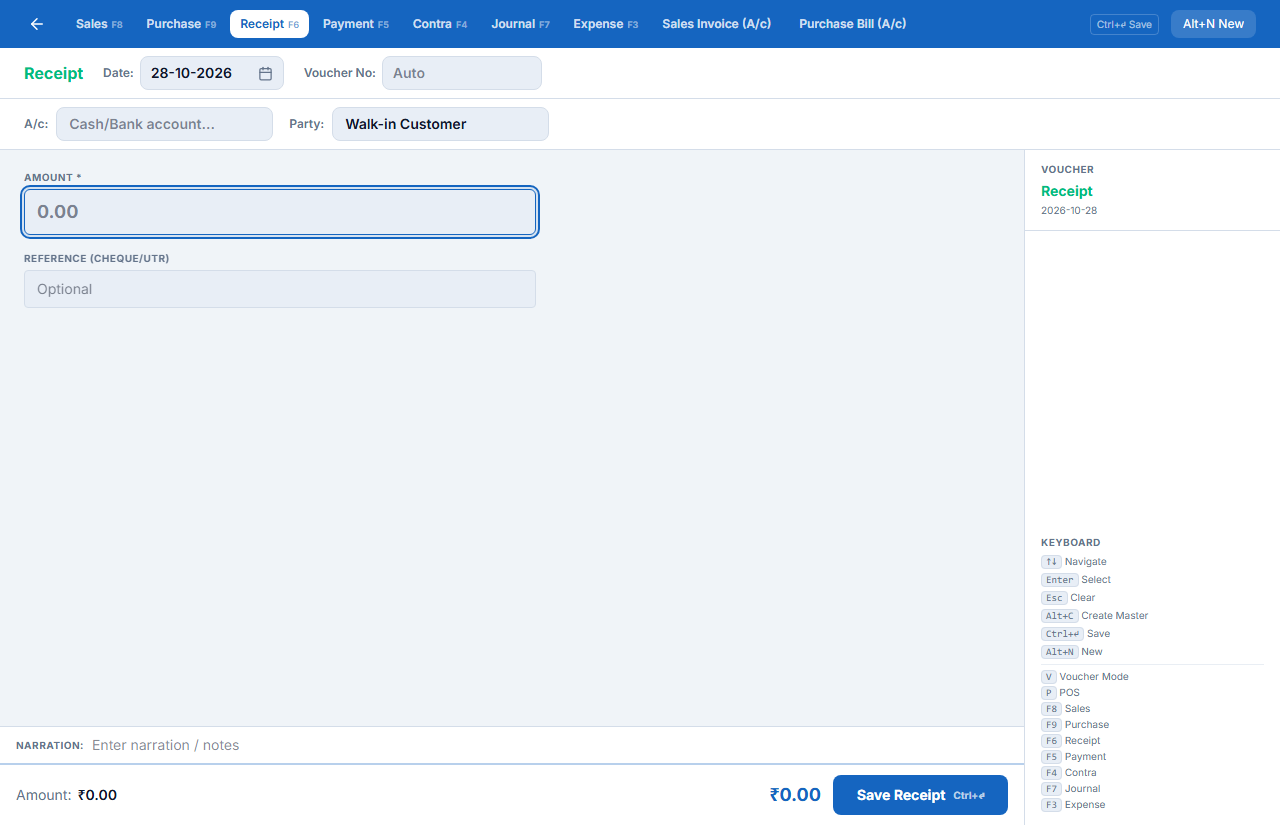
- Contra (F4) — money between your own accounts: Transfer From cash, Transfer To bank, amount. Use it when you deposit the day’s cash in the bank.
- Journal (F7) — adjustments with no cash: depreciation, a rate difference, opening balances, correcting a wrong ledger.
Books: cash book, bank book, day book and statements§§finance-books-cash-book-bank-book-day-book-and-statements§§
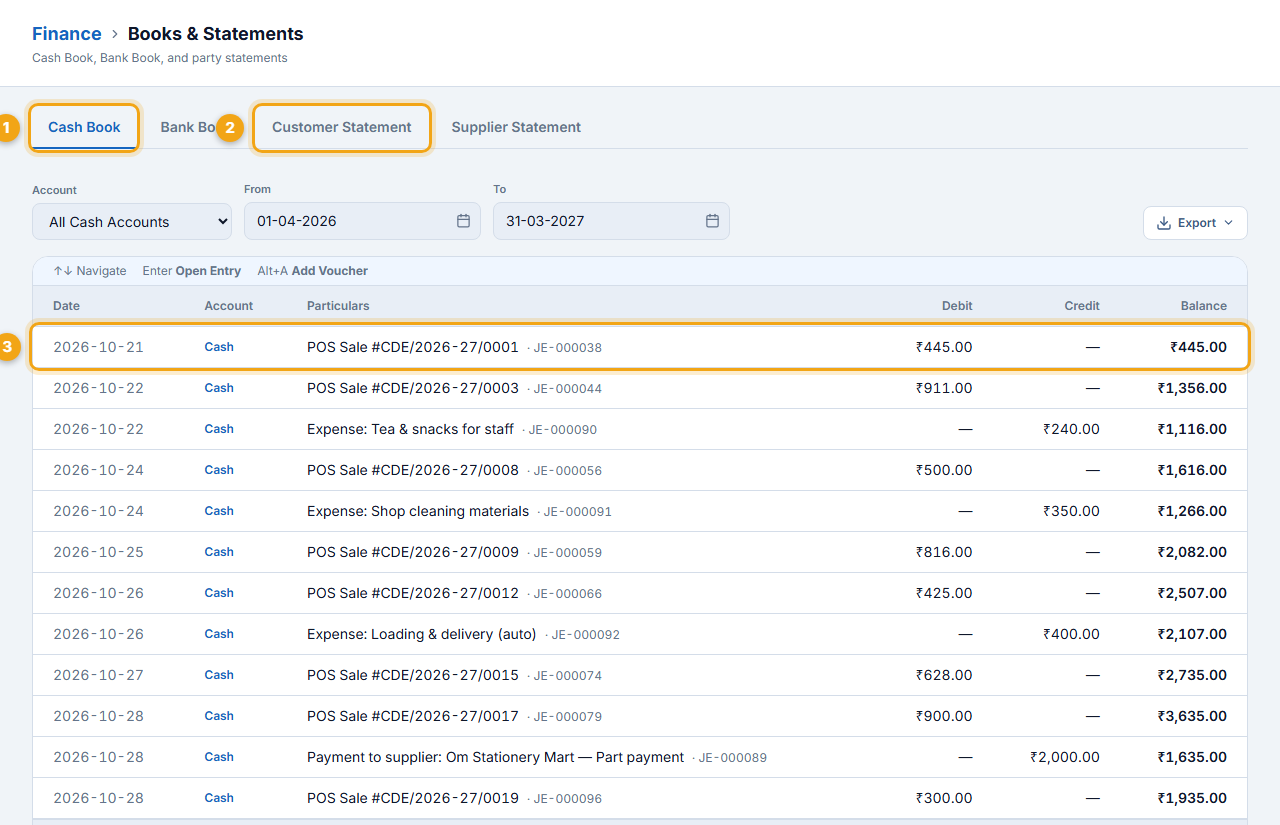
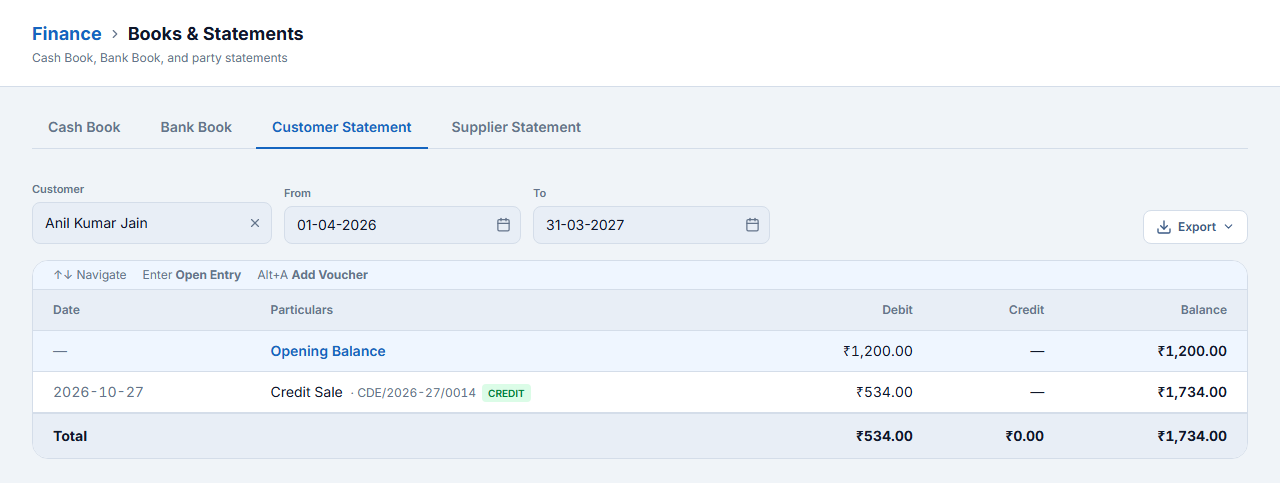
- Finance → Books & Statements has Cash Book (1), Bank Book, Customer Statement (2) and Supplier Statement. Pick the account and dates; every entry (3) shows debit, credit and the running balance. Click a row to open its voucher.
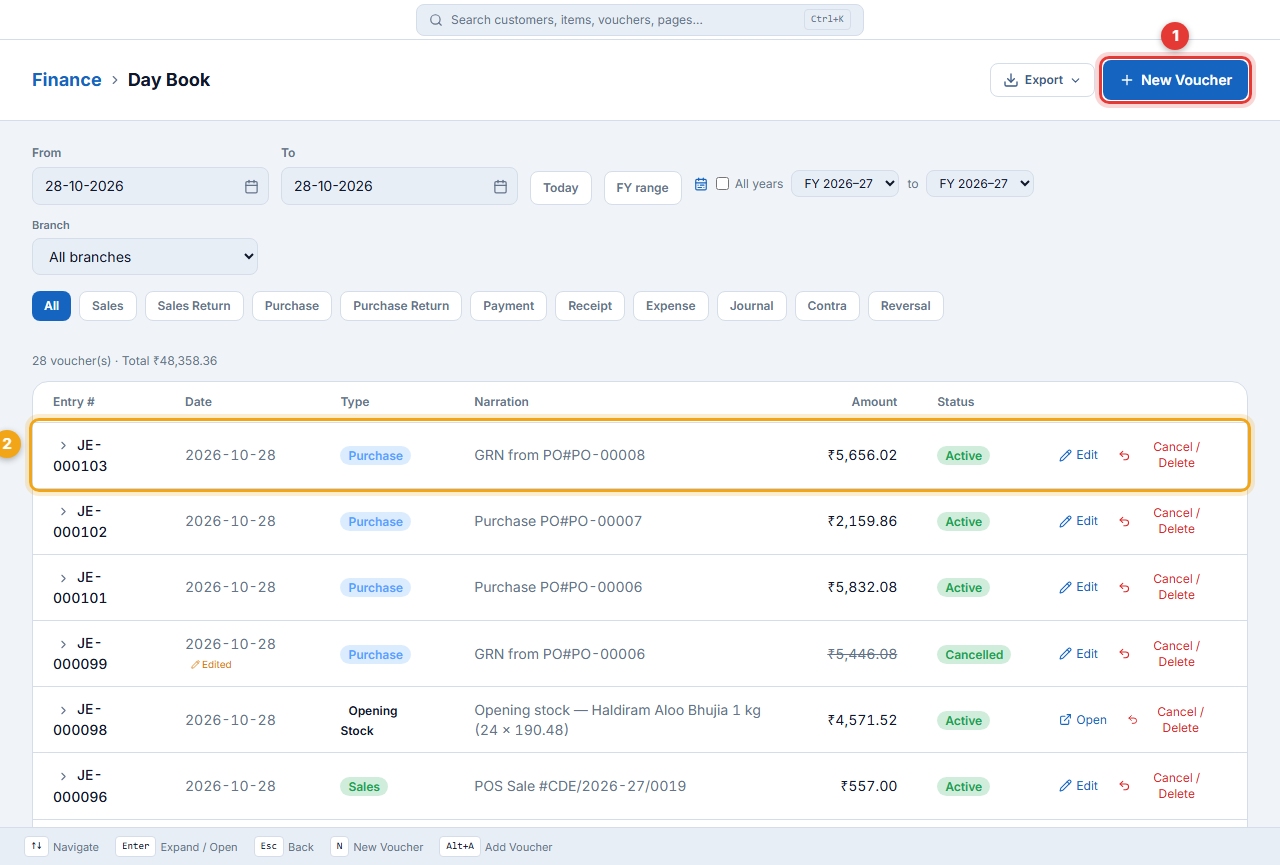
- Day Book lists every voucher for a period with type filters (Sales, Purchase, Receipt, Payment, Expense, Journal, Contra). Each row can be opened, edited or cancelled if your role allows.
- Account Books shows any register or ledger month by month — click a month for its vouchers.
Profit & loss and balance sheet§§finance-profit-amp-loss-and-balance-sheet§§
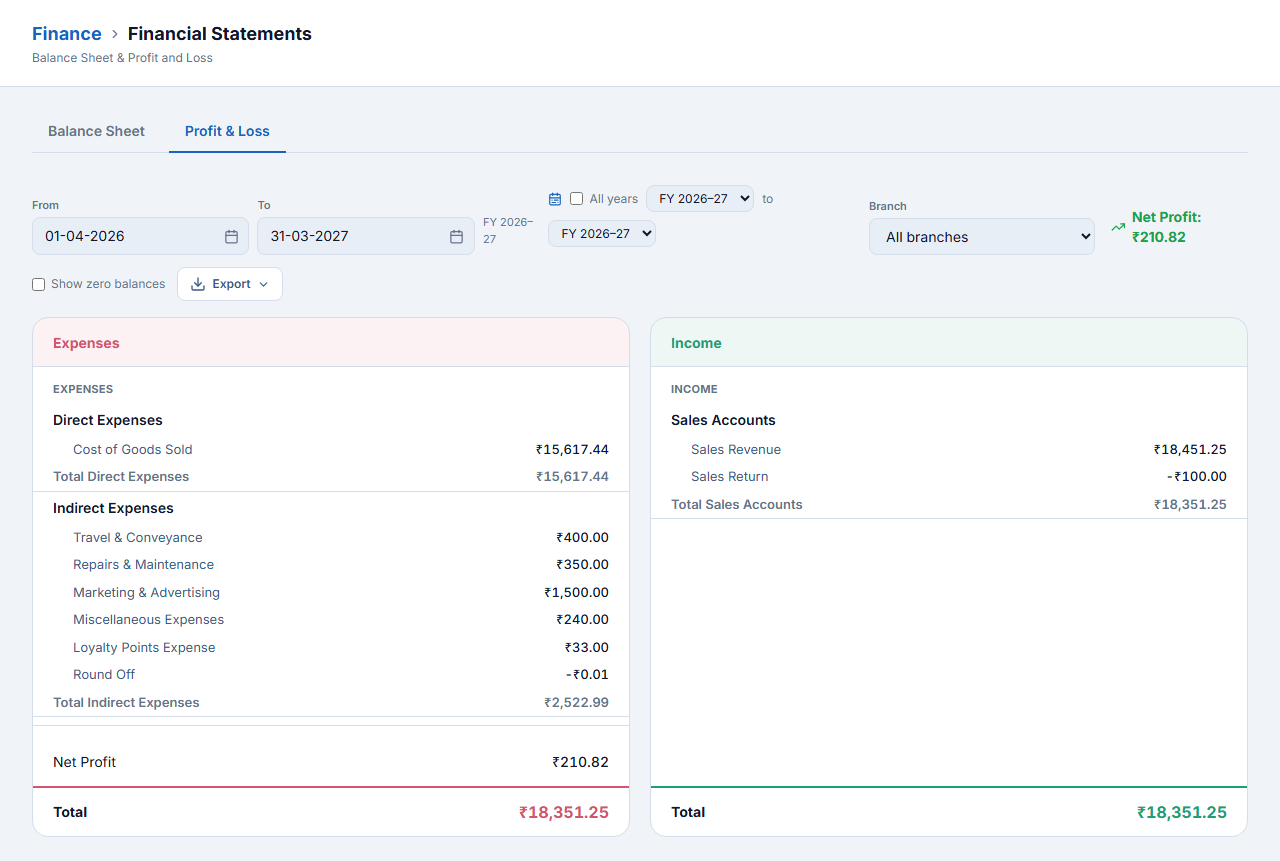
Finance → Financial Statements shows the Profit & Loss and Balance Sheet for any period and branch. Expand a group to see its ledgers; Export to Excel or PDF for your accountant.
Bank reconciliation and cheques
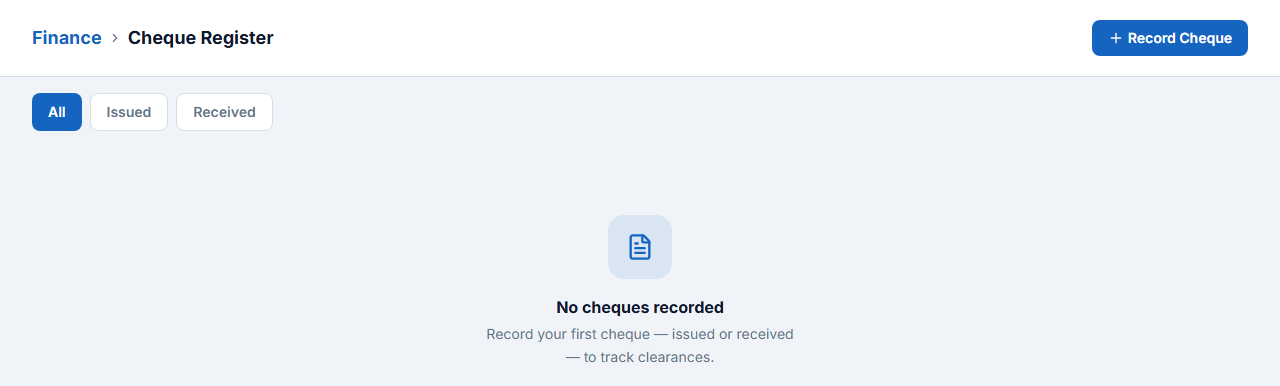
Bank Reconciliation imports your bank statement and matches it with the bank book. Cheque Register records cheques issued and received and tracks their clearance.

GST Returns and Compliance
All the GST numbers come from your bills, purchases and expenses. The GST module prepares GSTR-1 and GSTR-3B, reconciles GSTR-2B, tracks input tax credit and handles e-invoices and e-way bills.
GST ke liye Finance → GST. Filing calendar mein due dates, GSTR-1 (sales ka detail) aur GSTR-3B (summary + tax) ready milte hain. JSON / Excel download karke CA ko dijiye ya GSP se direct file kijiye.
GST dashboard§§gst-gst-dashboard§§
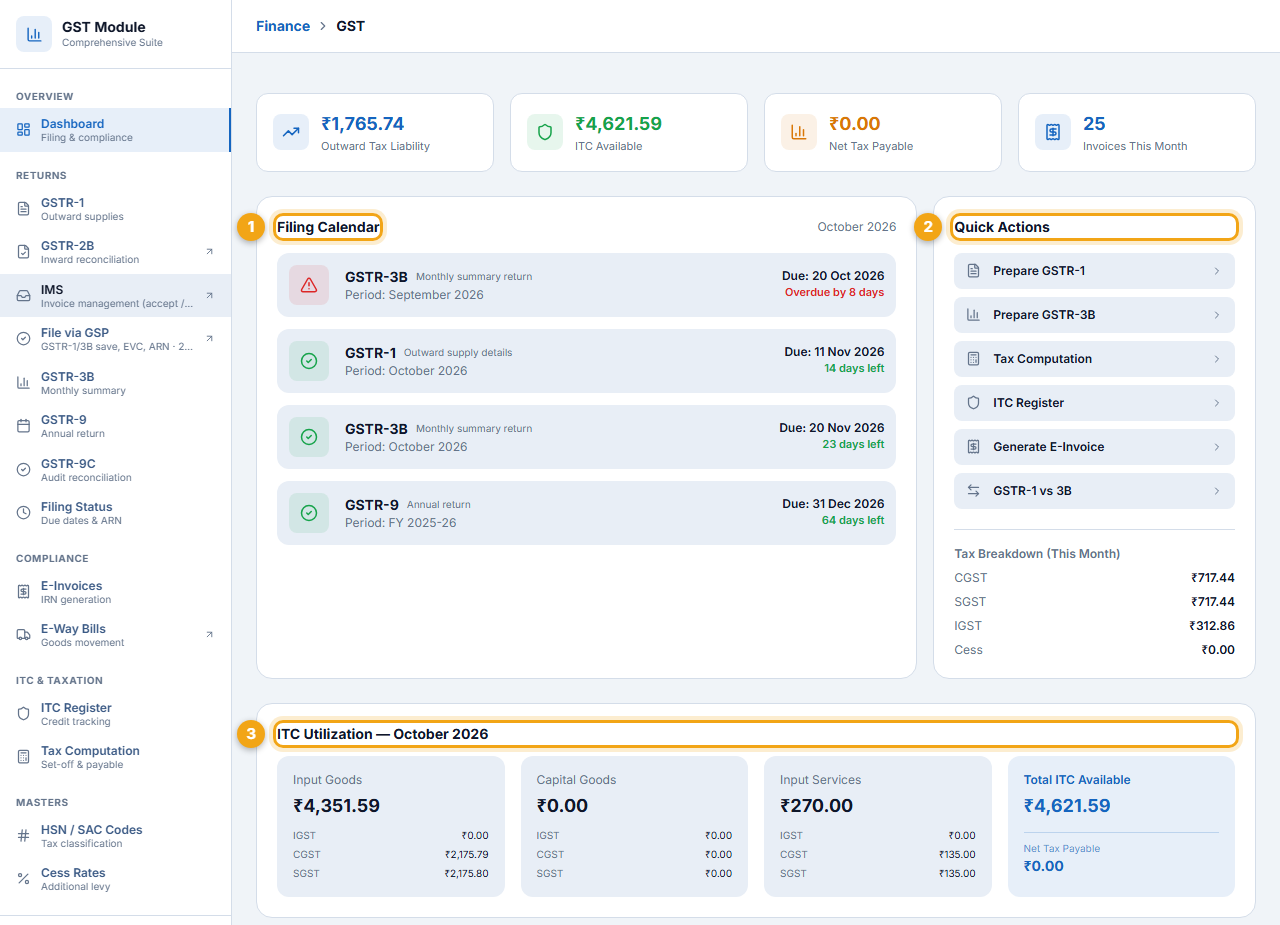
- Top cards: outward tax liability, ITC available, net tax payable and invoices this month.
- Filing Calendar (1) — each return with its period, due date and status (overdue in red, upcoming in green).
- Quick Actions (2) — Prepare GSTR-1, Prepare GSTR-3B, Tax Computation, ITC Register, Generate E-Invoice, GSTR-1 vs 3B.
- ITC Utilization (3) — input tax credit from goods, capital goods and services, by IGST / CGST / SGST.
GSTR-1 — outward supplies§§gst-gstr-1-outward-supplies§§
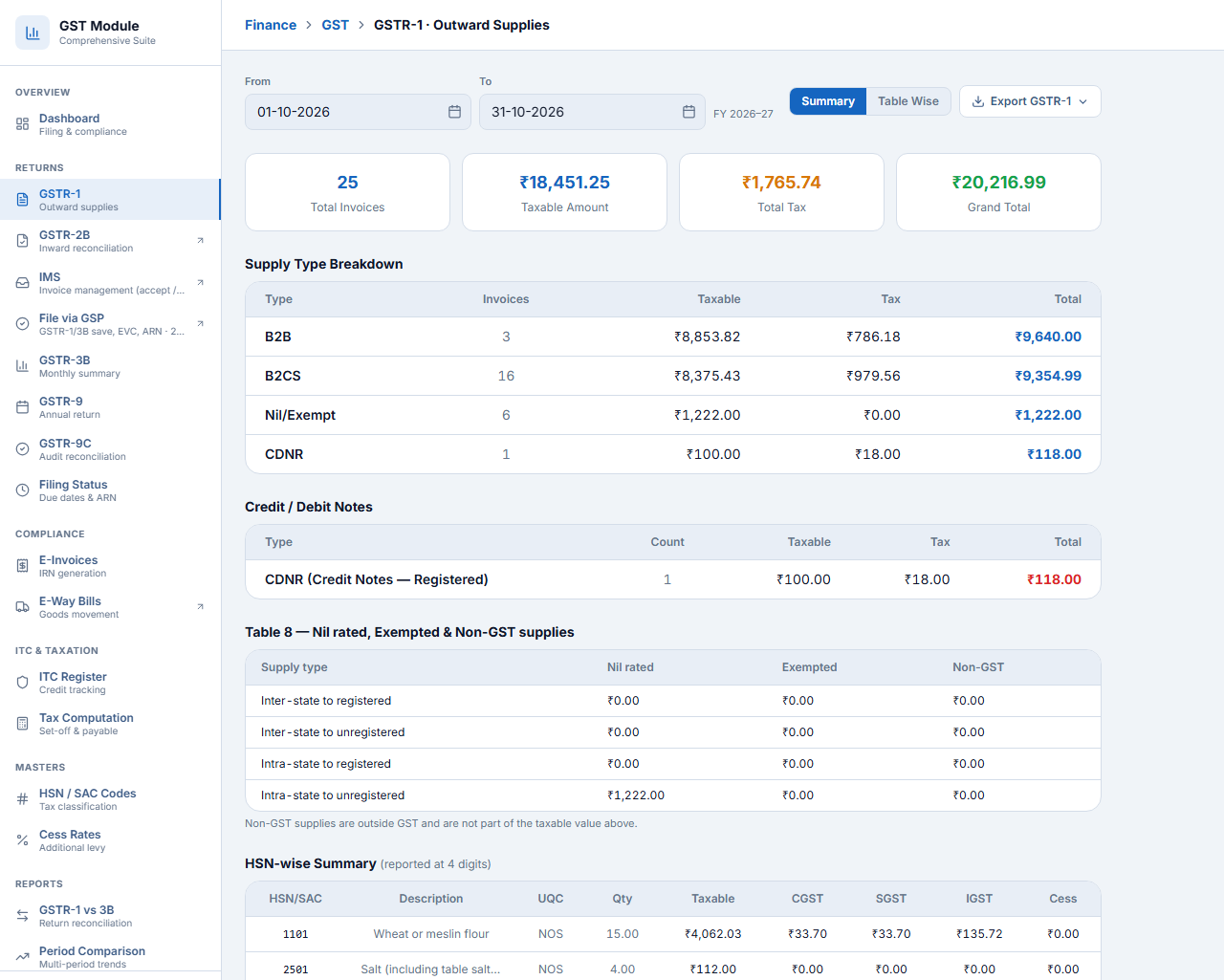
- Click GSTR-1 in the left menu and choose the period (from – to).
- Check the summary: total invoices, taxable amount, tax and grand total.
- Review the supply-type breakdown: B2B (customers with GSTIN), B2CS (small consumer sales), nil / exempt, and CDNR (credit / debit notes to registered parties).
- Check the HSN-wise summary at the bottom.
- Use Table Wise for the portal’s table view and Export GSTR-1 for JSON / Excel.
GSTR-3B — monthly summary§§gst-gstr-3b-monthly-summary§§
GSTR-3B shows Table 3.1 (outward supplies by type with IGST, CGST, SGST, cess), Table 4 (eligible ITC and its breakdown) and Table 5 (exempt and nil-rated inward supplies). Choose the year and month and export it.
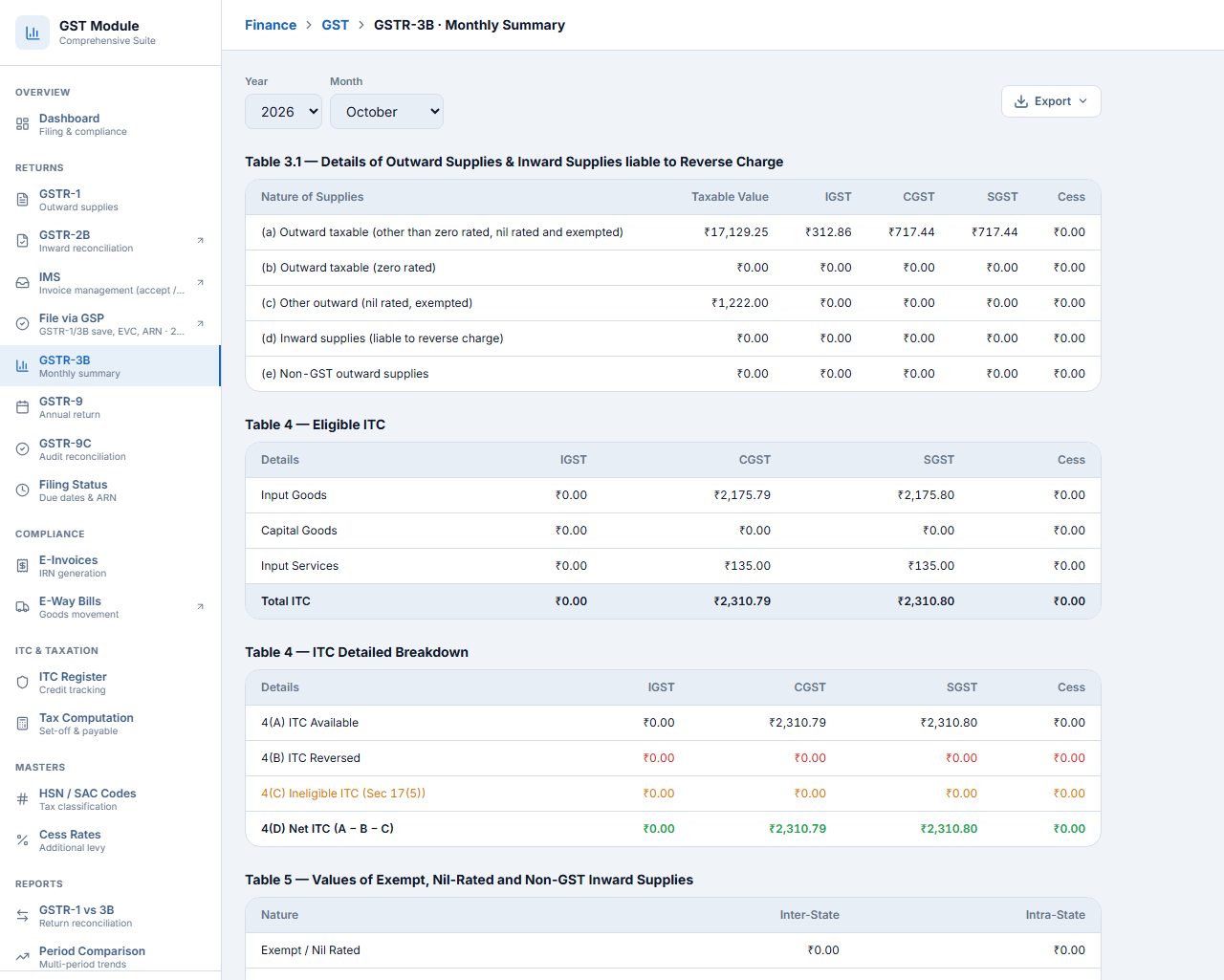
- Mumbai Retail Mart LLP (Maharashtra) bought goods worth ₹6,570 on credit.
- The bill was charged IGST, which appears in the IGST column of Table 3.1(a) — ₹312.86.
Filing online, e-invoice and e-way bill§§gst-filing-online-e-invoice-and-e-way-bill§§
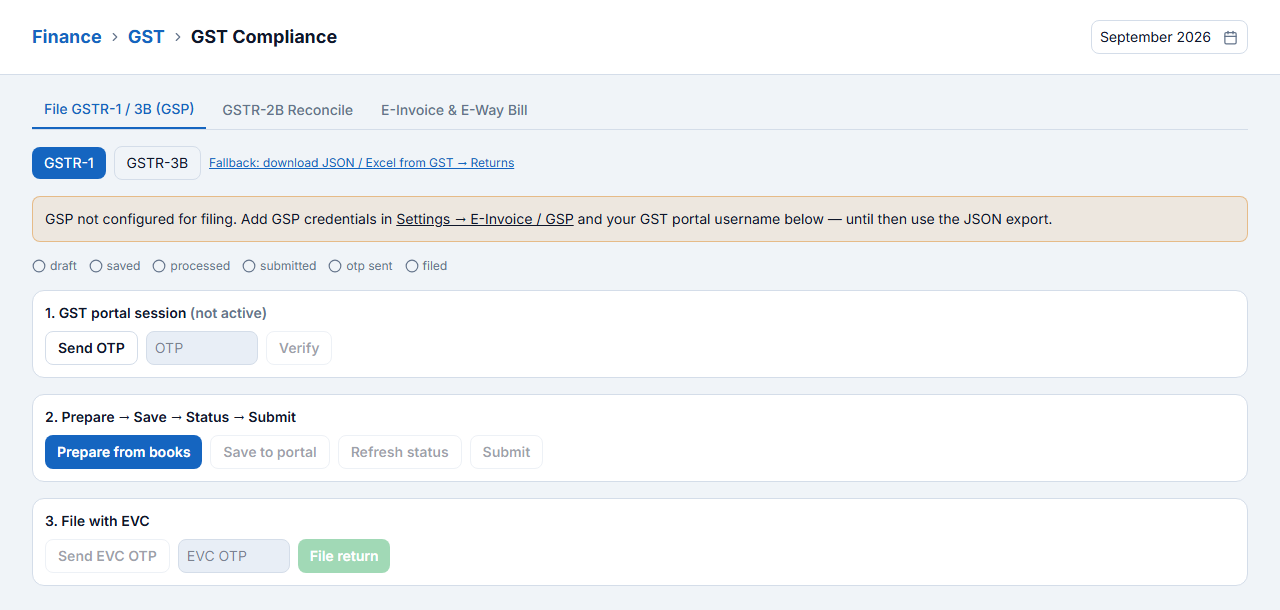
GST Compliance files returns through a GST Suvidha Provider (GSP): start a portal session with OTP, Prepare from books, Save to portal, refresh the status, Submit and file with EVC. Until GSP credentials are added in Settings → E-Invoice / GSP, download the JSON / Excel and upload it on the GST portal or give it to your accountant.
- E-Invoices — generate the IRN and signed QR for B2B invoices if your turnover requires e-invoicing.
- E-Way Bills — for goods movement above the limit; vehicle and transporter details come from the bill or challan.
- GSTR-2B / IMS — match suppliers’ uploaded invoices with your purchases, and accept or reject them.
Reports
Every report in one place — sales, stock and purchase, accounts, GST and dues — each with dates, branch filters, export, print and email schedule.
Sab reports Reports (F10) mein. Category chuniye (Sales, Stock, Accounts, GST, Dues), period set kijiye, Export / Print / Email schedule kijiye. Jo report roz dekhte hain use ★ se pin kar dijiye.
Reports home§§reports-reports-home§§
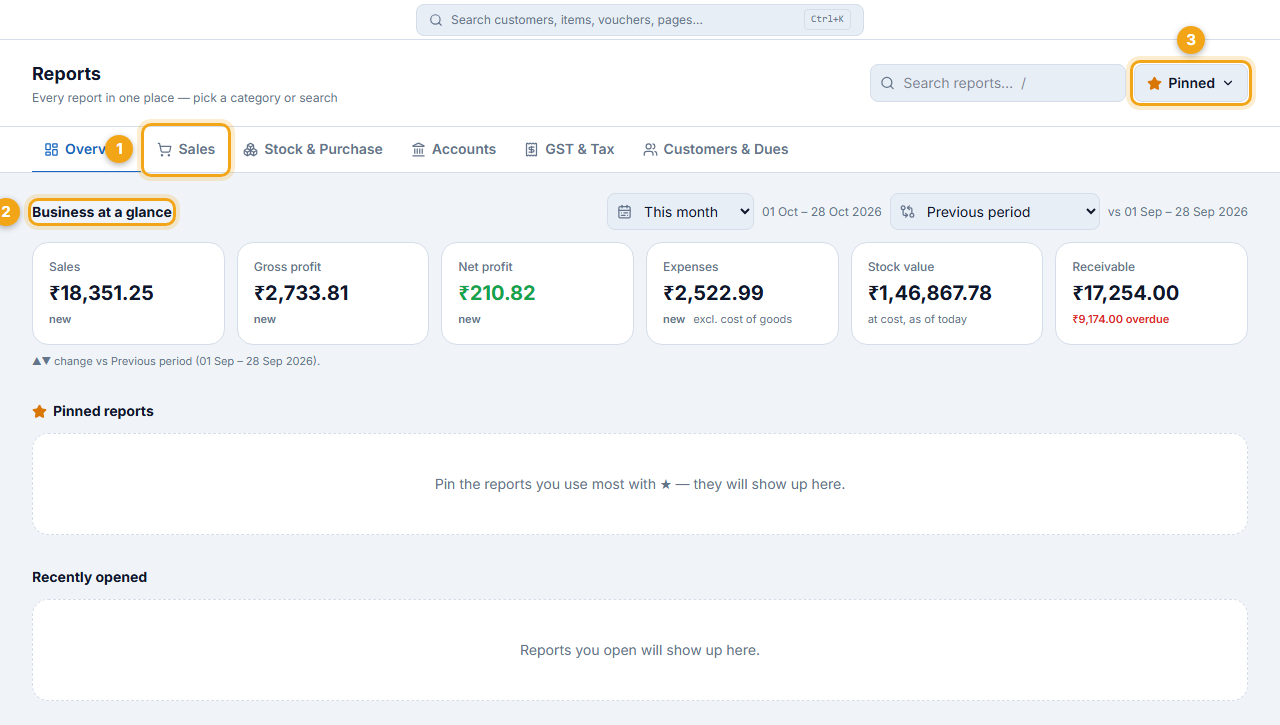
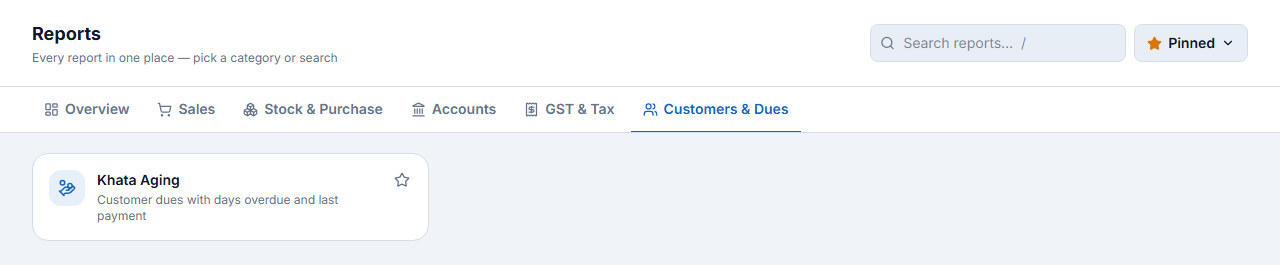
- Pick a category tab (1): Overview, Sales, Stock & Purchase, Accounts, GST & Tax, Customers & Dues.
- Business at a glance (2) — sales, gross profit, net profit, expenses, stock value and receivable for the chosen period, with a comparison to the previous period or last year.
- Search reports by name, and click ★ on any report to add it to Pinned (3).
Sales reports§§reports-sales-reports§§
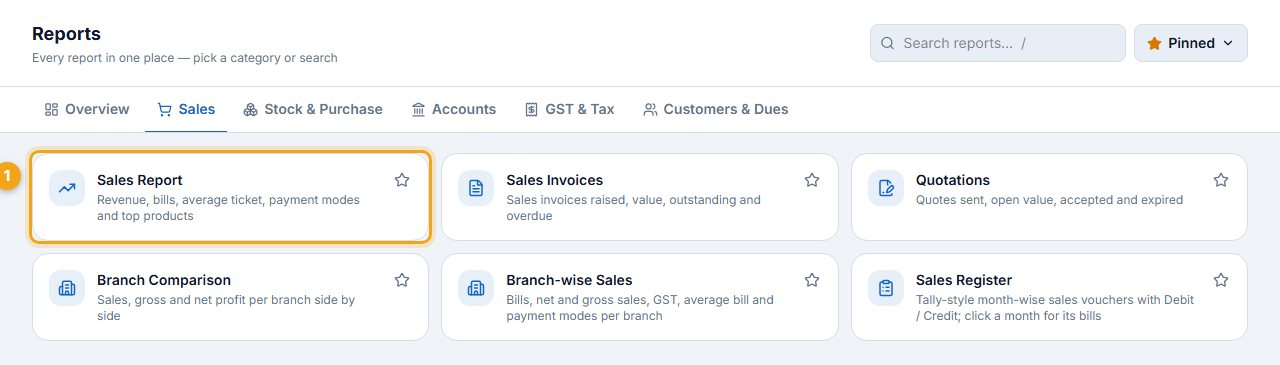
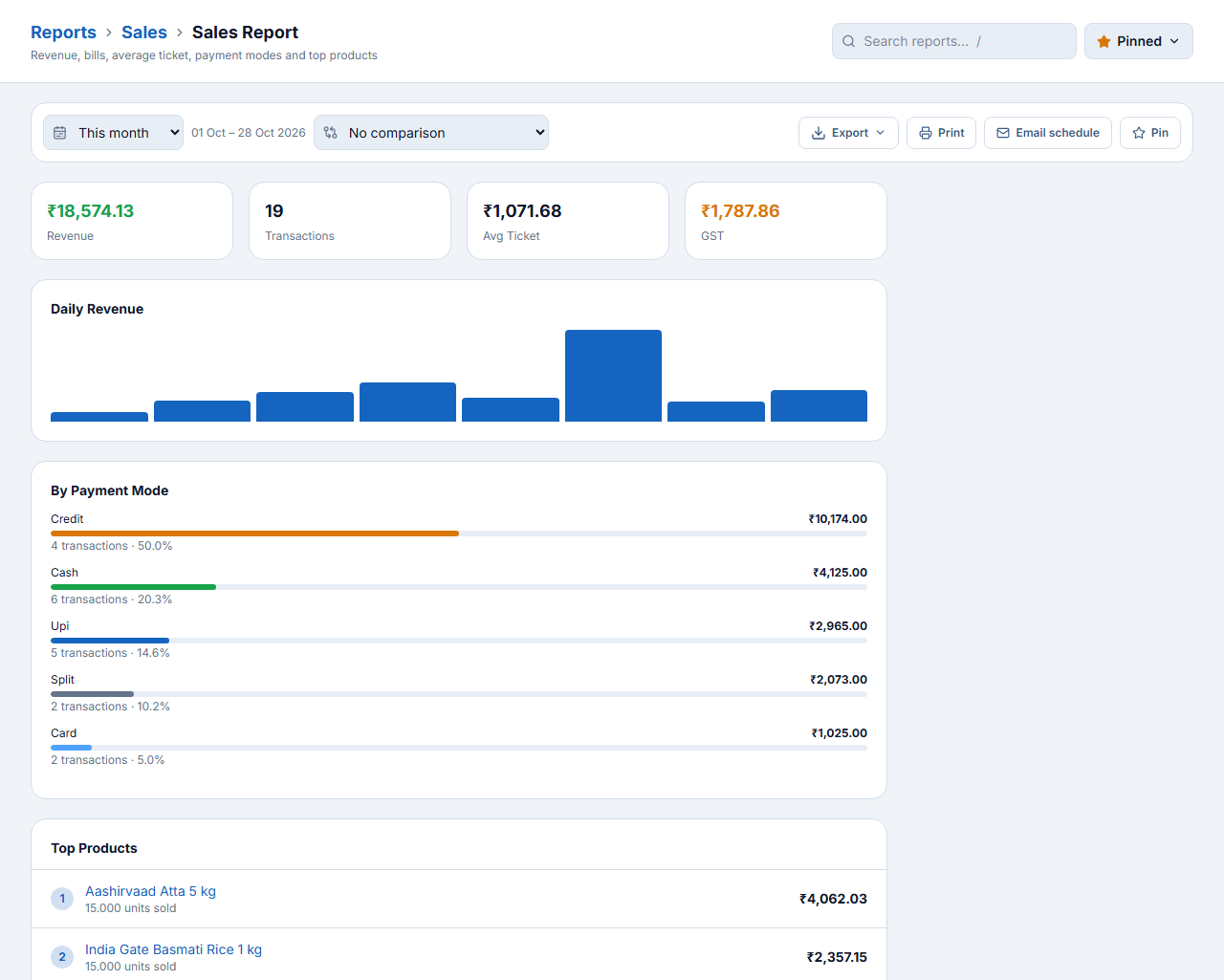
The Sales Report (1) shows revenue, number of bills, average ticket and GST, a daily revenue chart, the split by payment mode and the top products. Other sales reports: Sales Invoices, Quotations, Branch Comparison, Branch-wise Sales and the Tally-style Sales Register.
Stock, accounts, GST and dues reports§§reports-stock-accounts-gst-and-dues-reports§§
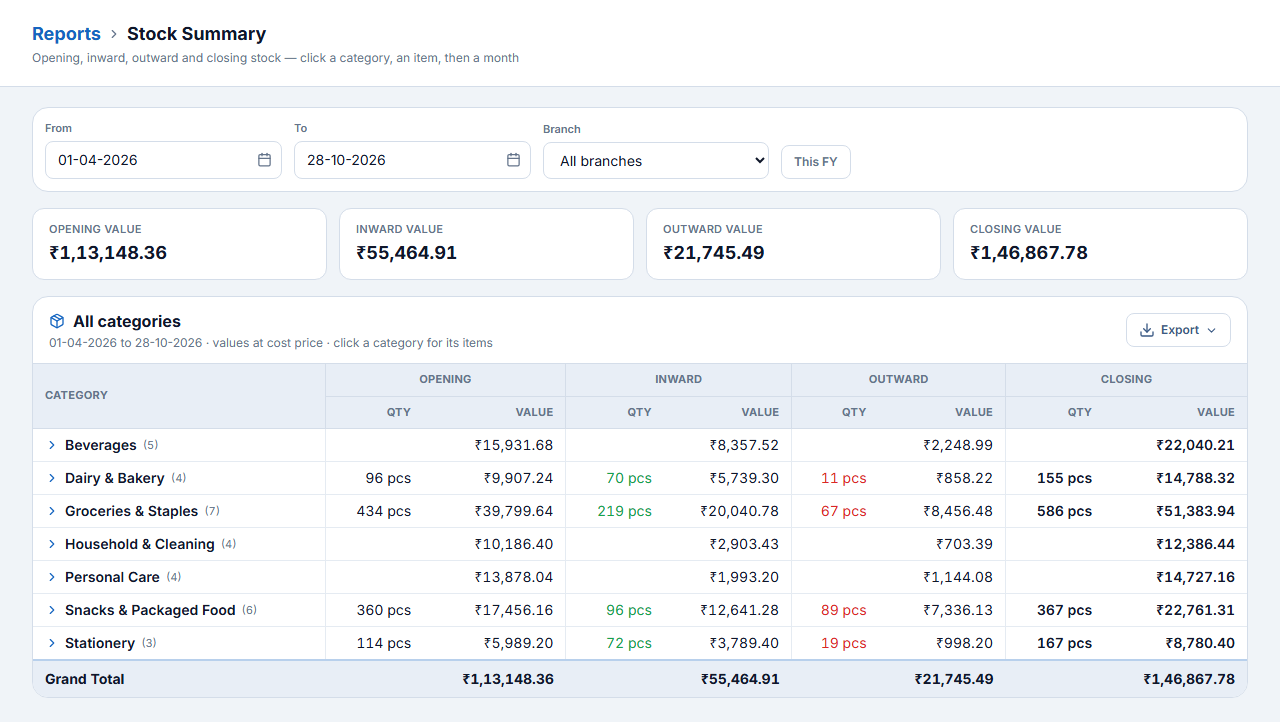
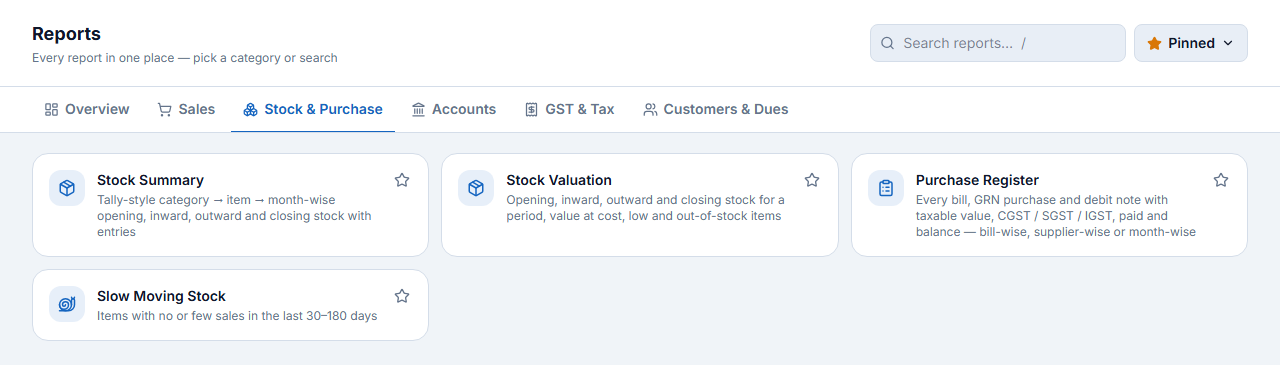
The Stock Summary shows opening, inward, outward and closing quantity and value by category — click a category for its items, then an item for its month-wise movement.

HR and Payroll Basics
Keep employee records, mark attendance, run monthly payroll and manage leave.
Staff ka record HR & Payroll mein: Add Employee, roz Mark Attendance, mahine ke end mein Run Payroll → salary slip. Leave request bhi yahin approve hoti hain.
HR dashboard§§hr-hr-dashboard§§
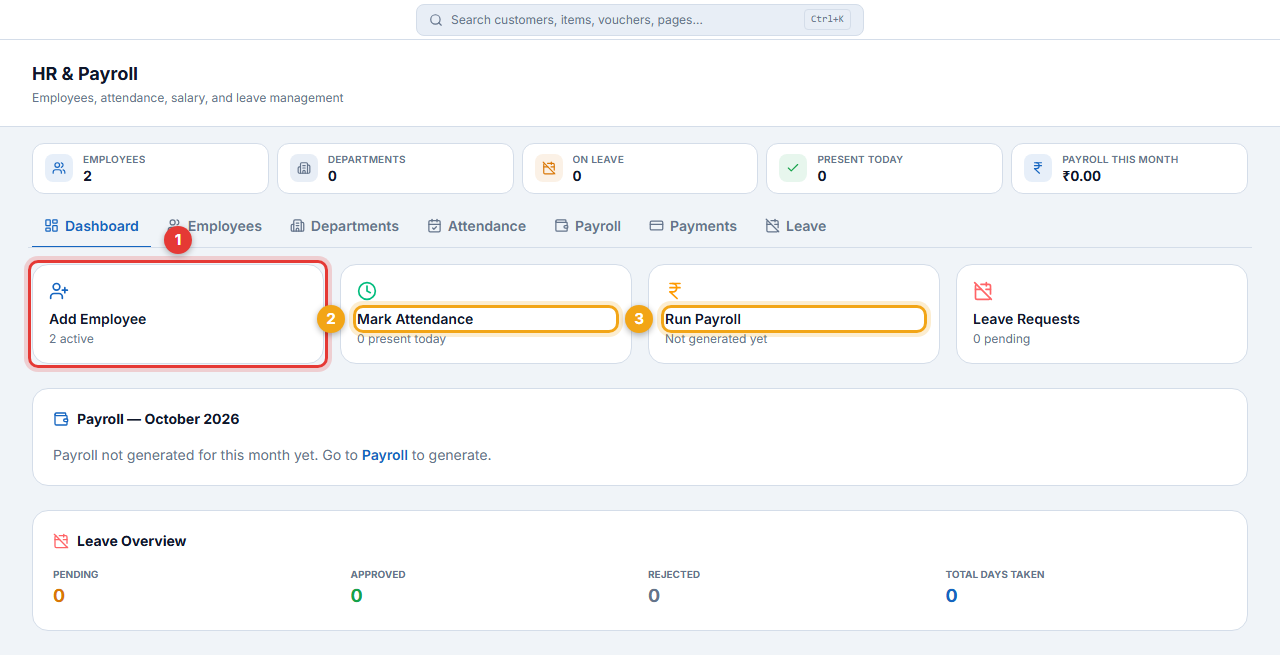
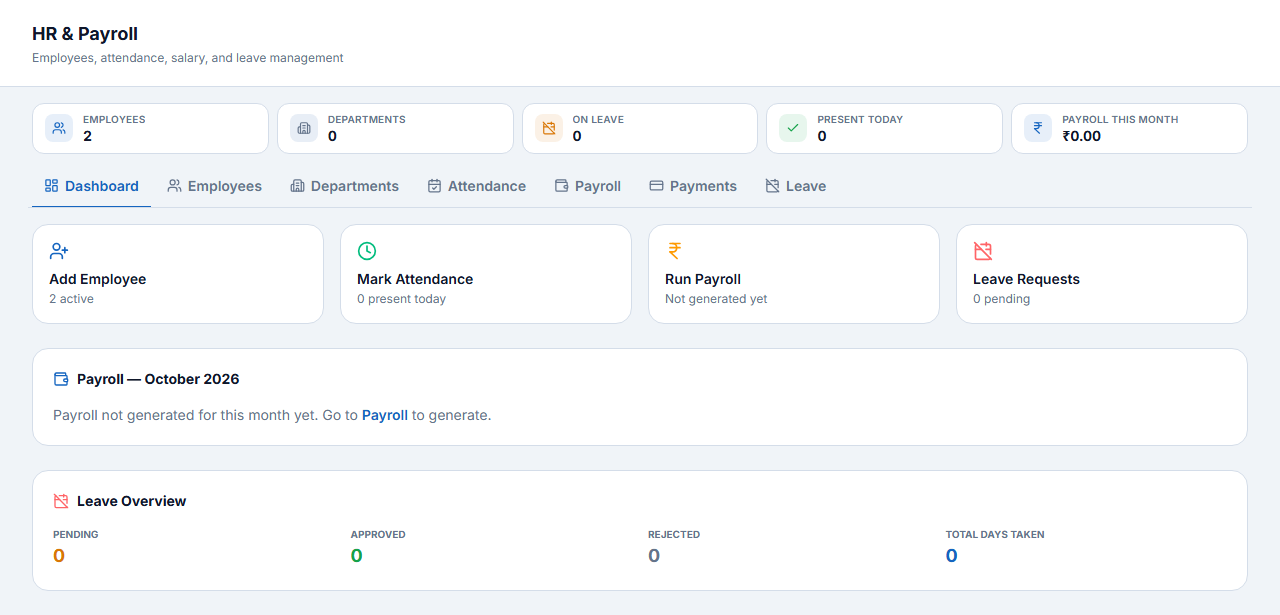
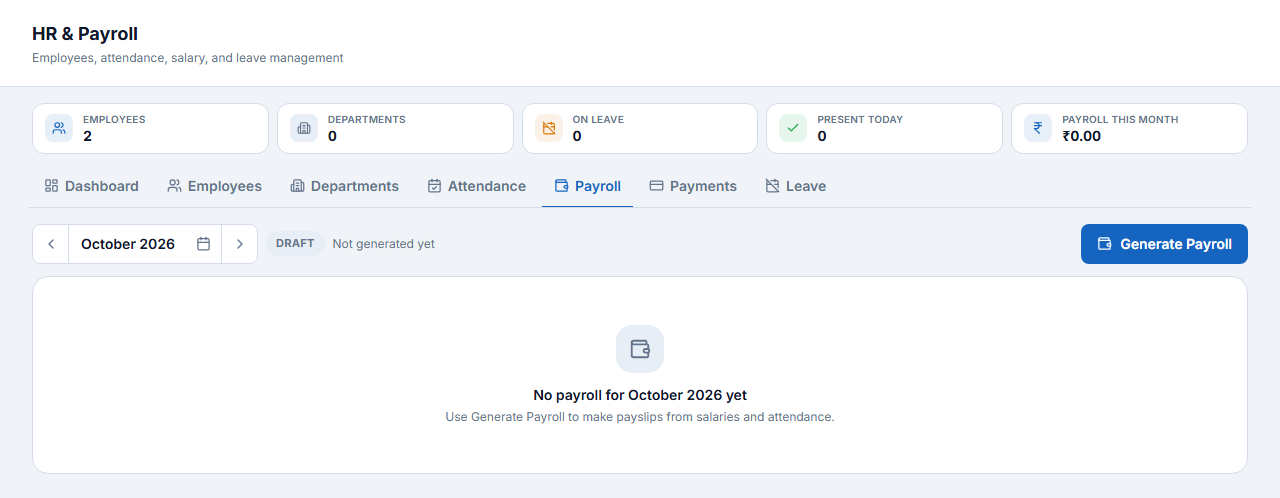
The top shows employees, departments, staff on leave, present today and this month’s payroll. Tabs: Dashboard, Employees, Departments, Attendance, Payroll, Payments and Leave. Quick cards: Add Employee (1), Mark Attendance (2), Run Payroll (3) and Leave Requests.
Employees§§hr-employees§§
- Open the Employees tab and click Add Employee.
- Enter name, email, phone, designation, employment type (full time, part time, contract, intern), joining date, salary and branch. PAN, Aadhaar and bank details are optional.
- Save. The employee gets an Advance and Statement button for salary advances and their ledger.
Attendance, payroll and leave§§hr-attendance-payroll-and-leave§§
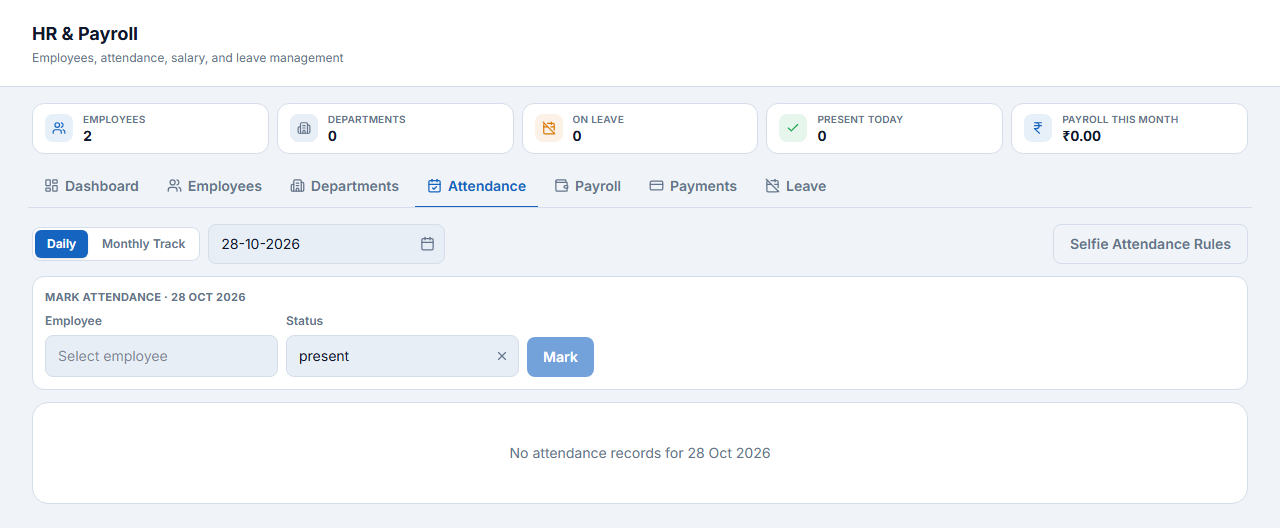
- Attendance — choose the date, the employee and the status (present, absent, half day, leave) and click Mark. Monthly Track shows the whole month; Selfie Attendance Rules let staff check in from their phone.
- Payroll — pick the month and click Generate Payroll. Salaries are worked out from attendance and leave; review, then pay from the Payments tab.
- Leave — approve or reject leave requests and see days taken.
Mobile and Desktop Apps
CoreAxis ePOS 3.0 for Android puts billing, khata, stock and reports on your phone. It works with the same login and data as the web.
Play Store se CoreAxis ePOS install kijiye, same email-password se login. Phone par bill, khata, stock aur reports. Internet na ho to bhi bill banta hai — net aate hi sync.
Install and sign in§§mobile-install-and-sign-in§§
- Install CoreAxis ePOS from the Google Play Store.
- Open the app and sign in with the same email and password as the web.
- Choose who is billing and enter your PIN on shared counter phones.
- Allow camera access if you want to scan barcodes with the phone camera.
What you can do on the phone§§mobile-what-you-can-do-on-the-phone§§
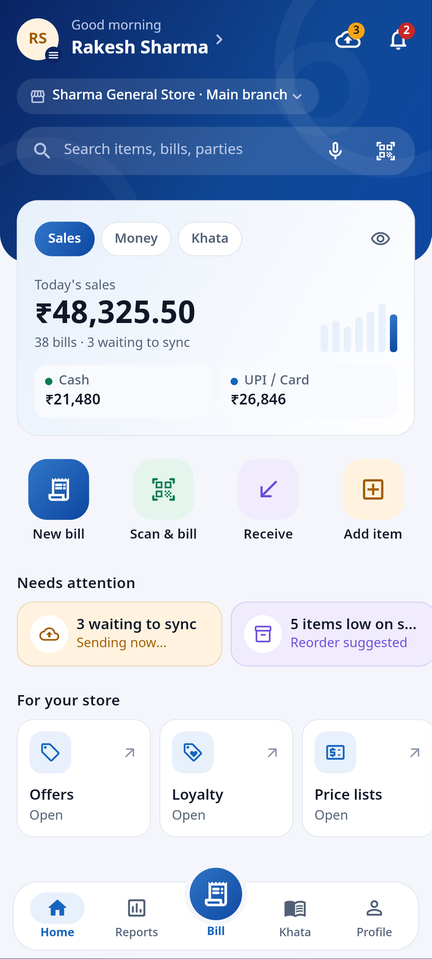
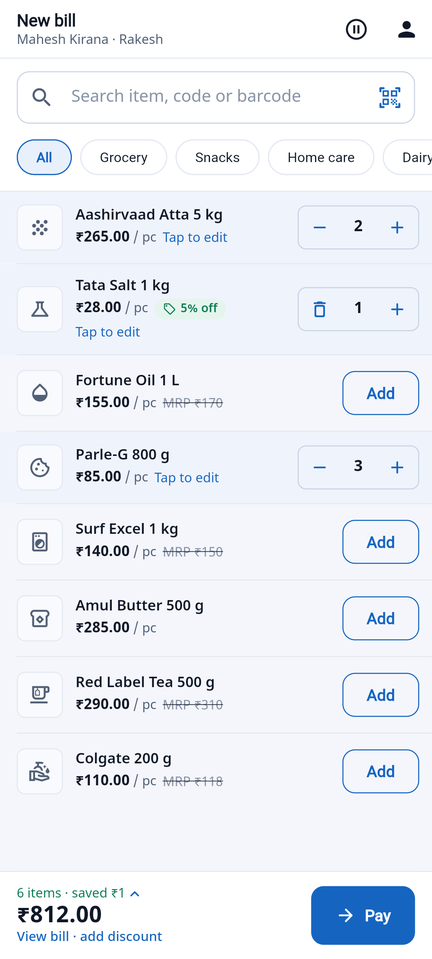
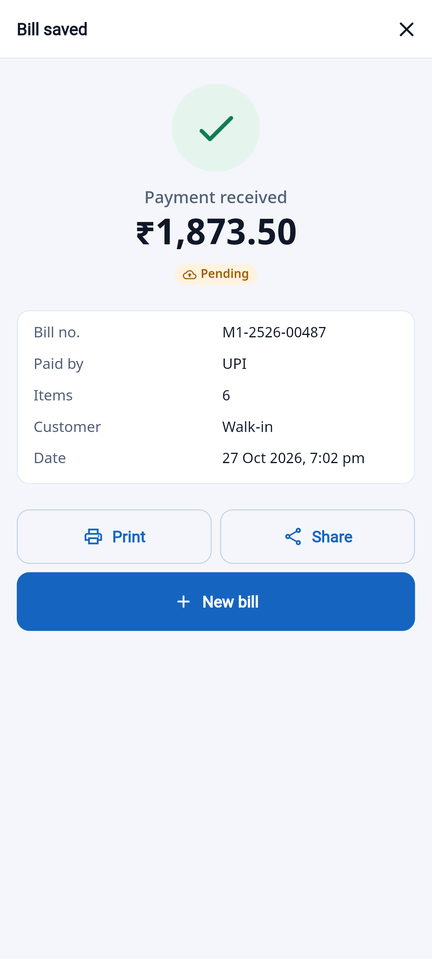
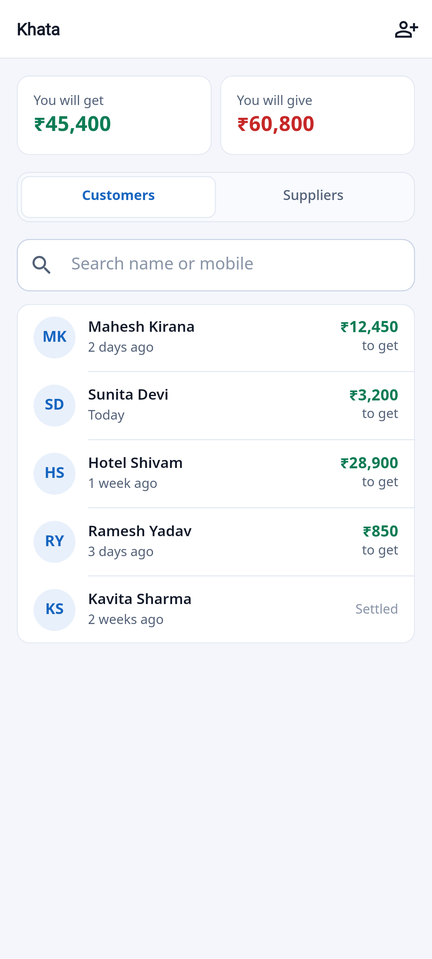
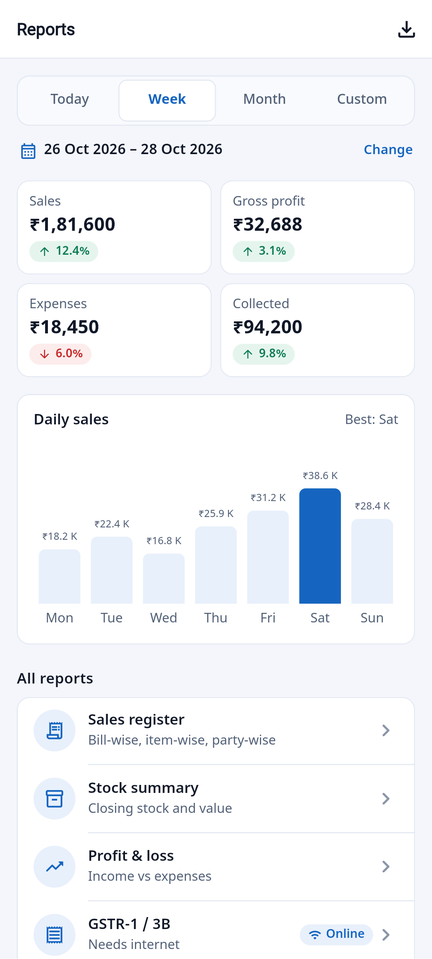
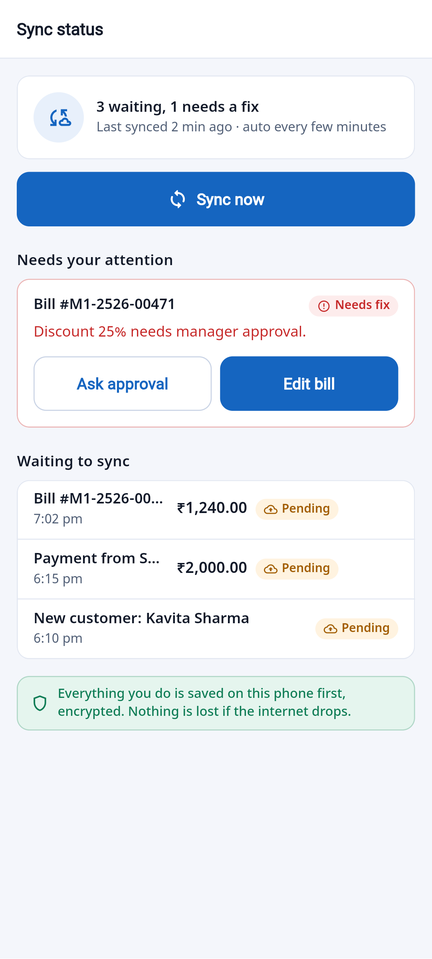
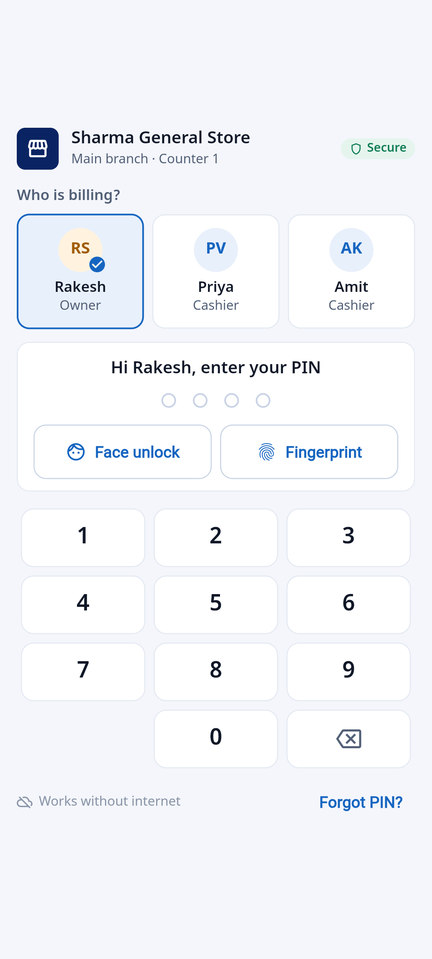
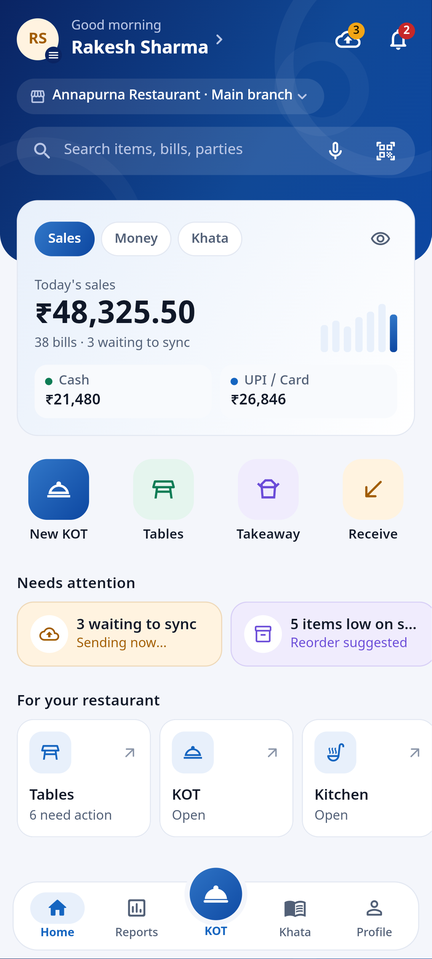
- Fast billing from your item list, search or camera barcode scan; change rate, item and bill discount.
- Cash, UPI, card or khata; hold a bill and resume it later.
- Print on Bluetooth or Wi-Fi thermal printers (58 / 80 mm) or share a PDF invoice on WhatsApp.
- Customer and supplier balances; record payments received and paid.
- Everything is saved on the phone first and syncs on its own when you are back online.
FAQ and Troubleshooting
Answers to the questions owners and staff ask most often.
I did not receive the OTP email.
It says “Active Session Found” when I sign in.
I forgot my password.
An item does not show in the POS.
The bill shows IGST instead of CGST + SGST.
“Insufficient balance” when paying a supplier or recording an expense.
The credit sale is blocked by the credit limit.
I made a mistake in a bill.
The internet is down.
A staff member can see screens they should not.
How do I take a backup?
Numbers in a report look wrong.
Keyboard Shortcuts
Work faster at the counter and in the back office.
| Key | What it does |
|---|---|
| Ctrl + K | Search anything — customers, items, vouchers, pages — or create something new |
| Ctrl + B | Collapse or expand the left sidebar |
| ? | Show the shortcuts help on the current screen |
| g then d / p / i / s | Go to Dashboard / POS / Inventory / Sales (press g, then the letter) |
| g then c / f / g / r / x | Go to Customers / Finance / GST / Reports / Settings |
| F3 | Expense voucher (outside POS) |
| F4 | Contra voucher — cash to bank, bank to cash (outside POS) |
| F5 | Payment voucher (outside POS) |
| F6 | Receipt voucher |
| F7 | Journal voucher |
| F8 | Sale / POS (outside POS) |
| F9 | Purchase |
| F10 | Reports |
| F12 | Settings / Configure |
| Alt + F1 / Alt + F2 | Previous / next financial year |
| Ctrl + E | Export the current page (CSV / PDF) |
| Ctrl + P | Print the current page |
| Esc | Close a dialog or clear a search box |
| In the POS | |
| Enter (barcode box) | Add the scanned or typed item |
| F2 | New sale — clear the bill |
| F3 | Jump to customer (party) search |
| F4 or Ctrl + Enter | Checkout |
| F5 | Hold (park) the current bill |
| F8 | Print the last receipt again |
| Alt + 1 / 2 / 3 / 4 | Payment mode Cash / UPI / Card / Credit |
| Alt + C | Create a new customer from the name typed |
| ↑ ↓, + / −, Del | Move between bill lines, change quantity, remove a line |
| In vouchers | |
| Ctrl + Enter | Save the voucher |
| Alt + N | New voucher (clear the form) |
| Alt + C | Create a party or ledger on the spot |
Glossary
Business, GST and accounting words used in this manual, in plain language.
- B2B / B2C
- Business-to-business sale (the buyer has a GSTIN) / business-to-consumer sale (no GSTIN). They are reported separately in GSTR-1.
- Branch
- A shop, outlet or warehouse of the same business. Stock, bills and cash are kept per branch; reports can combine them.
- CGST / SGST / IGST
- GST split. Inside your own state the tax is half CGST + half SGST; to another state it is IGST. The software decides this from the GSTINs and the place of supply.
- Contra
- A voucher that only moves money between your own cash and bank accounts (for example depositing cash in the bank).
- Credit note
- A document that reduces what a customer owes you — for a return, a rate difference or a discount after the sale.
- Debit note
- A document that reduces what you owe a supplier — for example goods returned to them.
- Delivery challan
- A document that goes with goods that are not a sale yet — on approval, for job work or for a stock transfer.
- Financial year (FY)
- The accounting year, 1 April to 31 March in India. Bill numbers and reports follow the FY.
- GSTIN
- The 15-character GST number. The first two digits are the state code (08 = Rajasthan, 27 = Maharashtra).
- GSTR-1 / GSTR-3B
- Monthly or quarterly GST returns: GSTR-1 lists your sales, GSTR-3B is the summary with the tax you pay.
- HSN / SAC
- Codes that classify goods (HSN) and services (SAC) for GST. They print on invoices and in GSTR-1.
- ITC (Input Tax Credit)
- GST you paid on purchases and expenses, which you can set off against the GST you collect.
- Khata / Credit sale
- Selling now and collecting later. The amount goes to the customer's ledger as outstanding.
- Ledger
- The account page of one party or head (a customer, supplier, bank, expense) with every entry and the running balance.
- MRP
- Maximum Retail Price printed on the pack. The selling price cannot be higher.
- Opening balance / stock
- The amount owed or the quantity in hand on the day you start using the software.
- Price level
- A named price list (for example Wholesale) you can attach to customers so they automatically get their prices.
- Purchase order (PO)
- The order you place with a supplier. When the goods arrive you receive it, and stock and the supplier's ledger are updated.
- Reorder level
- The stock quantity at which an item shows as “low stock” so you buy more in time.
- Receipt / Payment
- Money received from a customer / money paid to a supplier or for an expense.
- Role
- A set of permissions (for example Cashier, Accountant). Each staff login gets a role that decides what they can see and do.
- SKU
- Stock-keeping unit — your own short code for an item, unique within your business.
- Tax-inclusive price
- A price that already includes GST. The software works backwards to find the taxable value and the tax.
- Voucher
- Any accounting entry: sale, purchase, receipt, payment, contra, journal or expense.
- 2FA (two-factor authentication)
- A second check at sign-in — a code from an authenticator app — in addition to the password.
Support and Contact
Questions about your account, a plan, training for your staff or a problem on screen — reach us any way that suits you.